Pellerin Milnor Corporation 47
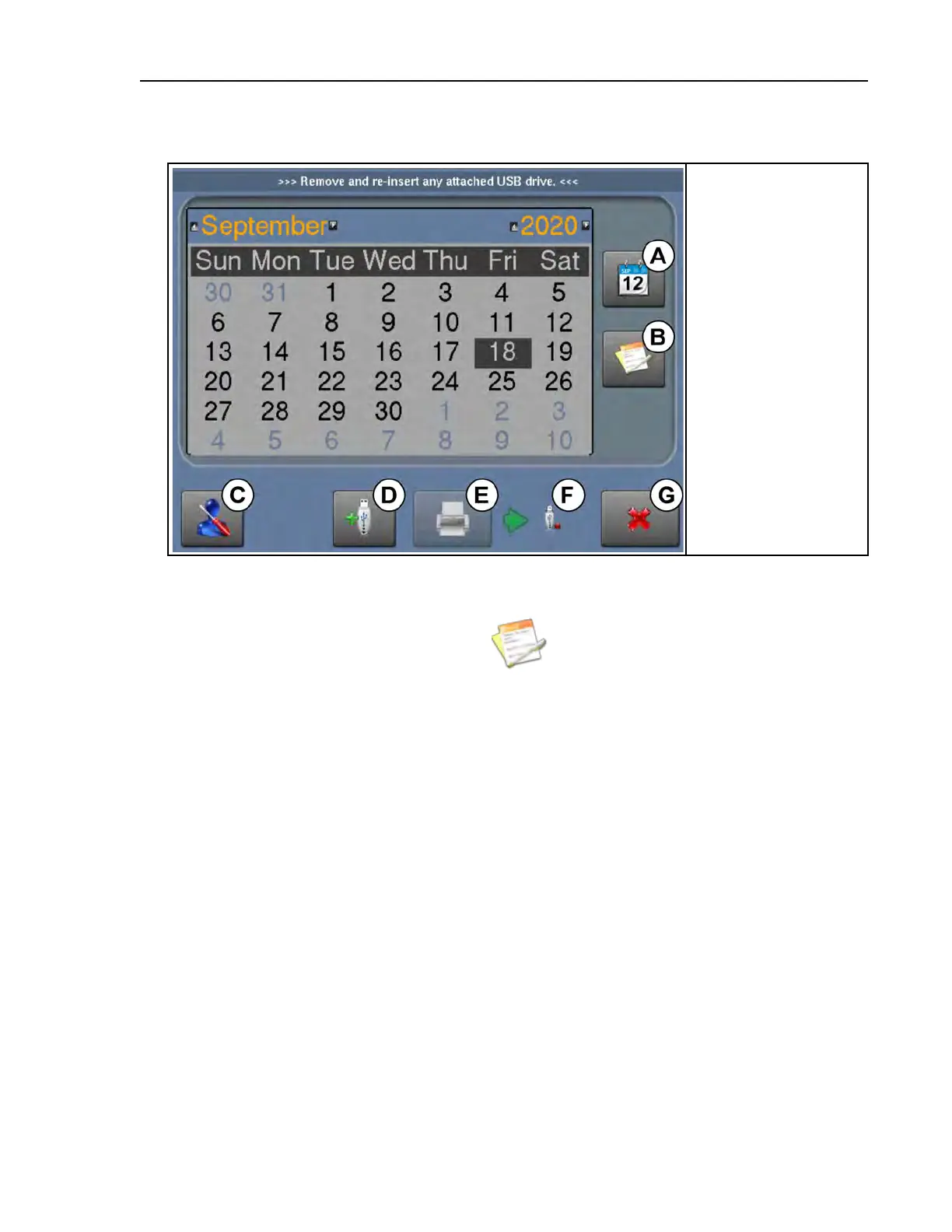
Figure 20. Production Reports Display
Legend
A...Display the calender
to choose a date
B...Generate a produc-
tion report for the se-
lected day, month, or
year
C...Display the Pellerin
Milnor Corporation
contact information
D...Mount or unmount a
USB flash drive
E...Export the produc-
tion report as a .txt
file to a USB flash
drive
F...Available media
indicator
G...Return to the Home
display
2. On the calendar (like the one in Figure 16: Calendar, page 43 ), touch a date to view the pro-
duction report for that date. You can use the arrow buttons to change the month and the year.
3. On the Production Reports display, touch
. A selection list appears.
4. Make a selection from the list:
• Select “Day” to view the production report for only the date you selected (Ex. September
18th 2020).
• Select “Month” to view the production report for the month of the date you selected (Ex.
September 2020).
• Select “Year” to view the production report for the year of the date you selected (Ex.
2020).
A production report, such as the one in the following figure, appears on the Production Reports
display. Use the scroll bar on the right to scroll up and down and view the whole report.
Troubleshooting




 To Next Page