What to do if my Nisca Printer displays 'Card Empty'?
- VValerie BondAug 23, 2025
If the Nisca Printer indicates 'Card Empty', it signifies that there are no more cards in the printer. You need to load cards into the printer.
What to do if my Nisca Printer displays 'Card Empty'?
If the Nisca Printer indicates 'Card Empty', it signifies that there are no more cards in the printer. You need to load cards into the printer.
Indicates risks of accidents, fire, or electric shock if used improperly.
Indicates risks of injury or malfunction if used improperly.
Provides critical advice to prevent damage or malfunction.
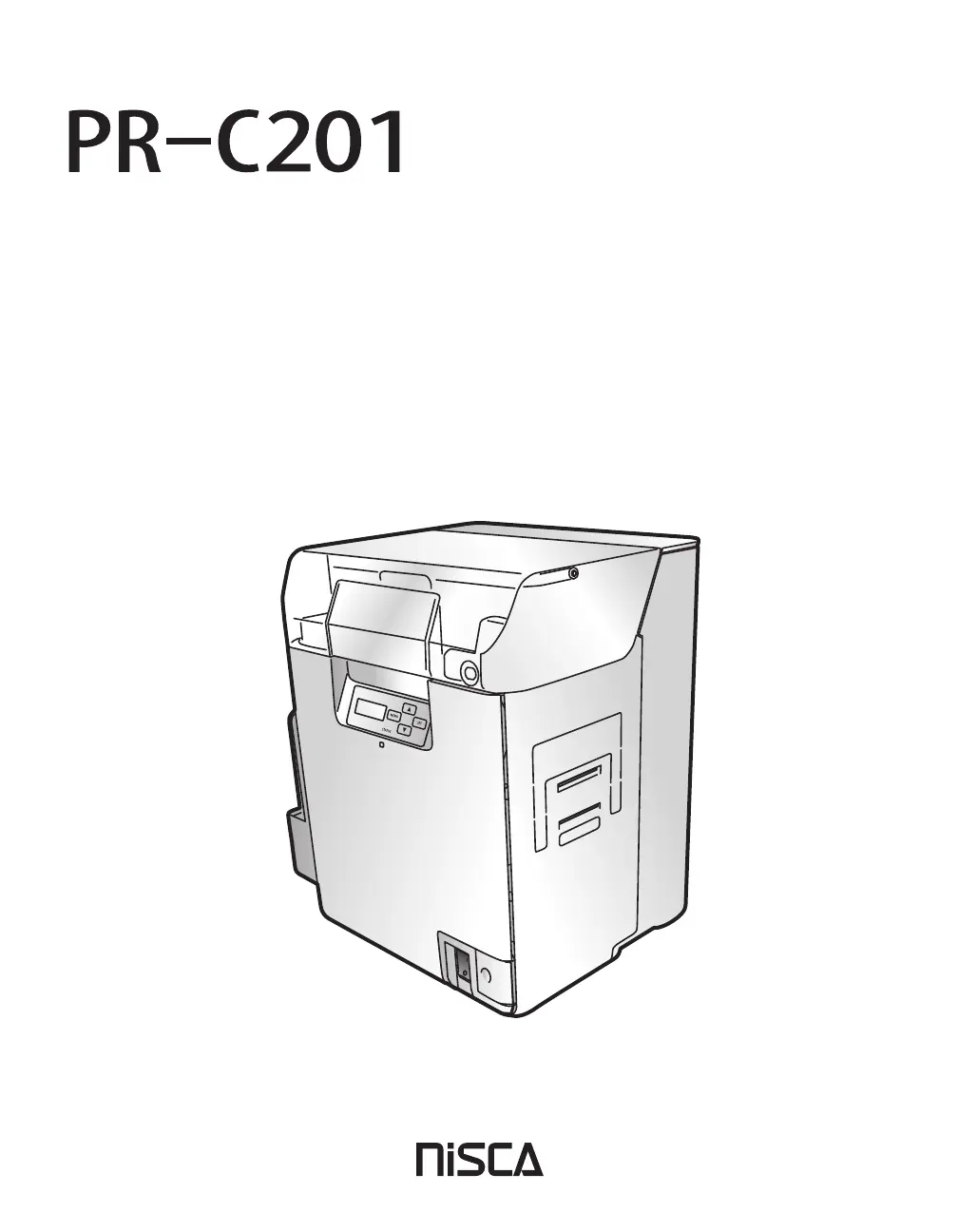
Details and illustrations of the printer's front components.
Describes components located inside the top cover.
Details and illustrations of the printer's rear components.
Describes components and access related to the front cover.
Explains the function of the printer's control panel.
Alerts to hot components like the heat roller and thermal head sections.
Avoid unstable surfaces, vibrations, temperature changes, and direct sunlight.
Use proper power connections and handle the printer with care.
Step-by-step instructions for powering the printer on and off.
Procedure for loading multiple cards into the card case.
Instructions on how to switch from Normal Mode to User Mode.
Instructions on exiting User Mode.
Monitoring Ink Ribbon and Transfer Film quantities.
Adjusting vertical and horizontal placement of printed content.
How to use a cleaning card to clean rollers.
Explains error messages and how to clear them.
Provides solutions for common error messages.
Steps to remove cards jammed inside the card case.
Troubleshooting print issues caused by dirt and card condition.
Troubleshooting unprinted areas and print flaking.
Troubleshooting power and data transfer problems.
Resolving network connection problems.
Details on ink ribbons and transfer film types.
Specifications and usage guidelines for cards.
Indicates risks of accidents, fire, or electric shock if used improperly.
Indicates risks of injury or malfunction if used improperly.
Provides critical advice to prevent damage or malfunction.
Details and illustrations of the printer's front components.
Describes components located inside the top cover.
Details and illustrations of the printer's rear components.
Describes components and access related to the front cover.
Explains the function of the printer's control panel.
Alerts to hot components like the heat roller and thermal head sections.
Avoid unstable surfaces, vibrations, temperature changes, and direct sunlight.
Use proper power connections and handle the printer with care.
Step-by-step instructions for powering the printer on and off.
Procedure for loading multiple cards into the card case.
Instructions on how to switch from Normal Mode to User Mode.
Instructions on exiting User Mode.
Monitoring Ink Ribbon and Transfer Film quantities.
Adjusting vertical and horizontal placement of printed content.
How to use a cleaning card to clean rollers.
Explains error messages and how to clear them.
Provides solutions for common error messages.
Steps to remove cards jammed inside the card case.
Troubleshooting print issues caused by dirt and card condition.
Troubleshooting unprinted areas and print flaking.
Troubleshooting power and data transfer problems.
Resolving network connection problems.
Details on ink ribbons and transfer film types.
Specifications and usage guidelines for cards.