ACCESS GATEWAY
116 System Administration
Adding an Upstream RADIUS NAS
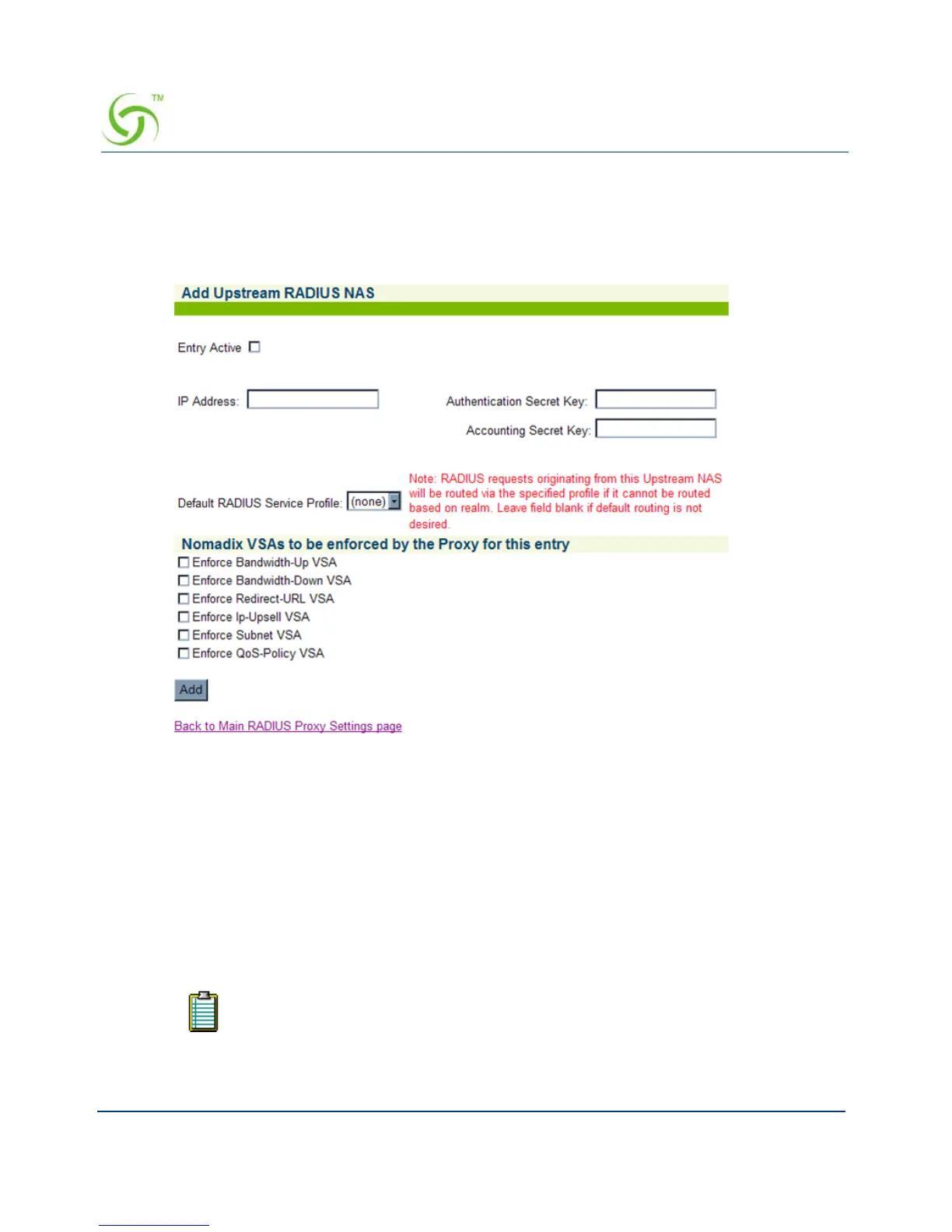
1. If you want to add a new Upstream RADIUS NAS (for example, an 802.11 Access Point
on the subscriber side of the Access Gateway), click on the
Add button. The Add
Upstream RADIUS NAS screen appears:
2. To make this entry the “active” NAS entry, click on the Entry Active check box.
3. Enter an IP Address for the Upstream NAS.
4. Enter a secret key in the Authentication Secret Key field. During the authentication
process, the server and client exchange secret keys. The secret keys must match for
communication between the server and the client to continue. The secret key is a valuable
and necessary security measure.
5. Enter a secret key in the Accounting Secret Key field.
6. Select the Default RADIUS Service Profile from the pull-down menu (see note).
RADIUS requests originating from this Upstream NAS will be routed via the
specified profile if it cannot be routed based on realm. Leave this field blank if
default routing is not desired.



 To Next Page