EXPLORER BALANCES EN-15
3. OPERATION
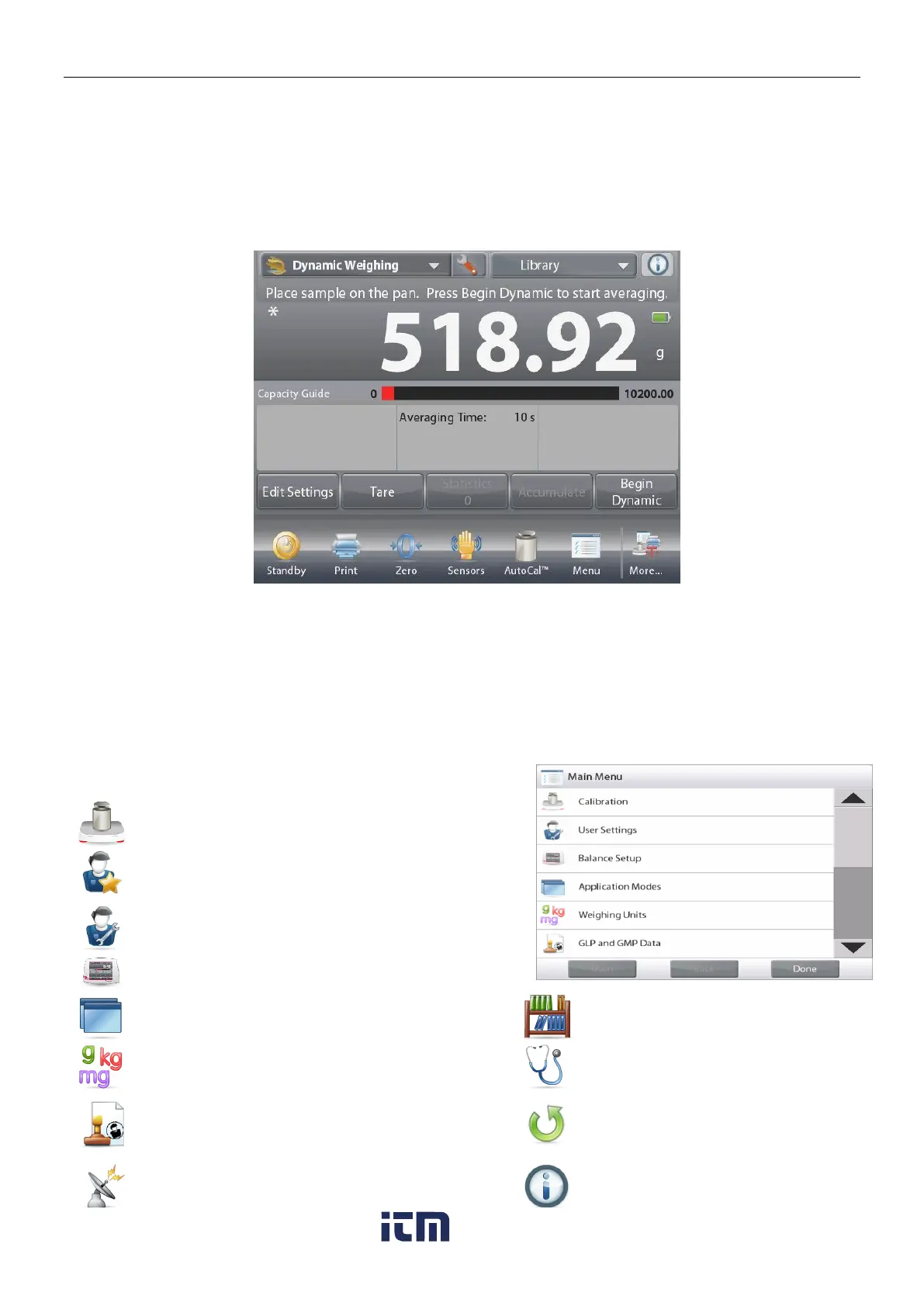
3.1 Overview of Display, Home Screen
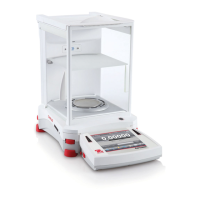
This equipment utilizes a touch-sensitive display. Touch areas and Buttons to control the equipment’s functions.
Touch to access application setup menu
Touch to change
applications
Touch to access
available libraries
Touch for information menu
Stability (*), Net (NET),
Gross (G) and/or center
of zero (>0<) indicators
Battery life indicator (shown
when powered by optional
battery pack)*
Touch unit indicator to
change weighing unit
Capacity or Status Guides:
Vary by application
Result Fields:
Information varies by
application
Application Buttons:
Functions vary by
application
Touch icons to perform
specific functions or
access other functions
*Battery pack is only for EX12001, EX24001, EX35001 and their related models.
3.2 Principal Functions and Main Menu
Weighing: Press Tare to set the display to zero. Place an item on the pan. Display indicates gross weight.
Taring: With no load on the pan, press Tare to set the display to zero. Place an empty container on the pan
and press Tare. Add material to the container and its net weight is displayed. Remove container and
container’s weight appears as a negative number. Press Tare to clear.
MENU & SCREEN NAVIGATION
Touch Menu to open the menu list.
Touch and drag the Scroll bar to view additional items.
Calibration:
Touch to view calibration options.
User Management:
Touch to view user management settings.
User Settings:
Touch to view user preferences.
Balance Setup:
Touch to view balance settings.
Application Modes:
Touch to view application modes.
Library:
Touch to delete all Library records.
Weighing Units:
Touch to view weighing units.
Diagnostics:
Touch to view Diagnostics items.
GLP and GMP Data:
Insert user data for traceability.
Factory Reset:
Touch to do a Factory reset.
Communication:
Touch to view COM Device Settings and Print
Settings.
Information:
Touch to view list of topics.
w ww . . co m
information@itm.com1.800.561.8187



 To Next Page