EN-46 EXPLORER BALANCES
4.4.7 Statistics for Check Weighing
Use the Statistics function to compare a number of samples and examine the relative deviation of the samples
along with other statistical data. A minimum of three samples is required.
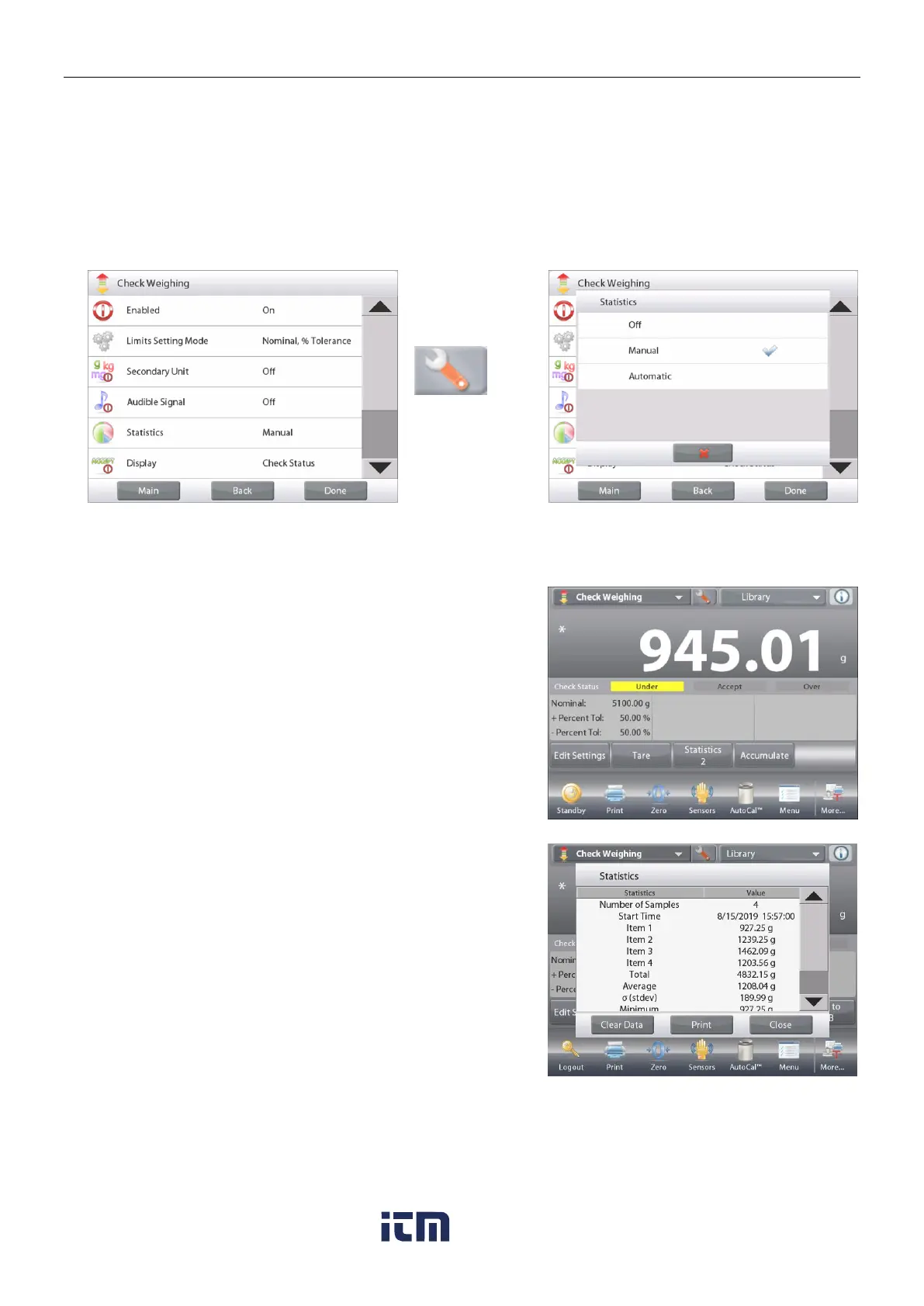
Statistics can be determined manually (with key press after each step) or automatically (weights recorded
automatically when stable). To use the statistics function, enable it first in the Application Setup menu.
Application Setup
First, Enable Statistics.
Touch the
Setup
Icon wrench to
enter Setup
menu.
Touch
Statistics
.
Choose either
Manual
or
Automatic
, then
press
Done
.
Accumulating Displayed Values & Viewing Data – Manual
Once Statistics is enabled, two buttons appear on the Application screen: Statistics and Accumulate.
To add the sample to the data set, place the item on the pan and
press Accumulate.
When stable, the
Statistics
button momentarily lights to show
the item is added to the set and the data set quantity increments
by one.
Continue adding items and pressing Accumulate to build the
statistical data set
At any time, press the
Statistics
button to view the results.
The Statistics Results screen
Press Print to send to the enabled COM port
Press Close to return to the Application home screen
with the current statistics set.
Press
Clear Data
to clear the results and return to
the Application home screen.
Statistics – Automatic
Statistics Automatic mode is similar to manual mode (above) except the first stable weight is automatically
captured. Thus the Accumulate button is not used.
w ww . . co m
information@itm.com1.800.561.8187



 To Next Page