Connect+® Series Operator Guide
under the image list.
By selecting one of the filter buttons you can choose to display only those images that are
in color, mono (black), or postal red. If your system has a mono and postal red printer,
there will only be 2 filter option buttons. Systems having only the postal red printer do not
have any filter option buttons since all the graphics are postal red.
4. A graphic image which has a checkmark in front of it has been selected for placement in
the Transpromotional zone of the mail piece.
Adding a Graphic
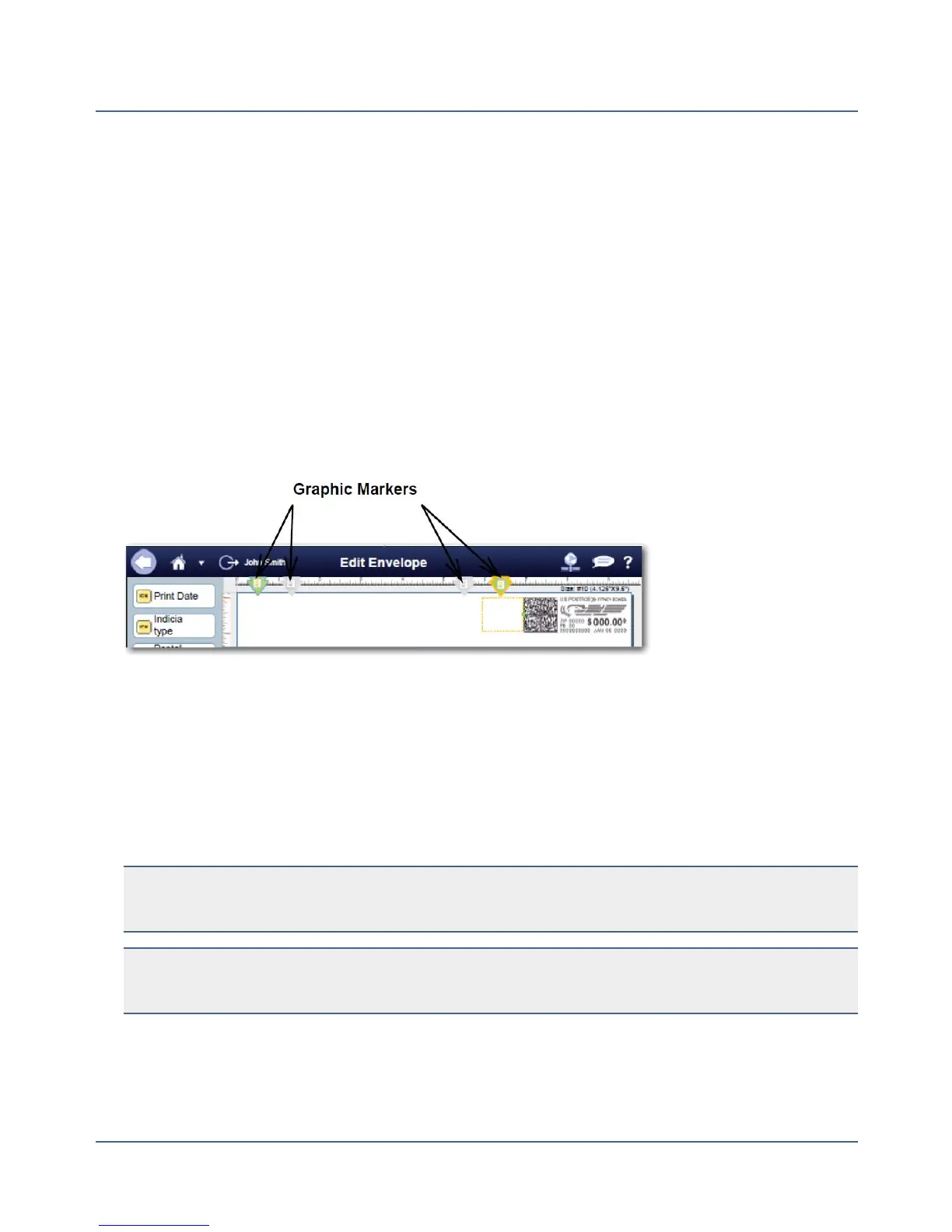
1. As soon as you open the Graphic Ad screen, a series of markers appears at the top of the
transpromotional section as shown here:
2. The number of markers that appear depend on the size of the envelope or tape. The
envelope shown here corresponds to a # 10 envelope and has four graphic markers.
3.
The markers are grouped as left justified (left edge of the envelope) or right justified (next
to the indicia). The markers define the locations for the graphic images.
4.
To select a graphic, choose the marker, then select the graphic from the list (a checkmark
appears in the checkbox).
NOTE:If the zone is empty, by default the right justified marker next to the indicia is auto-
matically selected and the first graphic will appear in this location.
NOTE: To remove the graphic, simply de-select it so that the checkmark is removed
from the checkbox.
5.
Select OKto place the graphic on the envelope. The Run Mail screen appears with the
graphic displayed on the envelope.
72
SV62250 Rev. G











 To Next Page