Connect+® Series Operator Guide
Changing the Image/Message Drop Order
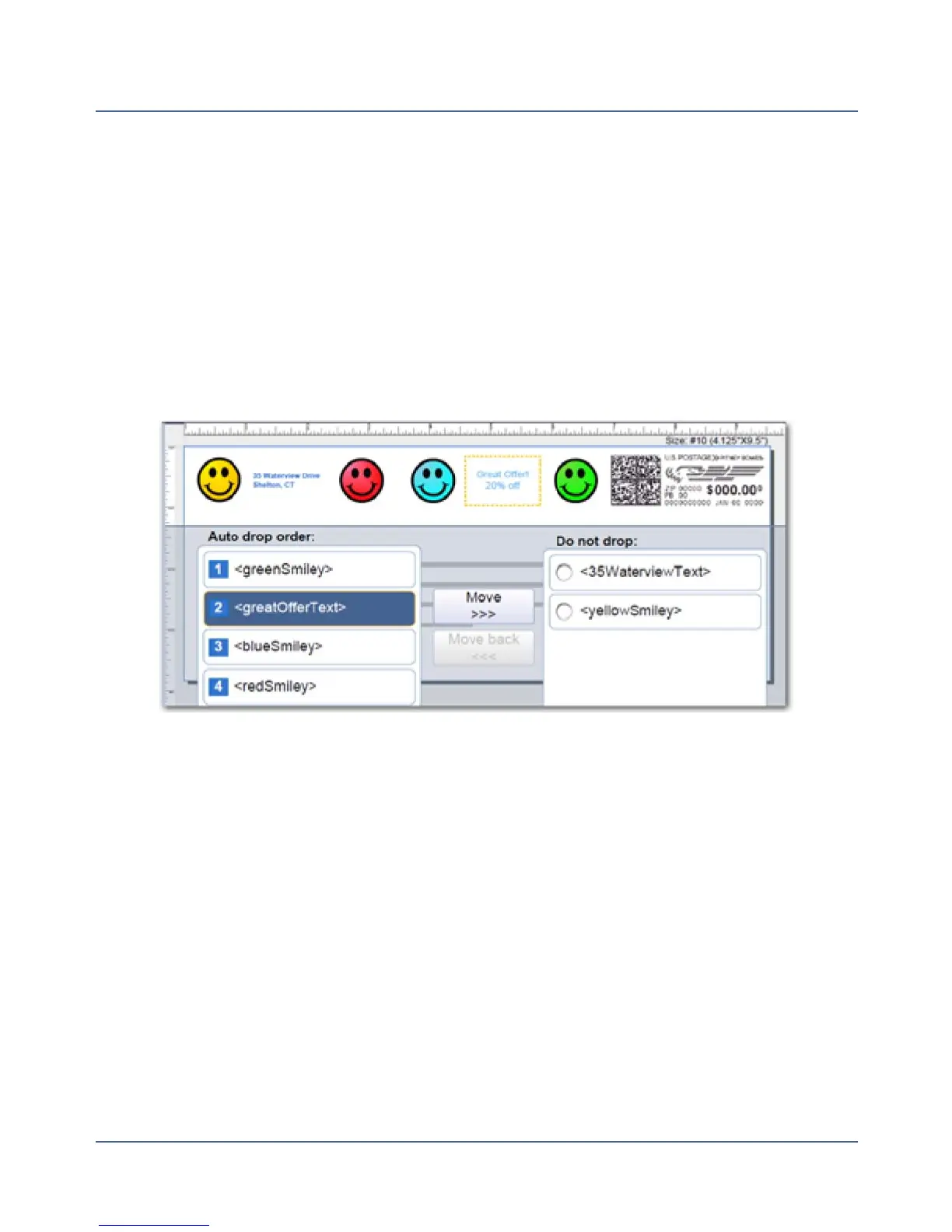
To select an image/message you do not want dropped during a WOW mail run:
1. Select anywhere within the envelope on the Run Mail screen. You can also select the
Edit envelope link.
2. Select the Print element drop order option from the list box on the left of the Edit envel-
ope screen.
3. The graphics and messages currently in the Transpromotional zone are listed in the left
Auto drop order list box.
4. Select the image/message from the Auto drop order list and then select Move. This
image/message now appears in the Do not drop list in the top position on the right. Select
OK.
5. To remove an image from the Do not drop list, select it and then select Move back.
About MyGraphics™ Designer
Your Connect+™ Series system has the flexibility to print customized messages and graph-
ics on the blank portion of your envelope while it's printing postage. The MyGraphics™
Designer tool from Pitney Bowes provides a simple way to create and transfer customized
graphics to your mailing system.
76
SV62250 Rev. G











 To Next Page