Reference Manual
00809-0100-4026, Rev FA
July 2009
5-13
Rosemount 5400 Series
Installing the RRM
software for HART
communication
To install the Rosemount Radar Master:
1. Insert the installation CD into the CD-ROM drive.
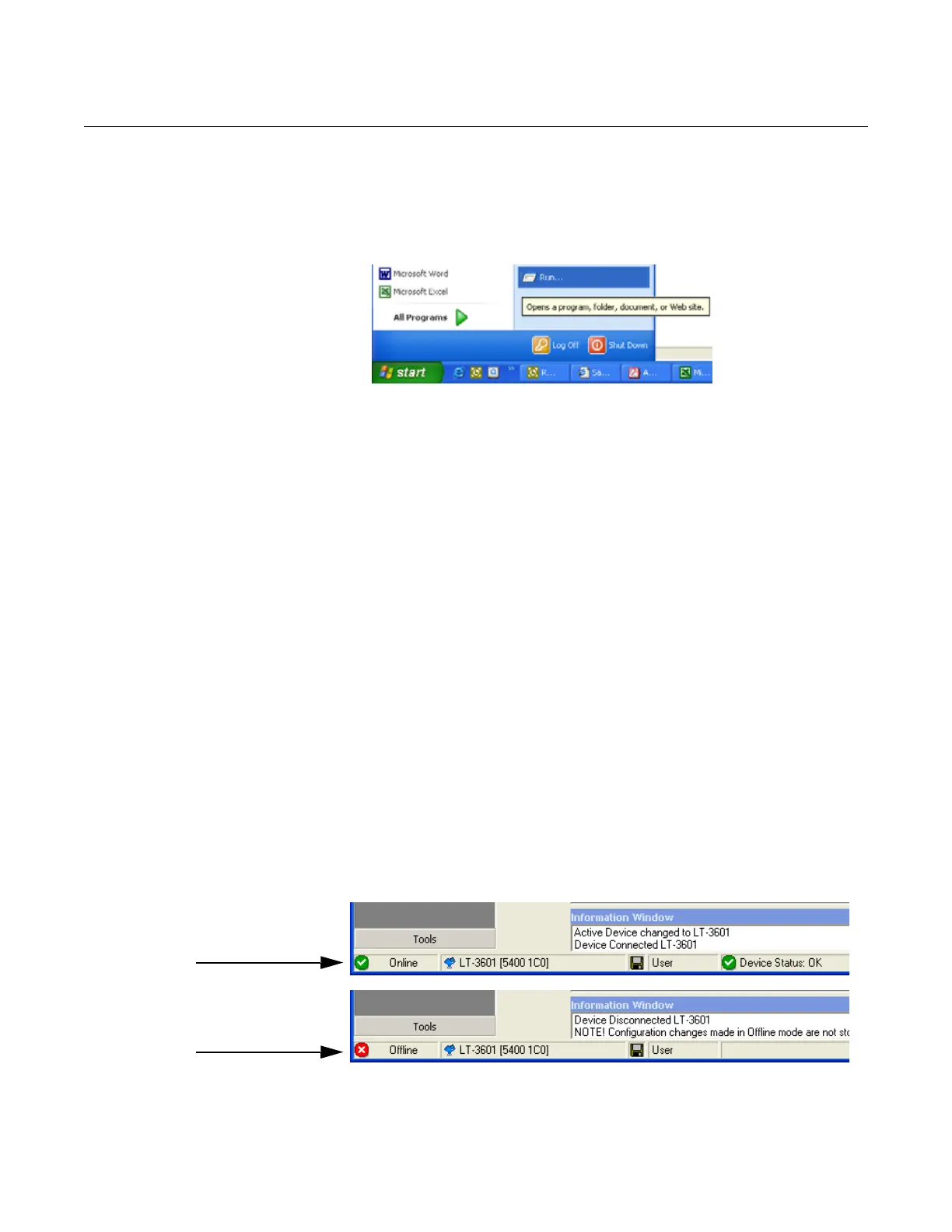
2. If the installation program is not started automatically, choose Run from
the Windows Start bar.
3. Type D:\RRM\Setup.exe where D is the CD-ROM drive.
4. Follow the instructions on the screen.
5. Make sure that HART is chosen as default protocol.
6. Set COM Port Buffers to 1, see page 5-14.
Getting started
1. From the Start menu, click Programs > Rosemount > Rosemount Radar
Master or click the RRM icon in the Windows workspace.
2. If the Search Device window did not appear automatically, choose menu
option Device > Search.
3. In the Search Device window, choose communication protocol HART
and click the Start Scan button (click the Advanced button to specify start
and stop address).
Now RRM searches for the transmitter.
4. The Search Device window presents a list of found transmitters.
5. Select the desired transmitter and press OK to connect. If
communication does not work, check that the correct COM port is
configured correctly and is connected to the computer. See “Specifying
the COM Port” on page 5-14. Verify from the Communication
Preferences window that HART communication is enabled.
6. The RRM Status Bar can be used to verify that RRM is communicating
with the transmitter:
RRM communicates
with the transmitter
No communication
with the transmitter




 To Next Page