Reference Manual
00809-0100-4026, Rev FA
July 2009
Rosemount 5400 Series
5-14
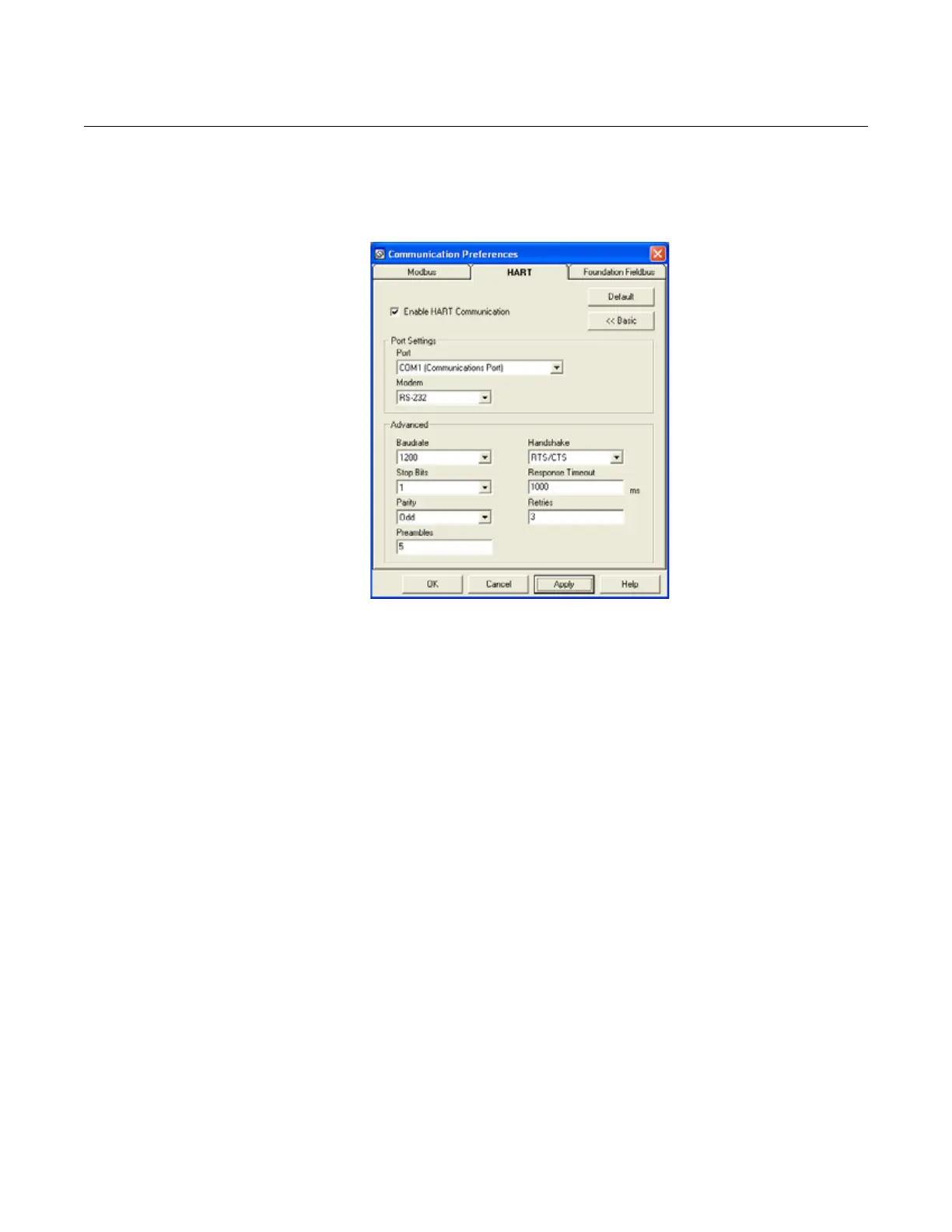
Specifying the COM Port If communication is not established, open the Communication Preferences
window and check that the correct COM Port is selected:
1. From the View menu, select Communication Preferences in RRM.
Figure 5-8. Communication
Settings.
2. Make sure that HART communication is enabled.
3. Check which COM port is connected to the modem.
4. Choose the COM port option matching the actual COM port on the PC
that is connected to the transmitter.
To set the COM port
buffers
The COM port Receive Buffer and Transmit Buffer need to be set to 1 by
doing the following:
1. In the MS Windows Control Panel, open the System option.
2. Choose the Hardware tab and click the Device Manager button.
3. Expand the Ports node in the tree view.
4. Click the right mouse button on the selected COM port and choose
Properties.
5. Select the Port Settings tab and click the Advanced button.
6. Drag the Receive Buffer and Transmit Buffer slides to 1.
7. Click the OK button.
8. Reboot the computer.
Specifying Measurement
Units
Measurement units for data presentation in RRM can be specified when the
RRM program is installed. Units can also be changed as follows:
1. Choose the Application Preferences option from the View menu.
2. Select the Measurement Units tab.
3. Choose the desired units for Length, Level Rate, Volume and
Temperature.




 To Next Page