Software v3.0.11065
© Satmap Systems Ltd 2017
10
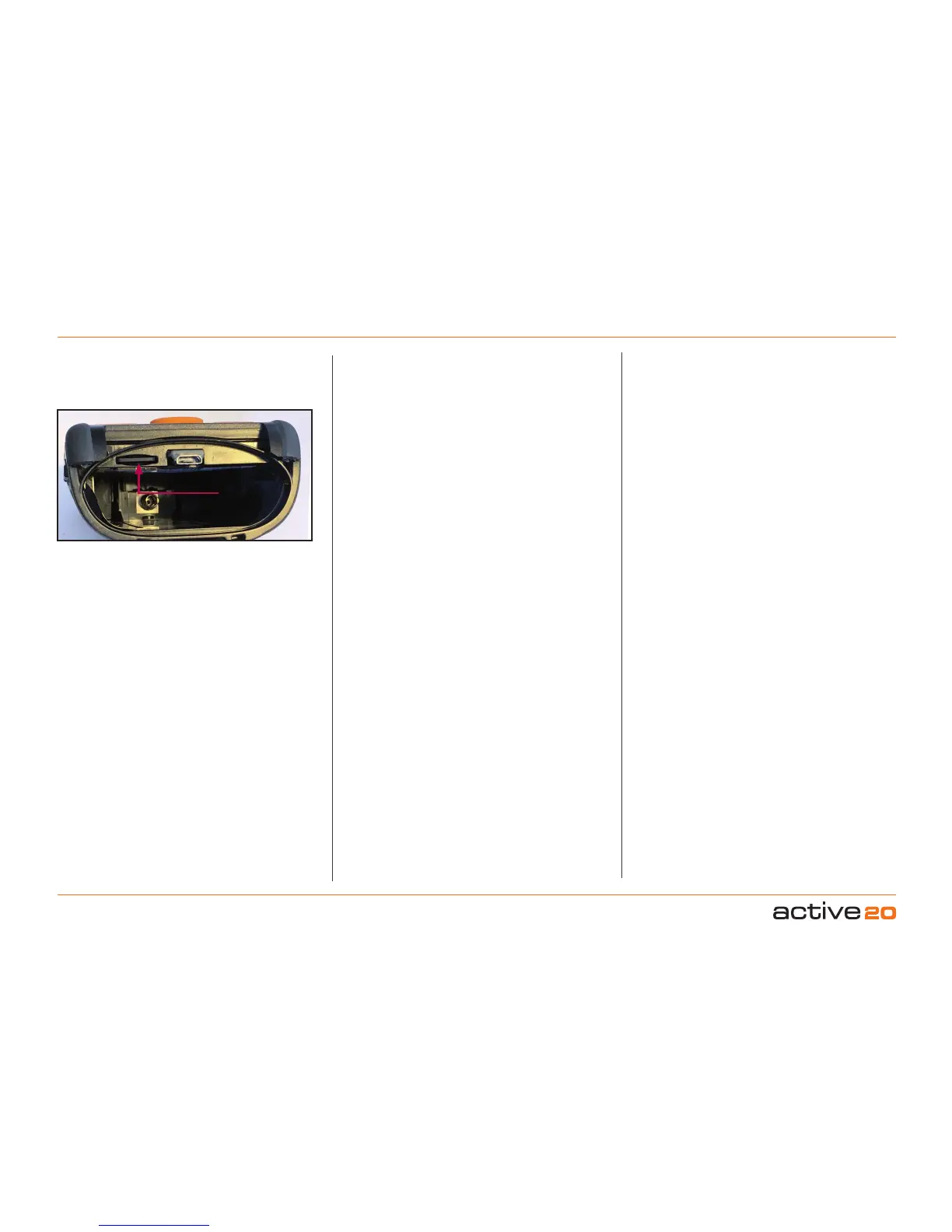
3.4 MapCardInsertion
The microSD MapCards have to be inserted with
the battery Pack removed. The microSD slot can
be seen on the Left hand Side of the microUSB
socket.
When inserting the card please ensure that the
text is facing upwards, and the bright terminals are
facing downwards.
3.5 BaseMapping
The Active 20 is supplied with a world base map
at 1:5m up to 1:200m (and in addition for UK
customers, a 1:1 m & 1:250k scale UK road map).
Once a map card has been inserted, you can zoom
through the base mapping to see more detail. If you
have a toggleable map, you can switch between
different map layers at a particular point on the
same zoom level, e.g. you can flip between the two
scales (1:50k and 1:25k) and the base map.
3.6 BatteryIconLHSofStatusBar
The yellow battery indicator is solid for new or fully
charged batteries. Upon purchase, please give the
unit a good charge for best results prior to use. As
the charge decreases the icon is broken into four
bars which then reduce. When a single bar remains,
it is coded green then red. After some further time
(depending on the power source and activity), an
on-screen warning alerts that the unit will power off
in 30 seconds and a countdown is shown.
If you are using the rechargeable LiPol battery
the battery indicator shows a lightning flash whilst
charging, and an approximate %age level of chage
will be shown.
3.7 Start&StopIcons
On the Right Hand Side of the Status Bar the Stop/
Record icon indicates that data logging is either
paused or recording. This can be accessed on the
TRIP LOG screen. When the unit has a lock, the
record icon has a solid green arrowhead. The record
icon is shown as ‘empty’ when there is no lock. A
red pause symbol indicates data logging is paused.
3.8 PLANNINGMode
Moving the rocker-pad or swiping the touchscreen
changes the screen from the GPS MAP screen to
the PLANNING screen. The blue circle (Location
Icon) will move away from the middle of the screen
as you control the rocker pad to move the map.
A visual cue that you are in planning mode is the
black Locator Square which has long crosshairs.
In PLANNING mode you can plan routes via the
Routes Menu, study the map using the rocker pad to
pan across the map, and set a GoTo point/Marker/
POI.PleaseNote - it is very easy to move the screen
into PLANNING mode, and lose your current location.
To re-centre your location on the map - simply press
the U-R-Here button, left-hand side of the rocker-pad
3.9 SatSYNC
(Refer to SatSYNC User Guide)
SatSYNC is a free software available for download
from satmap.com. It allows you to connect your
Active 20 to a computer via a standard microUSB-
USA-A connection. With this software you can
upload/download routes, Objects of Interest, and
geotag photos. These files can then be shared via
e-mail or forums (e.g. Satmap Route Share Network)
or viewed on a computer-based mapping system
(e.g. Satmap-Xpedition Online Route Planner
and Google Earth), compatible with a number of
supported formats. The Satmap-Xpediton allows
the download of pre-planned routes, the upload of
routes for editing, and the printing of a paper version
of the route to take as back-up when outdoors.
To view your trail recorded by the Active 20 on a
computer:
1.
You will need to Export your converted track.
Once you have finished your walk, Stop the Trip
Log.
2.
On the TRIPLOG screen press
Menu > Convert Trail to Track
3.
Connect the Active 20 to a computer via a USB
and open SatSYNC.
4.Select the converted track (.map file, e.g. 2017-
06-24_1502 167km.map) and press Export to
copy to your desktop as a .gpx or
.kmz file.
5.
Import the file to your computer mapping system
(e.g. Online Route Planner and Google Earth).
3.Overview(...cont)
Insert
microSD
Card



 To Next Page