Software v3.0.11065
© Satmap Systems Ltd 2017
64
7. MAINMENU:RoutesMenu(...cont)
7.9 EditRouteMap
(GPS MAP → MAIN MENU → ROUTES MENU →
(folder/route) → Edit → Edit Route Map)
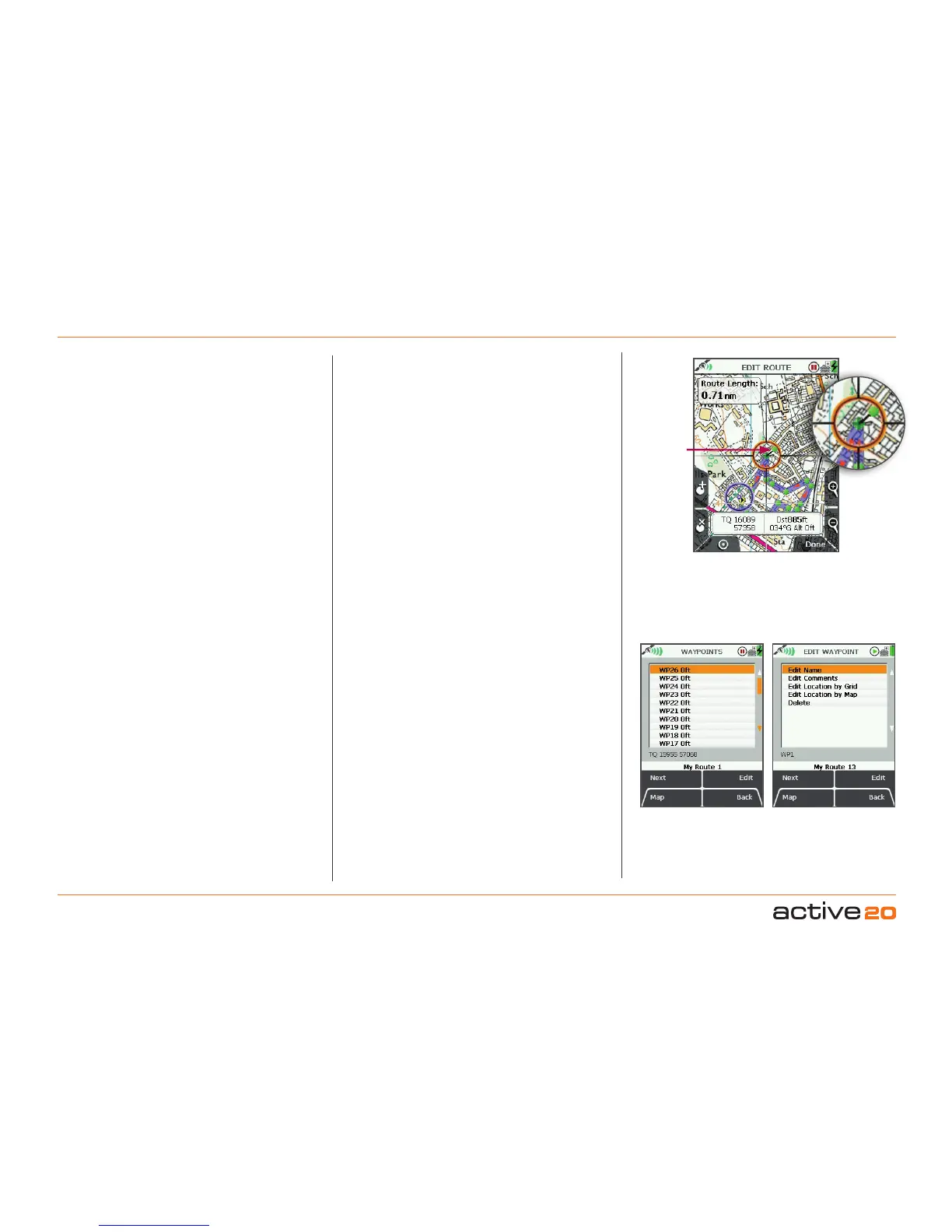
Highlight EditRouteMap, then press Edit to access
EDITROUTE screen. Using the rocker pad, move
the location icon to the edit point on the route. Either
press the AddWaypoint button or centre press the
rocker pad to add a waypoint with a green-headed
‘pin’. Drag the new waypoint to the desired location.
Either press Done or centre press the rocker pad to
fix the new waypoint. Move the location icon away
from the route. Press Doneto return to ROUTEEDIT
screen.
7.10 EditWaypoints
(GPS MAP → MAIN MENU → ROUTES MENU →
(folder/route) → Edit → Edit Waypoints)
Highlight EditWaypoints, press Edit to access the
WAYPOINTS screen. A list is shown, SP is for start
point, WP is for waypoint. Highlight the waypoint
to be edited and either press Edit or centre press
the rocker pad to access the EDIT WAYPOINT
screen. Here you have the option to edit individual
waypoints:
• Edit Name
• Edit Comments
• Edit Location by Grid
• Edit Location by Map
• Delete
green-
headed
pin
Edit Route on
Map options
Waypoint edit
options
EditName
Highlight EditName and press Edit or centre press
the rocker pad to access the keypad and rename
the waypoint.
EditComments
Highlight EditComments and press Edit or centre
press the rocker pad to access the keypad and add
a description to the waypoint. This will show up next
to the waypoint name in the WAYPOINTS menu.
EditLocationbyGrid
Highlight EditLocationbyGrid and press Edit or
centre press the rocker pad to edit the waypoint by
changing the grid reference values. This will take
you to the SETTING screen where you can use
the rocker pad to move left/right to toggle between
boxes. Move the rocker pad up/down to change the
box entries. Pressing Next will move between rows
(except with OSGB). Select Done when complete to
go back to the EDITWAYPOINT menu.
EditLocationbyMap
Highlight EditLocation byMap and press Edit or
centre press the rocker pad to edit the waypoint
on the map. Click the waypoint to set a green-
headed 'pin' and drag it to a new location. Press
Done or centre press the rocker pad to confirm the
placement.
Delete
Highlight Delete and press Delete or centre press
the rocker pad to instantly delete the waypoint.
Press Back to go back to the ROUTEEDIT menu.



 To Next Page