Software v3.0.11065
© Satmap Systems Ltd 2017
16
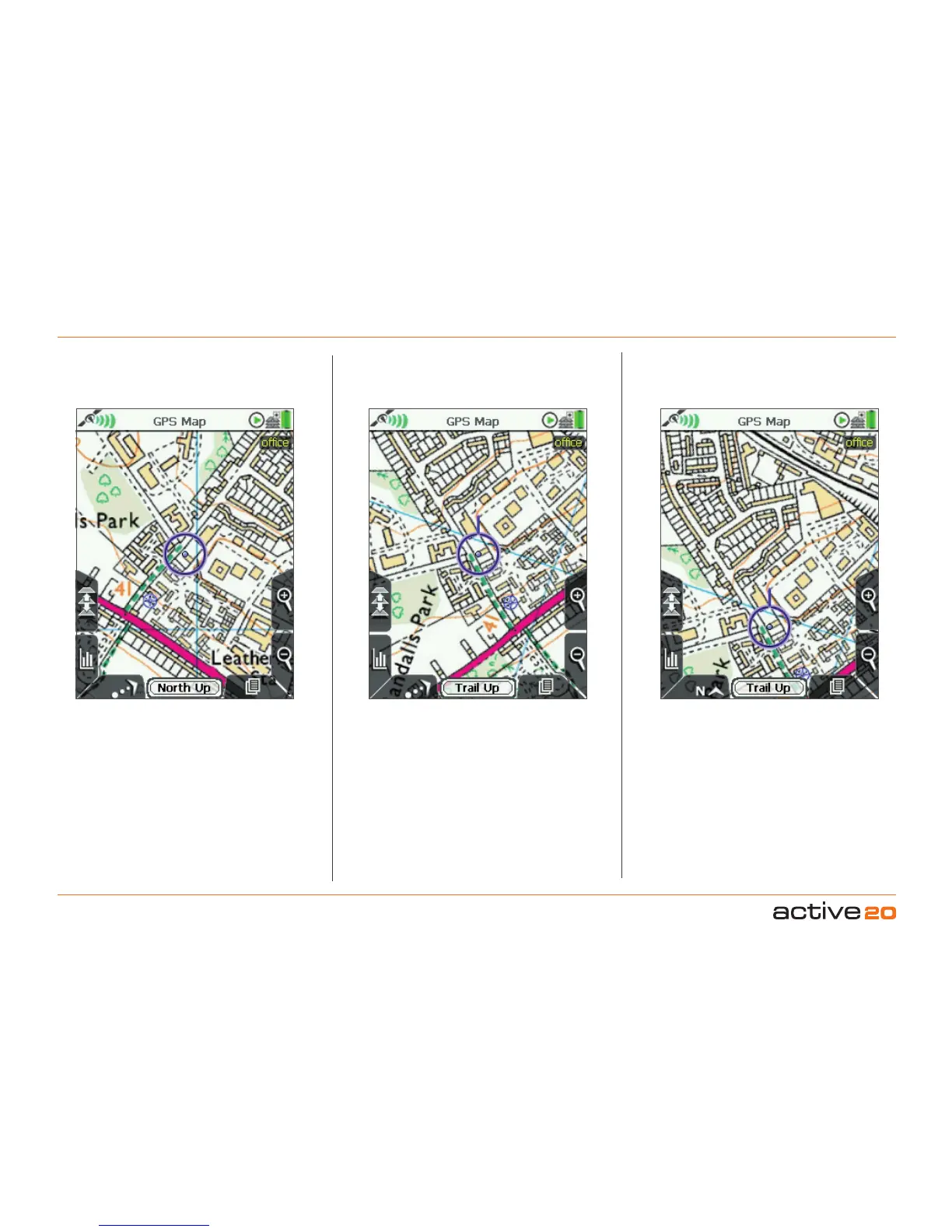
NorthUp TrailUp(Centre)
TrailUp(Centre) is currently on the screen. TrailUp
(Low) can be selected by pressing the Trail Up icon
(front left button).
The blue location icon is shown in the centre of the
screen. The map orientates to match the direction
of travel (similar to turning a paper map to find your
bearings).
If you switch to PLANNING mode, the map will stay
in TrailUp mode.
Note: Trail Up is not available in advanced power
saving mode. (The screen refreshes more frequently in
Trail Up, drawing more power).
NorthUp is currently on the screen. TrailUp can be
selected by pressing the Trail Up icon (front left button).
The blue location icon is shown in the centre of the
screen with North facing up on the map. Use this
mode to conserve battery power.
From the PLANNING screen if you wish to switch
the map to North Up, return to the GPSMap screen
and press theNorthUp/TrailUpbutton.
TrailUp(Low) is currently on the screen. North Up
can be selected by pressing the North Up icon (front
left button).
The map orientates to match the direction of travel.
However the blue location icon is positioned low on
the screen so you can see more mapping ahead
of you. Useful for when you are traveling at higher
speeds, such as on a bike.
Note: The 4 data box option is not available in the Trail
Up (Low) mode as it would obscure the locator circle.
TrailUp(Low)
4.1.6 Maporientation
There are 3 map orientation options for enhanced visibility: NorthUp / TrailUp(Centre) / TrailUp (Low)
4.1 Screen1:GPSMAP(...cont)



 To Next Page