Software v3.0.11065
© Satmap Systems Ltd 2017
79
12. AOIs(AreasofInterest)
12.1 AOIs(AreasofInterest)Overview
AOIs are AreasofInterest and consist of a series
of points making up an area of any size or shape.
These can be used:
• To mark various areas of interest on a map, (e.g.
forests, wetlands).
• To measure an area on a map.
• As an alternative to the circular POI Warning
Radius as any shape can be drawn.
The area can be filled with different colours and
patterns.
Note: Use SatSYNC to add graphics or more detailed
information to an AOI. (See the SatSYNC 1.5 User
Guide).
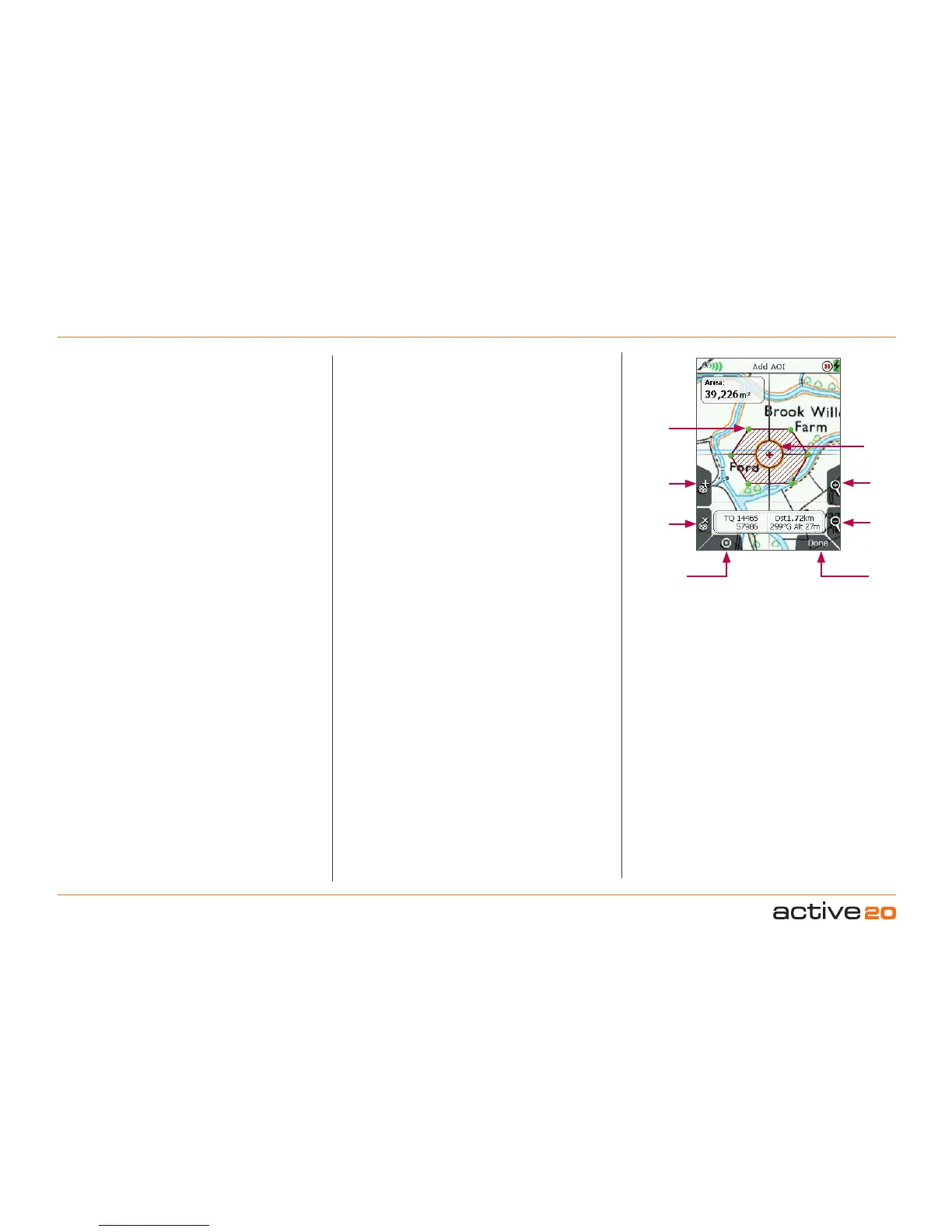
12.2 AddAOIScreen
(GPS MAP → MAIN MENU → OOI Menu → Add AOI
by Map)
To create an AOI, select AddAOIbyMap from the
OOI Menu and press Select or centre press the
rocker pad. This will take you to the AddAOI screen
where you will be able to lay down points (green
dots) to form an 'area'.
The orange locator circle has a red cross in the
centre to indicate you are in edit mode on the Add
AOI screen. You can plot points by either pressing
the top left '+' button or by centre pressing the rocker
pad. Use the lower left 'x' button to remove points.
The area is shown as you create the AOI. You will be
able to change the colour and pattern options of the
AOI. The name of the AOI appears in the designated
area.
Buttons:
AddAOIpoint(+)
Lay down AOI points on the map
RemoveAOIpoint(x)
Remove AOI points from the map
GPSMap
Return to GPSMAP screen
Zoom
Zoom in/out
Done/(Back)
Go to keypad to name AOI and then to OOIFolders.
(Back cancels the operation and takes you back to
the OOIMenu).
12.3 AddAOIinaSpecicFolder
(MAIN MENU → OOI Menu → OOI Folders → specic
folder → nal subfolder → Back → Add AOI by Map)
This will add the AOI to the last visited folder.
Note: Folders are created using SatSYNC and must
contain at least one OOI or route to be visible on the
unit. (See SatSYNC User Guide for more information).
AOI point
Remove
AOIpoint
GPSMap
Add
AOIpoint
Zoom
In
Zoom
Out
Done/
Back
Draw Areas of
Interest
Locator
circle with
red cross to
indicate edit
mode



 To Next Page