EasyManua.ls Logo

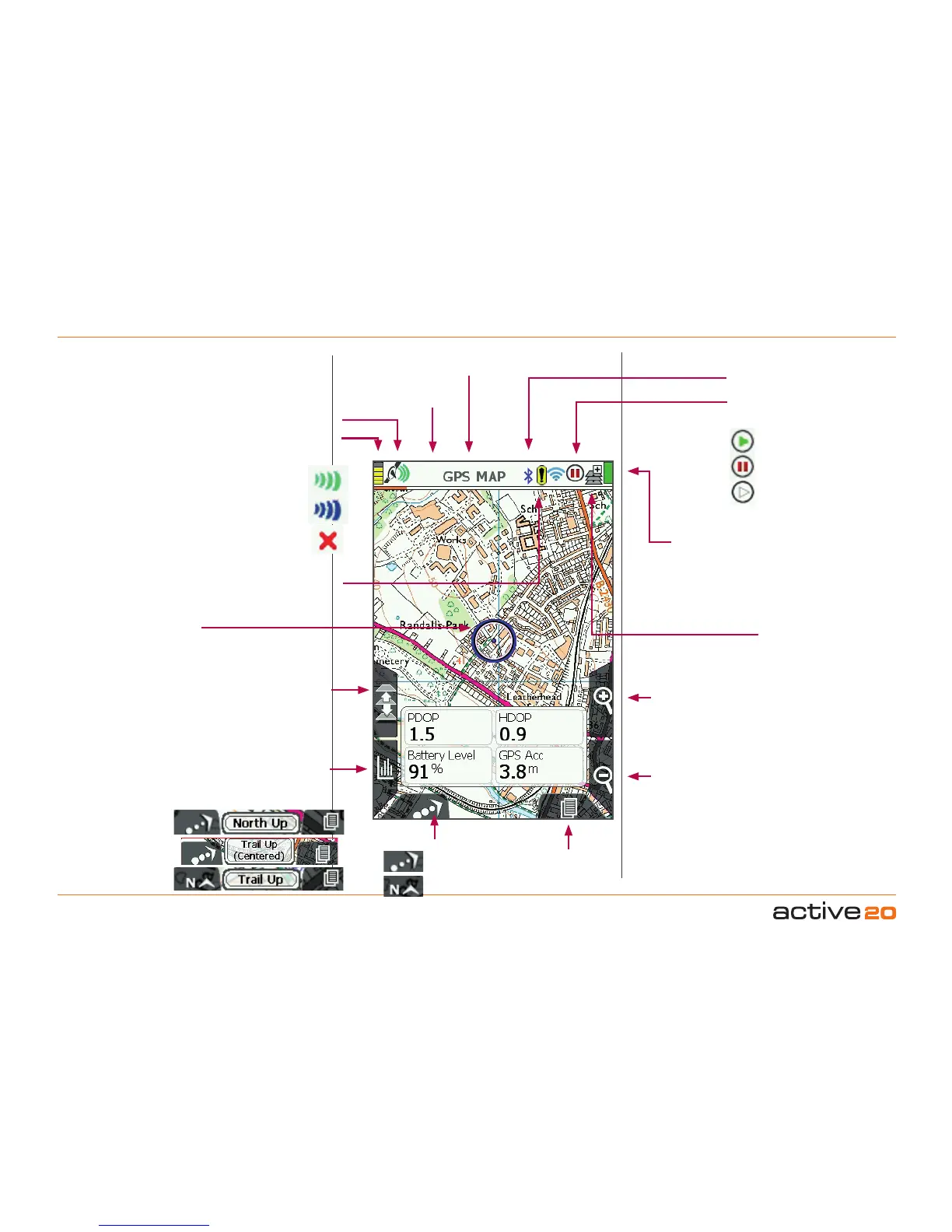
satmap active 20 - Map Screen Layout

satmap active 20
107 pages
Print Icon
To Next Page IconTo Next Page
To Previous Page IconTo Previous Page
Loading...
Software v3.0.11065
© Satmap Systems Ltd 2017
5
MapToggle
This is only
functional when
a toggle-enabled
map card is
loaded
ZoomIn
Batteryicon
When unit is fully
charged icon is a solid
block
Maporientation
PrimaryScreens
Use to scroll through the
primary screens
ZoomOut
ToggleIcon
Shows when a toggle-
enabled map card is
loaded
Stop/RecordIcon
Trip log status
StatusBar
All status icons
shown in the
top bar
Screenname
MemoryStatusWarning
GPSSignalLock
Normal lock
EGNOS/WAAS
lock
No lock
Trip Log Active
Trip Log Inactive
No GPS Lock
iii. MapScreenLayout
LocationIcon
Move the rocker pad left/
right to go into PLANNING
mode and see the
Planning icon, (square)
If theTrailUp icon
is showing, it means
NorthUp was the last
option selected.
If theNorthUp icon is
showing, it means Trail
Up was the last option
selected.
The icon on the
lower left shows the
orientation that will
next appear if the
front left button is
selected.
Trail Up
North Up
BluetoothIcon
DataToggle
Show 2 & 4
data boes and
elevation profile
ScreenBrightnessIcon

Table of Contents

Other manuals for satmap active 20

Related product manuals