Software v3.0.11065
© Satmap Systems Ltd 2017
83
12. AOIs(AreasofInterest)(...cont)
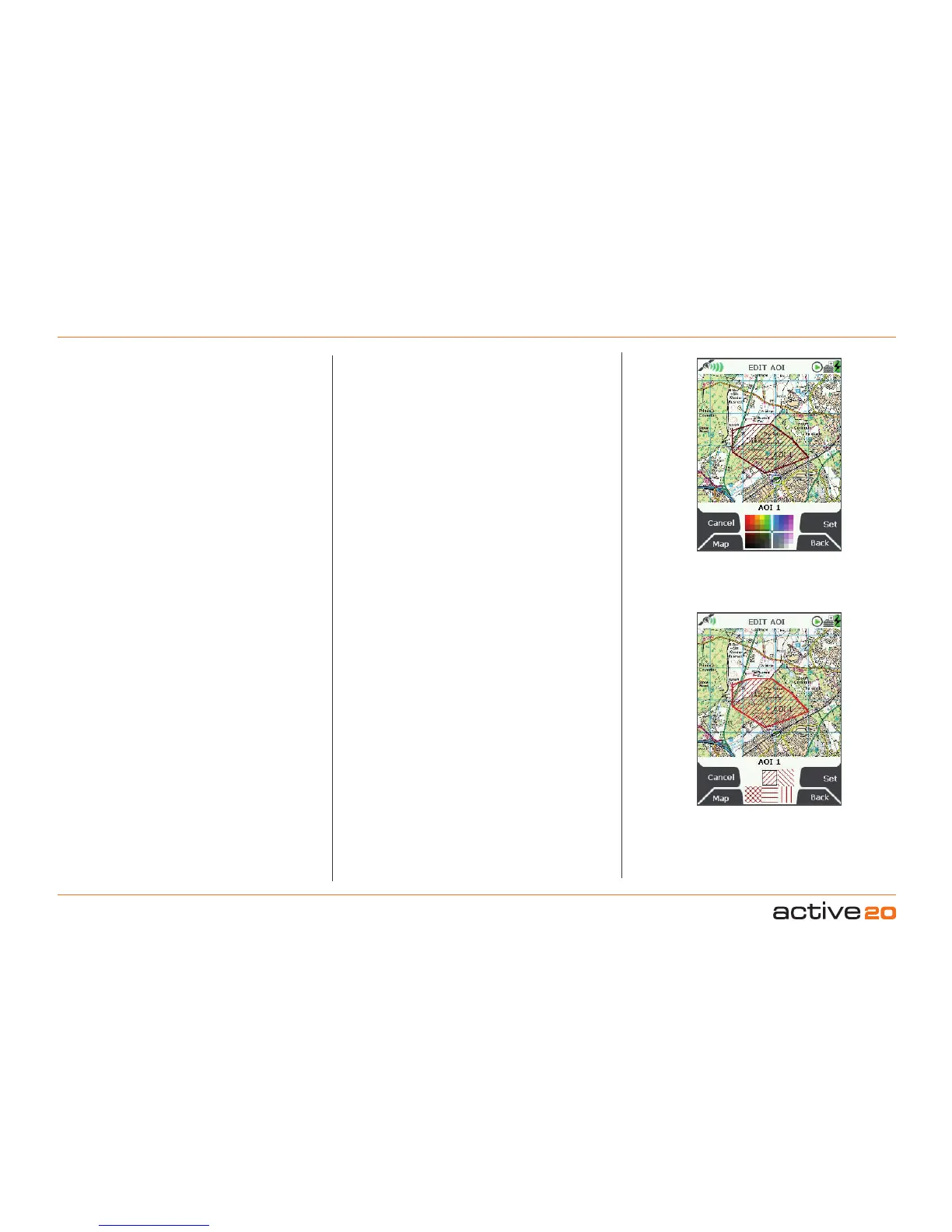
12.10EditColour
(GPS MAP → MAIN MENU → OOI Menu → OOI
Folders → Select AOI → Edit → Edit Colour)
Highlight Edit Colour and use the rocker pad
to make a selection from the colour palette. As
you move the rocker pad over a colour, the AOI
automatically changes colour on the map. Once
you are happy with the colour choice, press Set to
confirm or centre press the rocker pad. This will take
you back to the edit menu.
12.11EditPattern
(GPS MAP → MAIN MENU → OOI Menu → OOI
Folders → Select AOI → Edit → Edit Pattern)
Highlight Edit Pattern and use the rocker pad to
make a selection from six different pattern options.
As you move the rocker pad over a pattern, the AOI
pattern automatically changes on the map. Once
you are happy with the pattern choice, press Set to
confirm or centre press the rocker pad. This will take
you back to the edit menu.
12.12Delete
(GPS MAP → MAIN MENU → OOI Menu → OOI
Folders → Select AOI → Edit → Delete)
HighlightDelete, then press Delete or centre press
the rocker pad to access a screen showing the
option to delete the AOI. When Delete is selected
the screen will go back to the OOIFolders. Pressing
Cancel will take you back to the EDITAOImenu.
Edit AOI fill
colour
Edit AOI fill
style
12.13MovetoSDCard
(GPS MAP → MAIN MENU → OOI Menu → OOI
Folders → Select AOI → Edit → Move to SD Card)
(Only available if an SD card has been inserted).
Move
the AOI from the SD card to the Internal Storage.
Highlight MovetoSDCard and either press Move
or centre press the rocker pad. (Subsequently this
option becomes MovefromSDCard). The screen
will go to the OOIFolders and the AOI will appear
in the SDCard folder. To move the AOI from the SD
card you will need to select Move from SD Card
from the edit menu.
12.14CopytoSDCard
(GPS MAP → MAIN MENU → OOI Menu → OOI
Folders → Select AOI → Edit → Copy to SD Card)
(Only available if an SD card has been inserted)
. Make
a copy of the AOI onto the SD card. Highlight
Copy
toSDCard and either press Copy or centre press
the rocker pad. (Subsequently this option becomes
CopyfromSDCard). The screen will go to the
OOI
Folders and a copy of the AOI will appear in the
SD
Card folder.



 To Next Page