Software v3.0.11065
© Satmap Systems Ltd 2017
23
4.6.2 POINTERScreen
(GPS MAP → POSITION INFO → MAIN MENU →
COMPASS → POINTER)
Within the COMPASS menu there is the option of
following a Pointer, which points you in the direction
of your desired destination ie. a waypoint, Point
Of Interest (POI), Line Of Interest (LOI), Area Of
Interest (AOI) or GoTo point.
To access thePOINTER screen, press the Pointer
button on theCOMPASS screen
Buttons:
Targettype
Scroll through overlays giving data on either nearest
Waypoint, Point Of Interest, Line Of Interest, Area
Of Interest, or Go To Point
GPSMap
Return toGPSMAP screen
Compass
Return to COMPASS screen
PrimaryScreens
Go to TRIPLOGscreen and scroll through primary
screens
Note: You need at least 1 POI or route on the map for
the Pointer to work. (It does not work if you only have
one Grid, AOI or LOI).
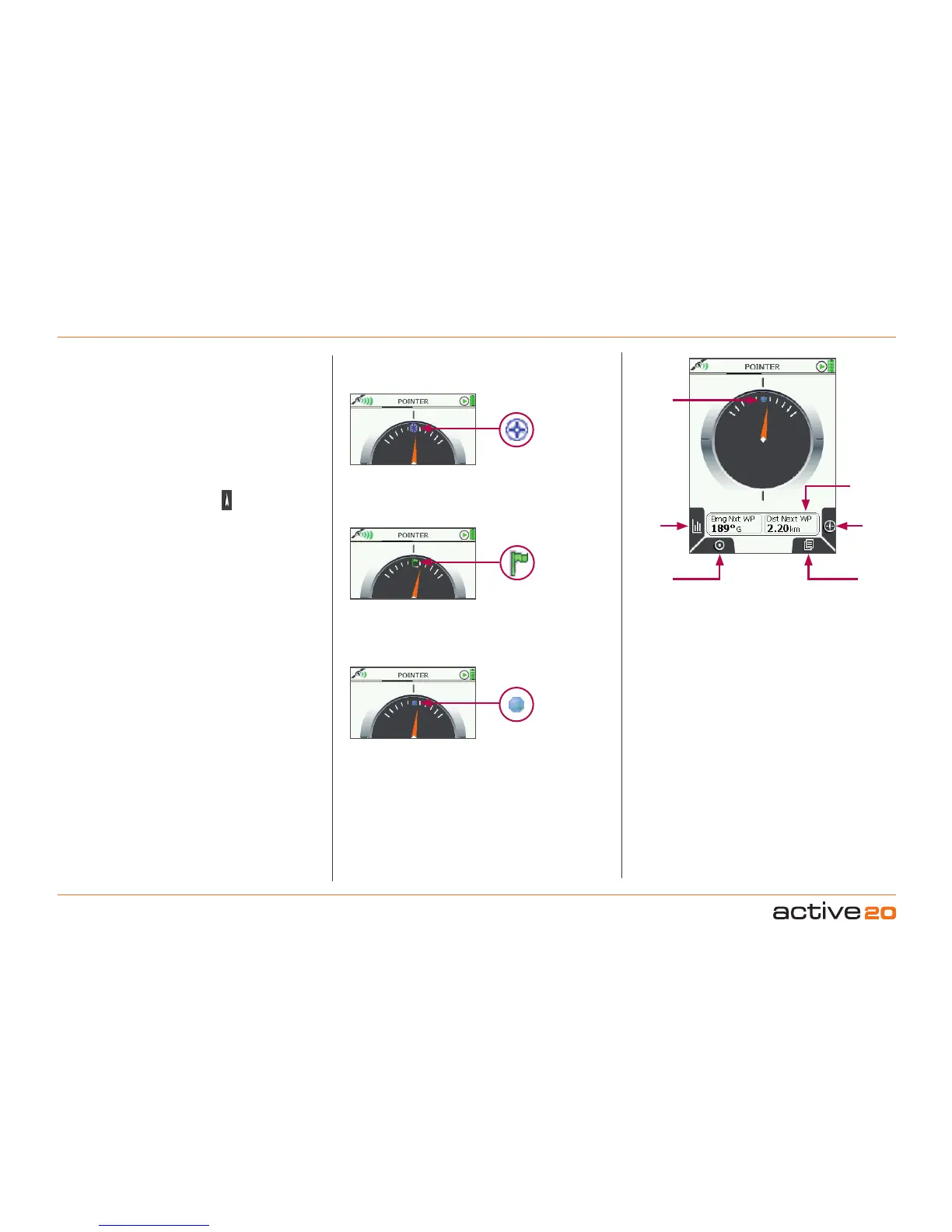
There are 3 types of ‘target’ to select from using the
Targettype button.
Compass
Target
type
COMPASS
Pointer Screen
4.6Screen6:COMPASS/POINTER(...cont)
1.NearestPOI/LOI/AOI
Only available once a POI has been entered.
2.GoToPoint
Only available once a GoTo Point has been set. A
green flag will appear at the top of the pointer image.
3.NextWayPoint
Only available once a route has been activated. A
blue dot will appear at the top of the pointer image.
In each target type, the 2-data field overlay contains
information on bearing and distance to the target.
Note: If you have POIs/LOIs/AOIs/waypoints set to
invisible, the pointer will not show their location.
GPSMap
Primary
Screens
2-dataeld
overlay
Target
icon
Defaulticon



 To Next Page