Software v3.0.11065
© Satmap Systems Ltd 2017
92
14. Grids(...cont)
14.6 RenameGrid
(GPS MAP → MAIN MENU → OOI Menu → OOI
Folders → Select Grid → Edit → Rename)
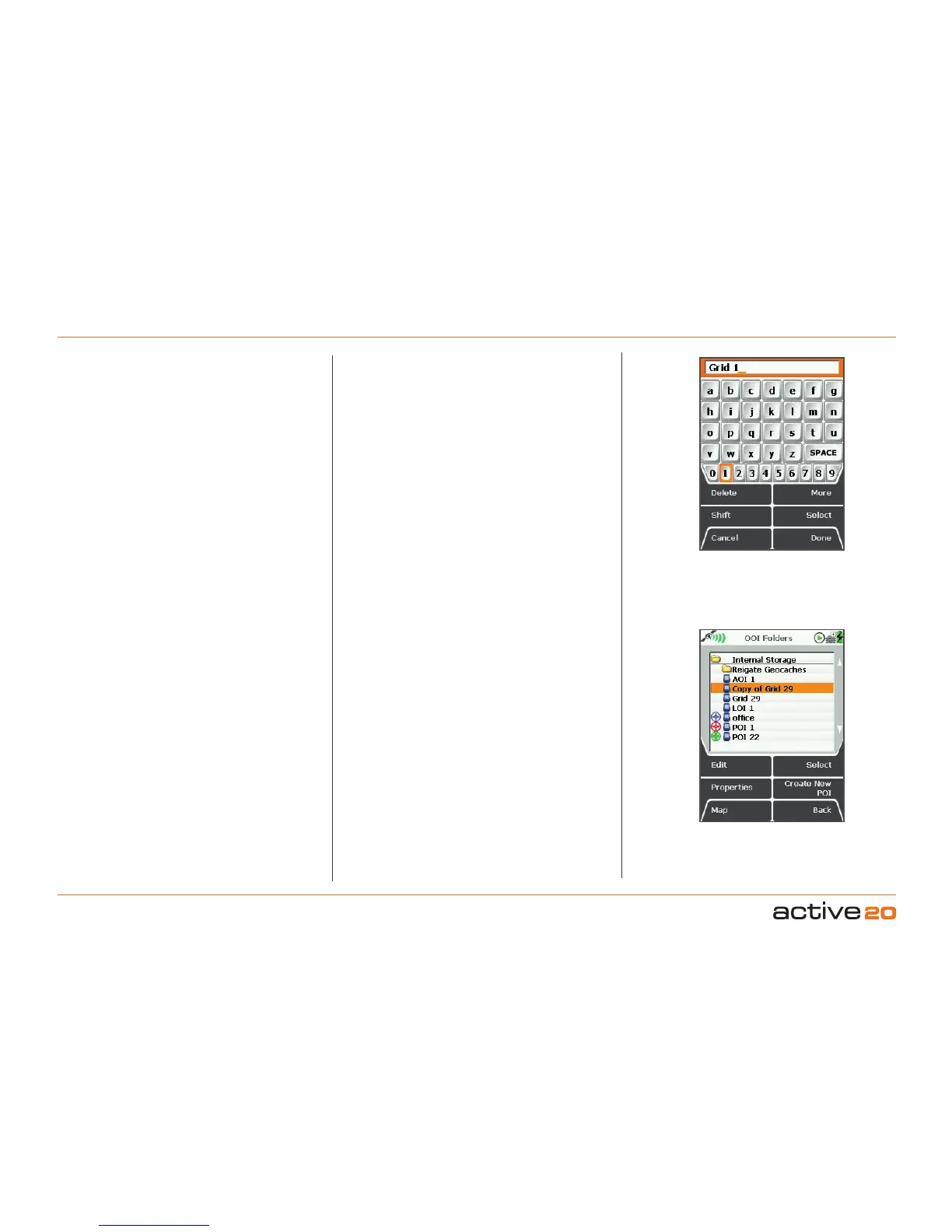
When a grid is created it is called 'Grid 1' by default
(or similar, depending on the number of existing
OOIs).To rename it, highlight the grid in the OOI
Folders, press Edit, then Rename. The keypad
appears. Use the rocker pad to rename the grid.
14.7 Copy
(GPS MAP → MAIN MENU → OOI Menu → OOI
Folders → Select Grid → Edit → Copy)
To create a duplicate of the grid, highlight the grid
in the Edit menu, select Copy, and either press the
Copy button or centre press the rocker pad.
The screen will return to the OOIFolders and a copy
of the grid will appear above the original grid. It has
the prefix 'Copy of' to indicate it is a copy, e.g. 'Copy
of Grid 1'. The options in the EDIT menu can also be
applied to the grid copy, e.g. if you need to rename
it, etc.
14.8 Delete
(GPS MAP → MAIN MENU → OOI Menu → OOI
Folders → Select Grid → Edit → Delete)
HighlightDelete, then press Delete or centre press
the rocker pad to access a screen showing the
option to delete the grid. When either Delete or
Cancel is selected, the screen will go back to the
OOIFolders.
14.9 MovetoSDCard
(GPS MAP → MAIN MENU → OOI Menu → OOI
Folders → Select Grid → Edit → Move to SD Card)
(Only available if an SD card has been inserted). Move
the grid from the SD card to the Internal Storage.
Highlight MovetoSDCard and either press Move
or centre press the rocker pad. (Subsequently this
option becomes MovefromSDCard). The screen
will go to the OOIFolders and the grid will appear
in the SD Card folder. To move the grid from the
SD card you will need to select MovefromSDCard
from the edit menu.
14.10CopytoSDCard
(GPS MAP → MAIN MENU → OOI Menu → OOI
Folders → Select grid → Edit → Copy to SD Card)
(Only available if an SD card has been inserted)
. Make
a copy of the grid onto the SD card. Highlight Copy
toSDCard and either press Copy or centre press
the rocker pad. (Subsequently this option becomes
CopyfromSDCard). The screen will go to the OOI
Folders and a copy of the grid will appear in the SD
Card folder.
GRIDs in OOI
folders
Edit GRID
name



 To Next Page