Software v3.0.11065
© Satmap Systems Ltd 2017
17
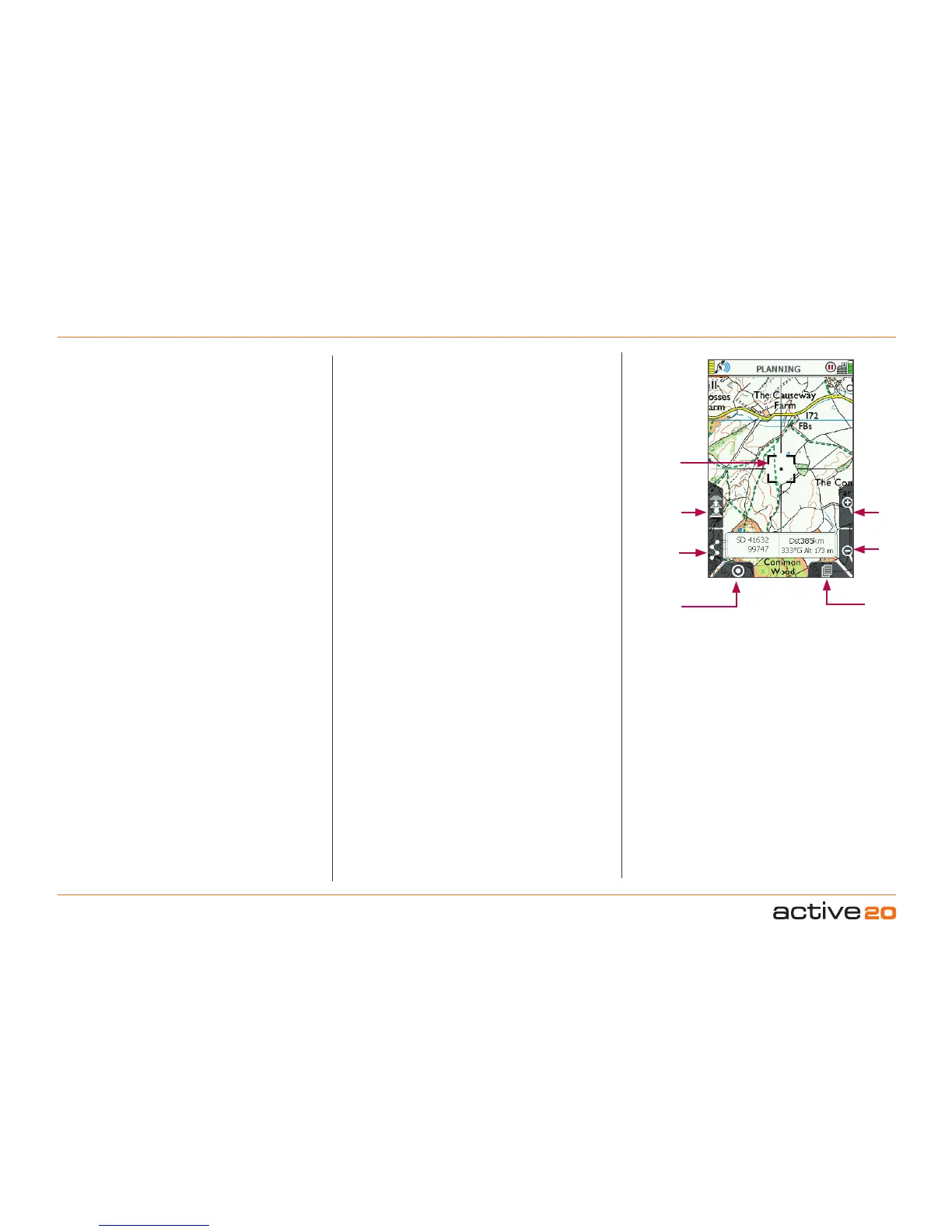
4.2 Screen2:PLANNING
ToaccessPLANNINGscreen
(GPS MAP → PLANNING, via rocker pad nudge)
The PLANNINGscreen is accessed from theGPS
MAPscreen by moving the rocker pad away from
your current location (blue location icon).
The PLANNING screen displays a planningicon
(black square with a black cross) as soon as you
move the rocker pad away from your current loca-
tion. Instead of a blue dot, a small black cross is
shown in the centre. From the edges of the black
square planning icon radiate crosshairs as an ad-
ditional visual cue that you are in PLANNING mode
rather than GPSMAP mode. The black planning
icon stays in place as you use the rocker pad to
move the map.
The POSITION INFO screen may be accessed
from the PLANNING screen by centre pressing the
rocker pad, or by pressing the bottom right Primary
Screens button.
When a map is loaded, the PLANNING screen
shows a central default location for that particular
map.
There is a data box overlay which shows;
• Grid reference – format options are given in GPS
Settings/PositionDisplayFormat option).
• Altitude for this location – elevation above sea
level, obtained from base maps (UK) or from map
cards (non-UK).
• Distance from your last known location, i.e. where
you last acquired a GPS lock. This is useful as a
‘rangefinder’.
• Bearing from your last known location – format
options given in CompassSettings.
Note: This data overlay is not congurable by the user,
unlike the 2-Data Box and 4-Data Box layouts available
on the GPS MAP screen.
When the crosshairs are moved over an OOI
or a route, an OOI/route indicator icon
appears at the bottom of the screen. Centre
pressing the rocker pad brings up further
information via the 'ChooseInformationType'
window.
Buttons:
ToggleMaps
Toggle between maps at the same zoom level
ROUTESMENU
Go to ROUTESMENU
GPSMap
Go to GPSMAP
Zoom
Zoom in/out
PrimaryScreens
Page forward to POSITIONINFO screen and scroll
through primary screens
PLANNING
Screen
Togglemaps
ROUTES
MENU
GPSMap
ZoomIn
ZoomOut
Primary
Screens
Planning
Icon



 To Next Page