Software v3.0.11065
© Satmap Systems Ltd 2017
73
10. MAINMENU:OOIMenu(...cont)
OOI Folders &
Items
10.2 OOIFolders
(GPS MAP → MAIN MENU → OOI Menu → OOI
Folders)
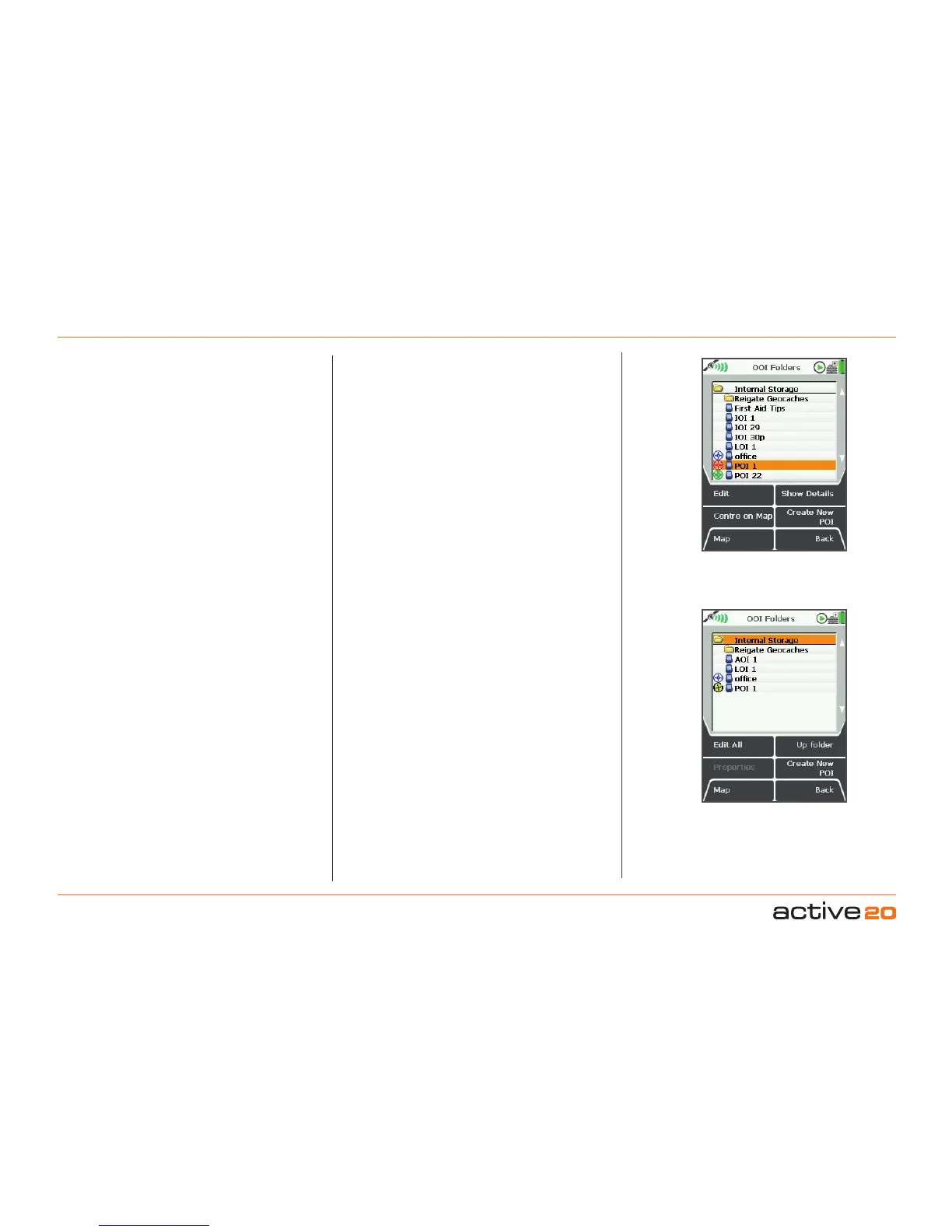
All OOIs are stored in the OOIFolders.
Detailed information for each OOI can be viewed by
highlighting a specific OOI and selecting the Show
Details button from this screen.
It is also possible to view each OOI on the map by
selecting CentreonMap (with exception to IOIs).
Create a new POI directly from this menu by
selecting the CreateNewPOI option. This will lead
you to the AddPOI
screen where you will be able to
create and remove POIs using the '+' and 'x' buttons.
Once you are done, the keypad will appear for you
to name the POI and then choose a POI icon.
Access the edit menu by selecting the Edit button
once an OOI has been highlighted. To edit visibility
and set a new default icon for all OOIs within a
specicfolder (instead of an individual OOI), select
the folder and use the EditAll button.
To access other folders, use the UpFolderoption
or centre press the rocker pad to
reveal a Choose
Folder
drop-down box and select a specic
folder. (This applies to any folder menu).
Note: Sub folders can only be created via SatSYNC.
(Please refer to the SatSYNC User Guide for
detailed information).
Buttons:
Edit
Go to EDIT screen
CentreonMap
Go to PLANNING screen with the OOI in the centre
Map
Return to GPSMap screen
ShowDetails
Go to OOI details screen
CreateNewPOI
Go to the AddPOI screen
Back
Return to the OOIMenu
Acceleratedscrolling: If you have several OOIs listed
in one folder you are able to scroll quickly by holding
the rocker pad up/down. Keep the rocker pad pressed
up/down until you reach the OOI you are looking for.



 To Next Page