Software v3.0.11065
© Satmap Systems Ltd 2017
15
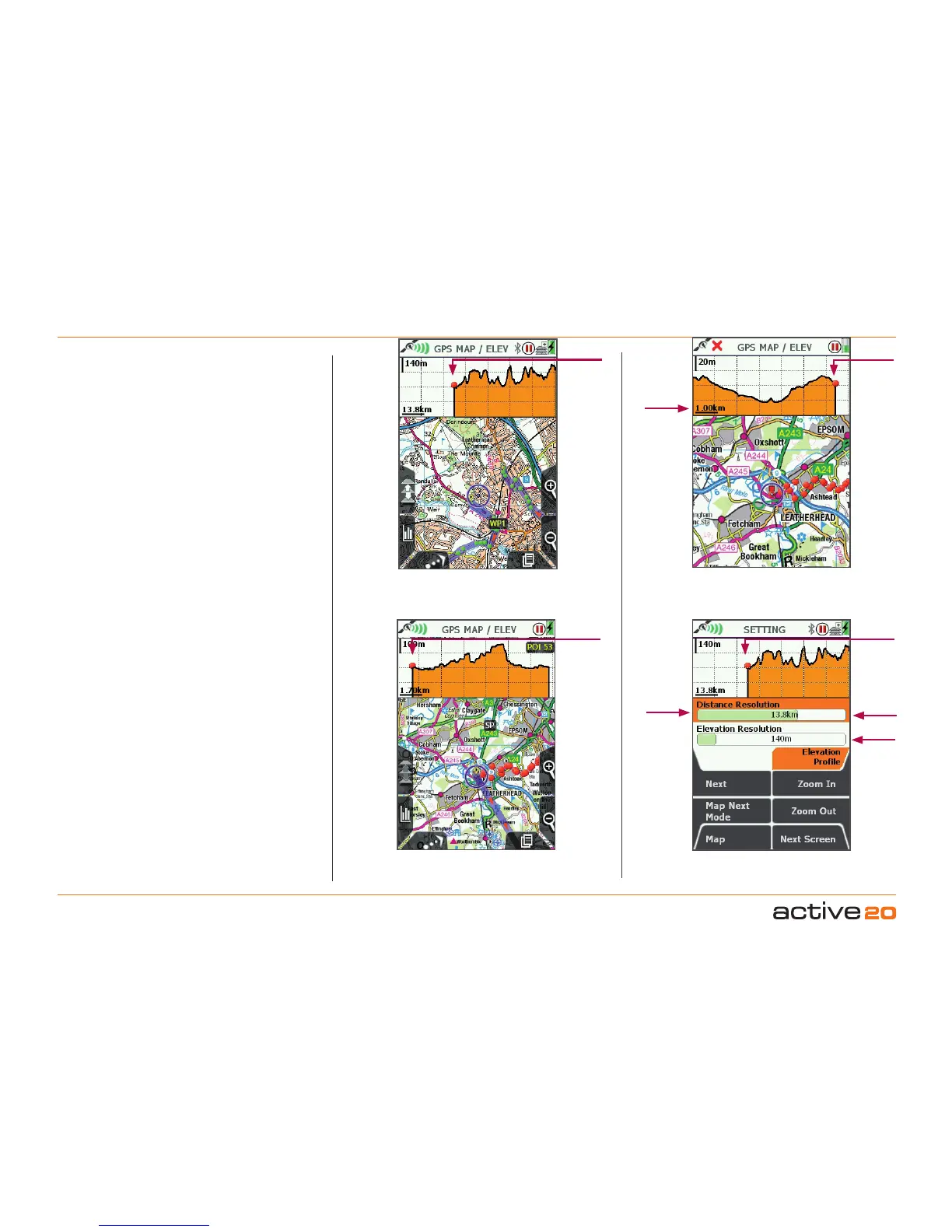
4.1.5 DynamicElevation
General. This features allows you to view mapping
and a live elevation profile on the same screen,
allowing detailed visability of the profile of the route
head, or the completed route behind. After pressing
the Data Box button following the 4 data box
selection, the GPSMAP/ELEVscreen will apprear.
The elevtion profile works in 3 modes: Active Route
mode, GoTo mode and No Route mode.
Active Route mode. With a pre-planned route
loaded onto your Active 20 and "Activated" the
elevation graph will show you the profile of the route
ahead. A red spot will indicate your location on the
profile. The "ahead" direction will be indicated by the
graph to the right of the spot. In general use the red
spot will lie 1/3 the way along the graph, showing a
portion of the route already travelled.
Please Note: moving the rocker pad will put the
screen into PLANNING mode and the Elevation
profile will disappear, until you return to GPS MAP
screen, using the bottom left hand button.
GoTo mode. The dynamic elevation feature also
works in conjunction with the GoTo point (please
see later chapter for activation of the GoTo feature).
In this instance (and assuming that height data is
available from the map dataset), an elevation profile
between your location and the GoTo point will be
shown. Pleasenote: This is assuming a straightline
route to the GoTo point.
Routemode. Without an Active Route, the elevation
profile will display the route completed thus far, since
the TRIPLOG was started.
ProleResolution. The level of detail shown on the
profile graph can be adjusted with horizontal sliders
driven either by the rocker pad or by the ZoomIn /
ZoomOut buttons - on the slider that is "in focus"
indicated by the orange fill. This settings feature is
accessed by pressing the TRAIL UP button twice
when in GPSMAP mode.
4.1 Screen1:GPSMAP(...Cont)
Adjust
Distance
Elevation:"ActiveRoute"mode
Elevation:"GoTo"mode
Elevation:"NoRoute"mode
Settingtheproleresolution
Adjust
Height
You
Are
Here
You
Are
Here
You
Are
Here
You
Are
Here
Orange
Fill=
Setting
Focus
Grid
Scale



 To Next Page