Software v3.0.11065
© Satmap Systems Ltd 2017
42
6. MAINMENU:SettingsMenu(...cont)
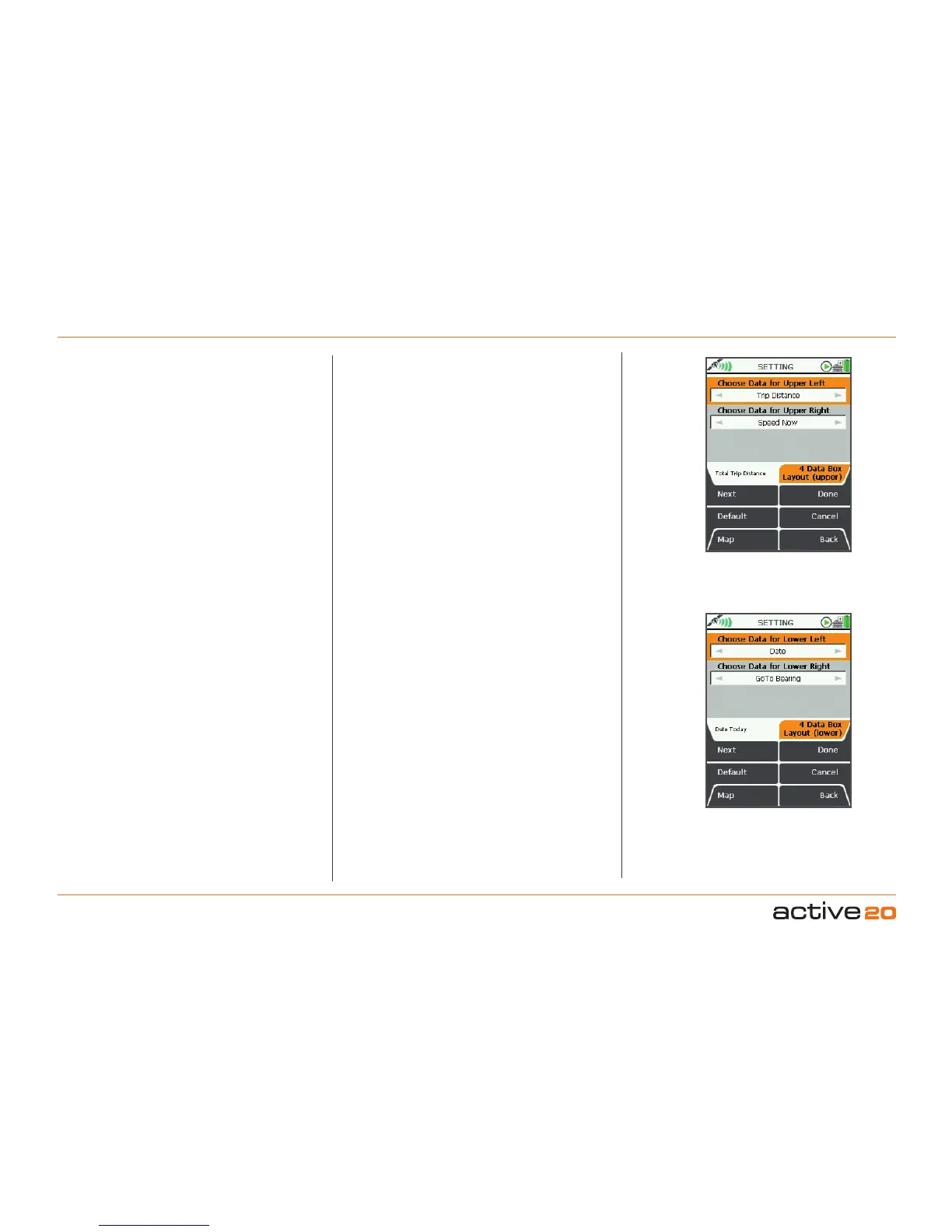
6.11 Data-4BoxLayout(upper)
(GPS MAP → MAIN MENU → Settings →
4 Data Box Layout: upper)
For both the Upper Left Box and the Upper Right
Box:
• Use the rocker pad, moving left/right to select the
desired option.
• Press Done or centre press the rocker pad to
return to SETTINGSMENU.
The data options are listed below and are the same
for both 2 data box and 4 data box layouts.
Pressing the Default button restores the factory
settings for this item:
Data boxes are shown on the GPSMAP screen.
To reach the GPSMAP screen from the SETTINGS
MENU, press Map (front left button).
On the GPS MAP screen, use the lower left side
button to toggle between having 2 data boxes, 4
data boxes or none.
6.12 Data-4BoxLayout(lower)
(GPS MAP → MAIN MENU → Settings →
4 Data Box Layout: lower)
For both the Lower Left Box and the Lower Right
Box:
• Use the rocker pad, moving left/right to select the
desired option.
• Press Done or centre press the rocker pad to
return to SETTINGSMENU
.
The data options are listed below and are the same
for both 2 data box and 4 data box layouts.
Pressing the Defaultbutton restores the
factory settings:
Upper Data
box selections
Lower Data
box selections



 To Next Page