Software v3.0.11065
© Satmap Systems Ltd 2017
57
6. MAINMENU:SettingsMenu(...cont)
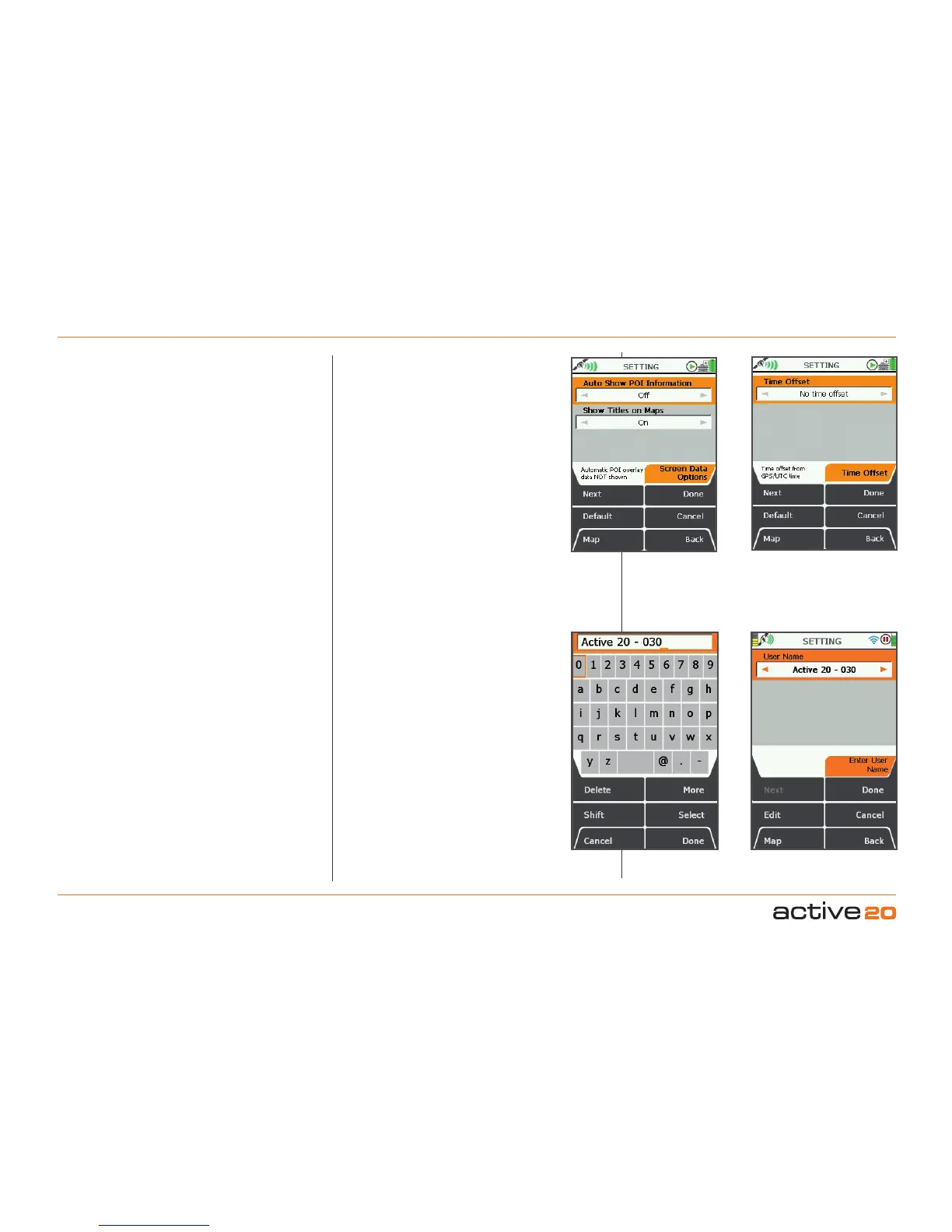
6.28 ScreenDataOptions
(GPS MAP → MAIN MENU → Settings →
Screen Data Options)
This controls the automatic display of the POI
details screen and the display of POI names,
waypoint names, and route names (i.e. 'titles')
on maps. Pressing the Default button restores
the following settings:
AutoShowPOIInformation: Off
ShowTitlesonMaps: On
AutoShowPOIInformation
• Use the rocker pad, moving left/right to
switch between;
On: POI overlay data is automatically shown
when nearby.
Off: POI overlay data is not automatically
shown.
• Press Done or centre press the rocker pad to
return to SETTINGSMENU.
ShowTitlesonMaps
These are the names of POIs, waypoints and
routes, and appear as white text within a black
rectangle.
• Use the rocker pad, moving left/right to
switch between;
On: POIs, waypoints and route names
shown on maps.
Off: Names not shown on maps.
• Press Done or centre press the rocker pad to
return to SETTINGSMENU.
6.29 TimeOffset
(GPS MAP → MAIN MENU → Settings → Time
Offset)
This function allows you to vary the time
setting in relation to GMT (e.g. for British
Summer Time add one hour).
• Use the rocker pad, moving left / right to
select the time offset.
• Press Done or centre press the rocker pad to
return to SETTINGSMENU
.
GPS/UTC time (appears in the on-screen
descriptor) is the same as Greenwich Mean
Time, GMT. An explanation of UTC is given in
the glossary.
6.30 EnterUserName
(GPS MAP → MAIN MENU → Settings → Enter
User Name)
This function allows you to set a UserName
for your device. This name is primarily used in
the SHARED DATA screens to identify other
nearby Active 20s.
After a full default factory reset - the device will
normally ask you to set a User Name.
POI Info on
Map screens
Set Time
offset
Press Done
to complete
Enter User Name
in Text Box



 To Next Page