Software v3.0.11065
© Satmap Systems Ltd 2017
52
6. MAINMENU:SettingsMenu(...cont)
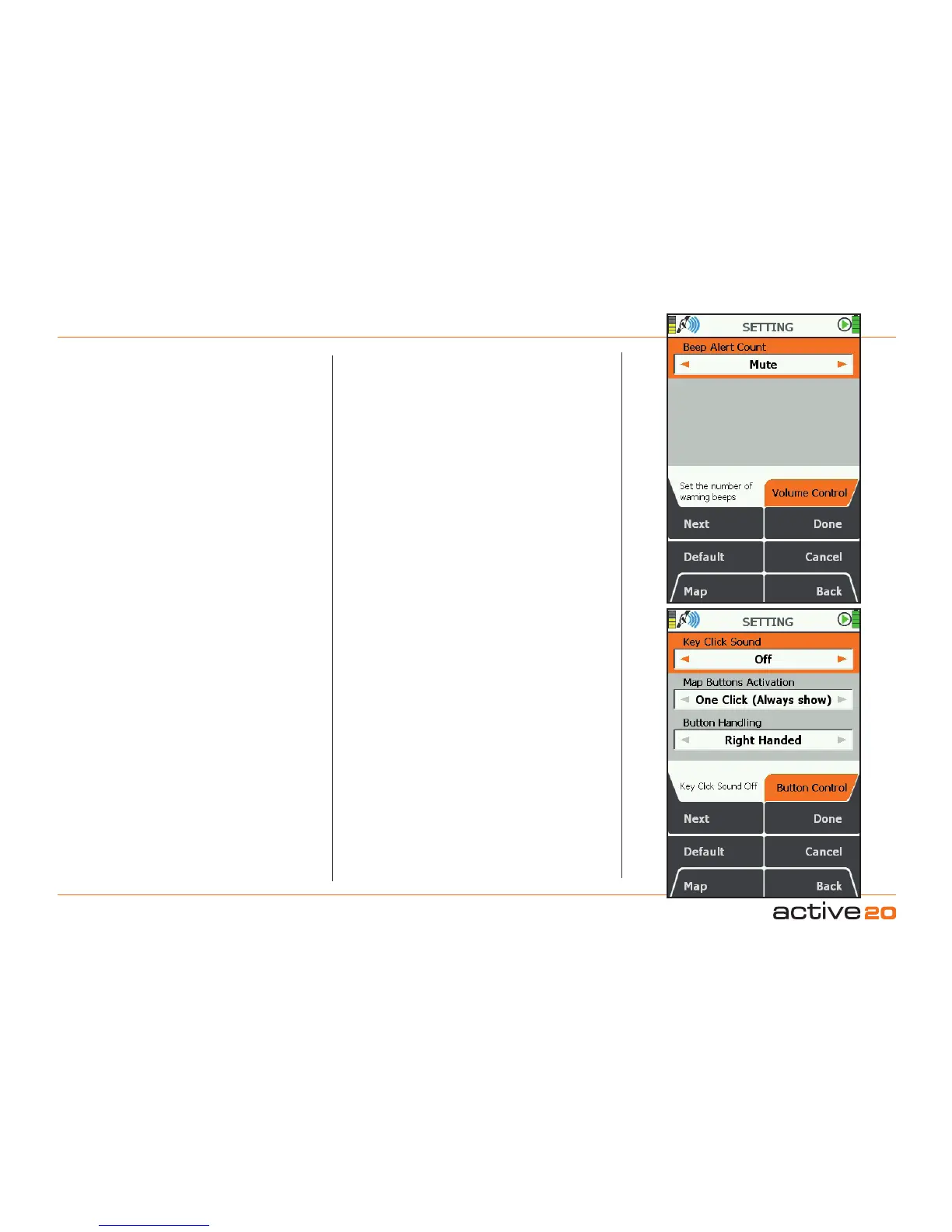
6.21 AlertSettings
(GPS MAP → MAIN MENU → Settings → Volume
Control)
BeepAlertCount
The unit will beep when it encounters
WayPoints,
PointsOfInterest,
GoToPointsor
Routes.
MapCardisinserted
Screenshotiscaptured.
You are able to customize how many beeps sound
in these instances:by using the Rocker Pad or
Touchscreen to select Mute, 1-10. Press Done or
centre press the rocker pad to return to SETTINGS
MENU. Pressing the Default button restores the
factor settings for this item.Please Note: You cannot
control the volume of the beeps.
6.22 ButtonControl
(GPS MAP → MAIN MENU → Settings → Button
Control)
The 4 side-press or 2 front-press buttons on
the unit enable one-handed operation and are
multifunctional, with variable keys depending on
the screen displayed. You are able to customize the
operating of your unit and tailor it to fit your needs,
i.e. how many clicks you want the buttons to operate
with, and whether you are right/left handed.
Map ButtonsActivation - This function applies
to the GPS MAP or PLANNING screens. Use the
rocker pad to toggle between settings.
OneClick(Alwaysshow): one click activates button
instantly. The screen button icons will stay displayed
always. Useful for new new users.
OneClick(Hide): Pressing a button will immediately
activate the selcted funtion. For Pan and Zoom,
the screen button icons will NOT show after the
function has been completed. This setting is useful
for experienced users, who are already familiar with
the button layout and require the screens to react as
quickly as possible.
Two Clicks: This setting is useful for new users
who wish to see the "soft" keys before activating
a particular function. After press a key once - the
"soft key" on-screen icon will show - and then a
second press is required to initial the function. After
the function is completed, the icons will disappear,
allowing the maximum map visability.
Press Done to return to SETTINGSMENU
.
Please Note: The '"Always Show" and Two Click'
operations are particularly useful for beginners, as they
will be able to see the gray icon that appears on the
screen before the button takes the intended action.
Left/RightHandedSetting-
Use the rocker pad, moving left / right to toggle
between RightHanded and LeftHanded operation.
Press Done or centre press the rocker pad to return
to SETTINGSMENU
.
Pressing the Default button restores the factory
settings.



 To Next Page