Software v3.0.11065
© Satmap Systems Ltd 2017
94
15. IOIs(ItemsofInterest)
15.1 IOIs(ItemsofInterest)Overview
IOIs are Items of Interest and are non geo-
referenced documents. They include digital
information that can be saved on the unit, such as
a graphic showing information about a species of a
bird or flower. They can also be used to reference
instructions, e.g. how to make a camp fire or first
aid tips.
An IOI is not necessarily assigned to a specific
point on the map. (If the item was plotted against
a specific point on the map, it would be a POI).
An IOI contains no latitude or longitude data. It
can be created directly on the unit as a simple text
description, and details of the IOI are shown on the
description screen.
Note: If you want to add graphics or more detailed
information, you are able to create an IOI on your
computer and import it to your unit via SatSYNC.
(Please refer to the SatSYNC 1.5 User Guide provided
on the CD or downloadable from satmap.com). This
employs the use of a tab delimited plain text le
containing OOI data in different columns and is used
for creating routes, POIs, AOIs, LOIs, as well as IOIs.
15.2 AddanIOI
(GPS MAP → MAIN MENU → OOI Menu → Add IOI)
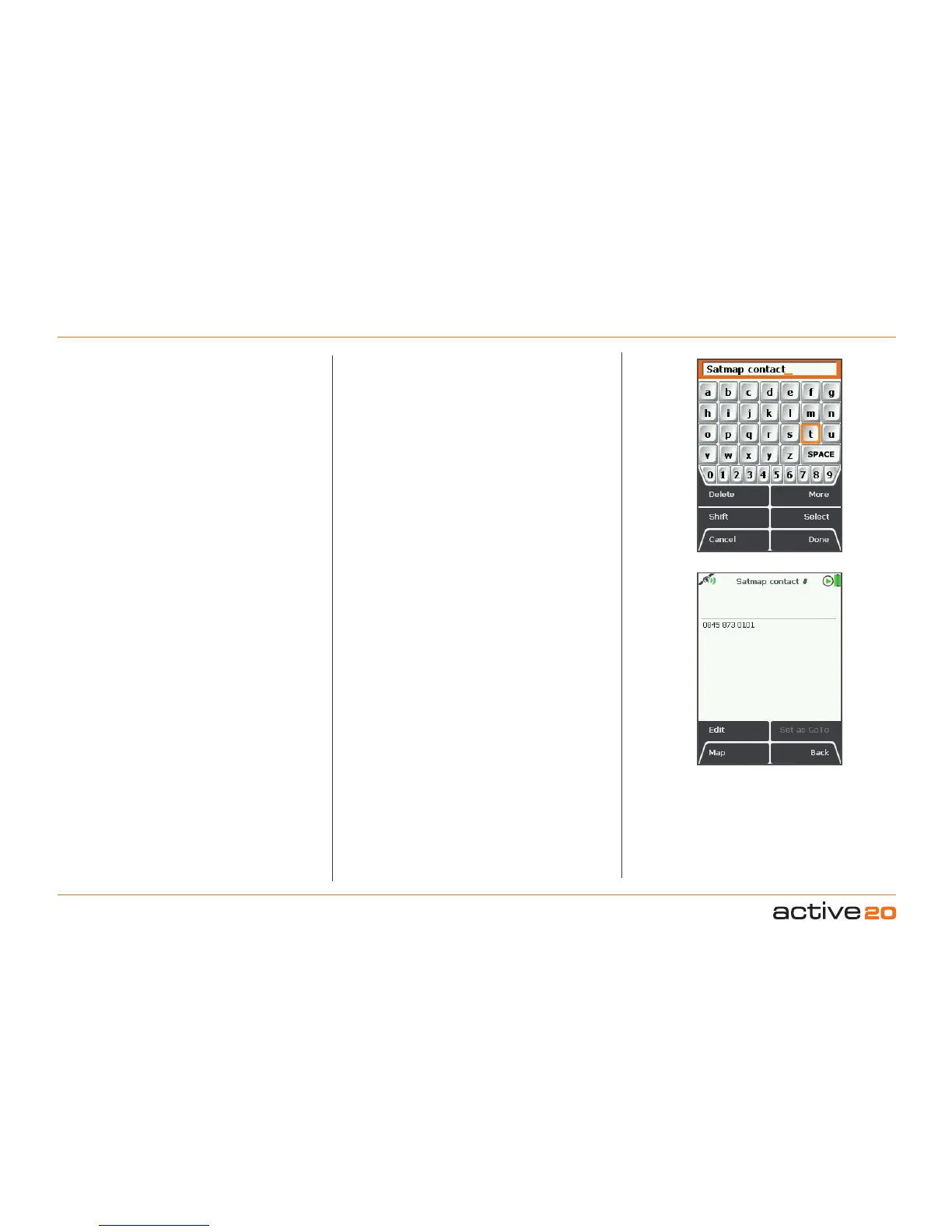
To create an IOI, highlight the AddIOI option from
the OOIMenu and press Select or centre press the
rocker pad. This will take you straight to the keypad
to prompt you to rename your IOI.
When an IOI is created it is called 'IOI 1' by default
(or similar, depending on the number of existing
OOIs). Use the rocker pad to rename your IOI and
then press Done when complete.
The Edit Description screen appears and this
is where you can add a brief description using
the keypad. This information is shown in the IOI.
Pressing Done takes you back to the OOIMenu. To
view your IOI, go to the OOIFolders.
15.3 AddIOIinaSpecicFolder
(MAIN MENU → OOI Menu → OOI Folders → specic
folder → nal subfolder → Back → Add IOI)
This will add the IOI to the last visited folder.
Note: Folders are created using SatSYNC and must
contain at least one OOI or route to be visible on the
unit. (See SatSYNC User Guide for more information).
15.4 IOIDetailsScreen
(GPS MAP → MAIN MENU → OOI Menu → OOI
Folders → Select IOI → Show Details)
This screen shows the description included in the IOI
and is titled by the current IOI name. Graphics and
more detailed information created on a computer
and imported onto the unit can be viewed on this
screen. (See SatSYNC 1.5 User Guide).
An IOI contains information that is for reference only.
Therefore there are no options to adjust visibility as
an IOI does not appear on the map, and no date or
time 'stamp' is shown.
Non-geographic Items
of Interest



 To Next Page