Software v3.0.11065
© Satmap Systems Ltd 2017
90
14.3 AddGridinaSpecicFolder
(MAIN MENU → OOI Menu → OOI Folders → specic
folder → nal subfolder → Back → Add Grid by Map)
This will add the grid to the last visited folder.
Note: Folders are created using SatSYNC and must
contain at least one OOI or route to be visible on the
unit. (See SatSYNC User Guide for more information).
14.4 GridDetailsScreen
(GPS MAP → MAIN MENU → OOI Menu → OOI
Folders → Select Grid → Select AOI → Show Details)
Alternative access:
(GPS MAP/PLANNING → click on Grid → Choose
Information Type → select AOI on Grid via centre
press → AOI details)
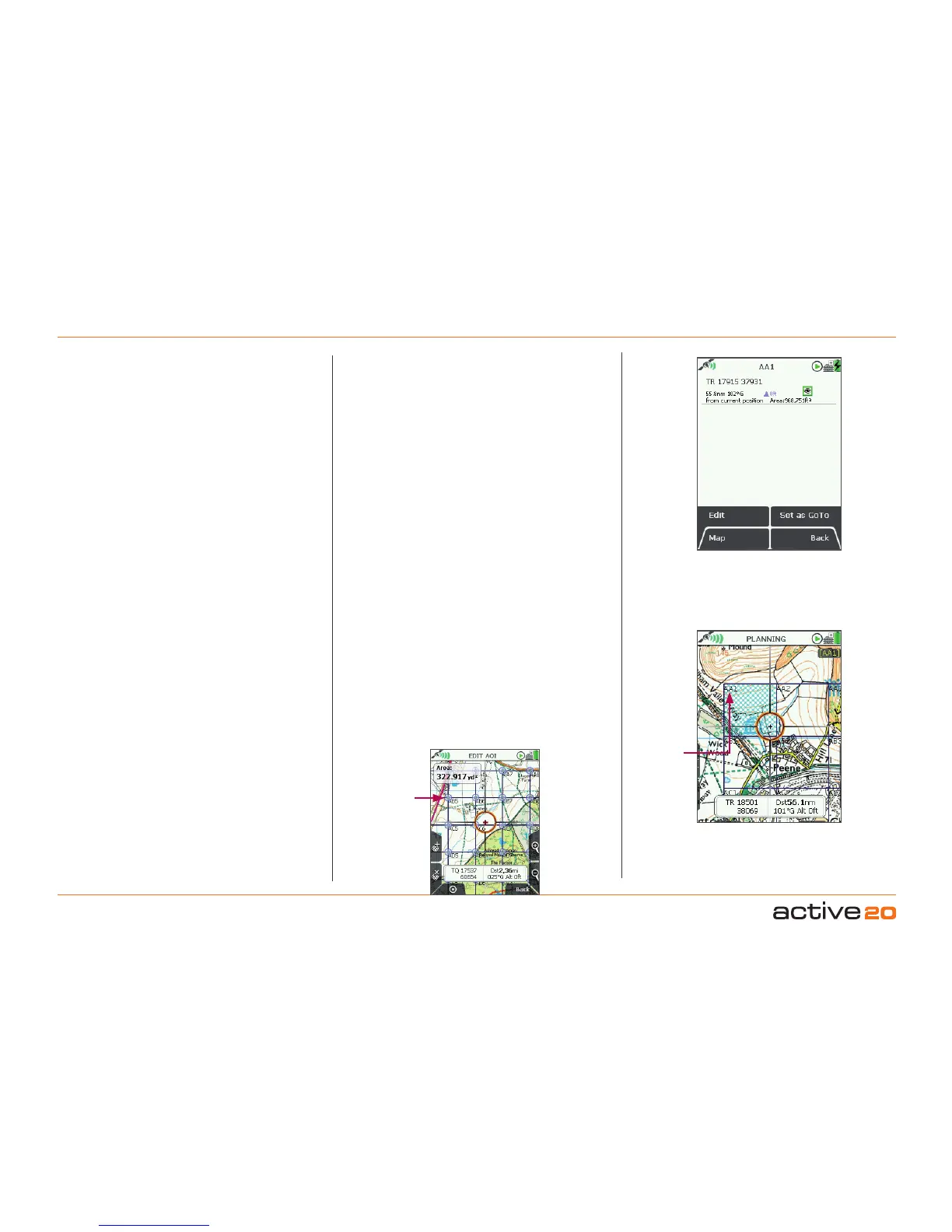
This screen summarises details of individual AOIs
that make up a grid, depending on the AOI selected.
It is titled by the current AOI name (e.g. AA1). AOIs
in a grid are not date and time ‘stamped’. The
following information is given:
• Name of the AOI
• Grid reference*
• Distance and bearing from current location*
• Area (meters squared)
• Elevation*
• Description of grid
Refers to the arbitrary reference point of the AOI within
the grid (usually top left corner of an AOI within a grid).
The highlighted green 'eye' icon indicates the AOI is
visible on the map. When invisible, the 'eye' icon is
highlighted in red with a red line through it.
AOIreferencepointwithinagrid
(Used for grid reference, elevation, and distance and
bearing from current location on AOI details screen).
This is the arbitrary reference point in a particular
AOI within the grid, indicated by the AOI name.
Basic GRID
info
14. Grids(...cont)
(Name is editable). It is also used as a reference
point in the following instances:
• As a GoTo point
• As a ‘POI’ in data boxes
• When using the Pointer
• When using the CentreonMap button
This reference point can be moved to any new
location by using the EditLocationbyMap option
in the EDITAOI menu (once you have selected a
particular AOI within the grid). Here reference points
for all AOIs within the grid will be displayed on the
map, indicated by default icons and individual AOI
names (see below).
*
AOIreference
pointinagrid
(AOI name)
AOI
reference
point
(Default icon
and AOI
name)



 To Next Page