Software Management Service Information Section
©Vertical Express 5-32 Printed in USA November 2019
Software Verification Procedure
(continued)
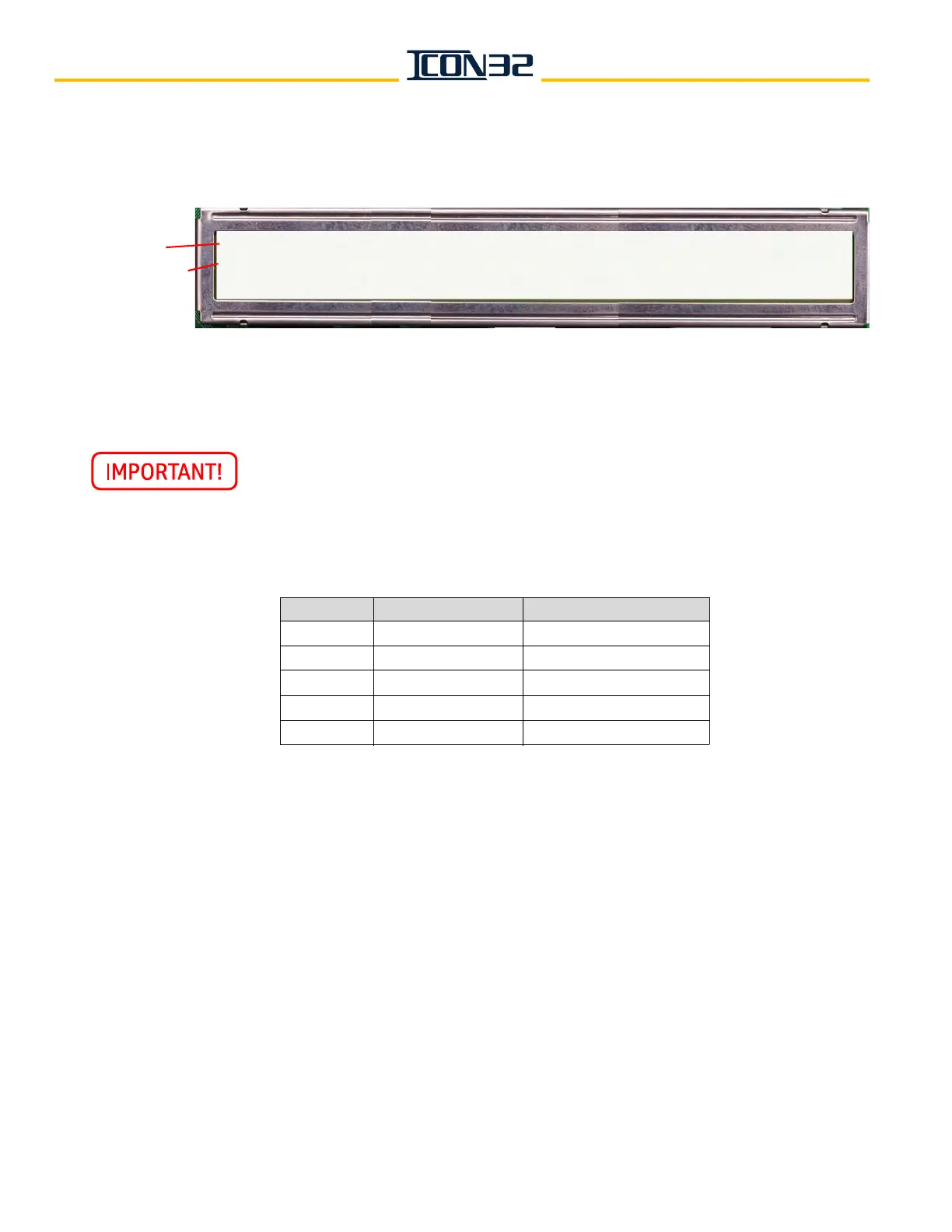
c. Press UP until VER displays, press ENTER, and window displays this data:
This controller contains software that is under AECO A17.7 Control. When
replacing boards or functions involving this controlled software, verify that
the replacement or updated software is the same version listed on the
580AMY marker attached to the controller.
4. Fill out the following chart, and note the software version.
How to Format a USB Flash Drive
A USB flash drive is used to load software files into the CPUC, DPIA, Selector, and CAN
Node cards (of all types). A manufacturing-supplied USB flash drive ships with each job.
The USB has the current version of the job configuration file software and documentation
for the job.
1. Use Windows Explorer to access the USB flash drive; the recommended USB flash
drive is part number 9811126.
2. Right-click on the drive, and select Format.
3. Determine the size of the USB flash drive, select the appropriate option from the File
System drop-down box, and click Start. See Figure 7 on page 5-33.
• If the flash drive is less than 2GB, select the FAT option.
• If the flash drive is 2GB or larger, select the FAT32 option.
Top Line
Bottom Line
v = version
x = version number
r = revision
y = revision number
Each of the safety nodes have two safety processors. Both
processors should display the same version of software.
JOB:xxxnnn CPUC:vxry, CPUCfpga: vxry, IOFfpga:vxry
SP: vxry, SP:fpga:0, NP: vxry, SELA:vx, SELB:vx, HNBTopA: vx,
HNBTopB:vx, HNBBotA:vx, HNBBotB: vx
Device Definition Installed Software Version
CPUC Controller Generic
SP Safety Processor
NP Normal Processor
SELA Selector Node A
CWIL/DPIA DPIA Node A


 To Next Page