Alpha/Delta (Kinetic Operator) Installation and Maintenance Manual Revision 1 - MAY 2023
91
SETTING THE TIME AND DATE
Seng the Time and Date
A feature of the SmartDC Controller is its 24-hour,
365-day clock. Make sure it is set to the appropriate
me zone. An accurate me and date allow the
diagnosc log to date stamp operaonal data which
indicates when Alerts, Faults and Errors occur. The
log helps in troubleshoong and can be viewed via
a laptop connected to the USB or RS232 port, or
on the LCD directly. For more informaon, refer
to “SmartDC Controller Troubleshoong” on page
151.
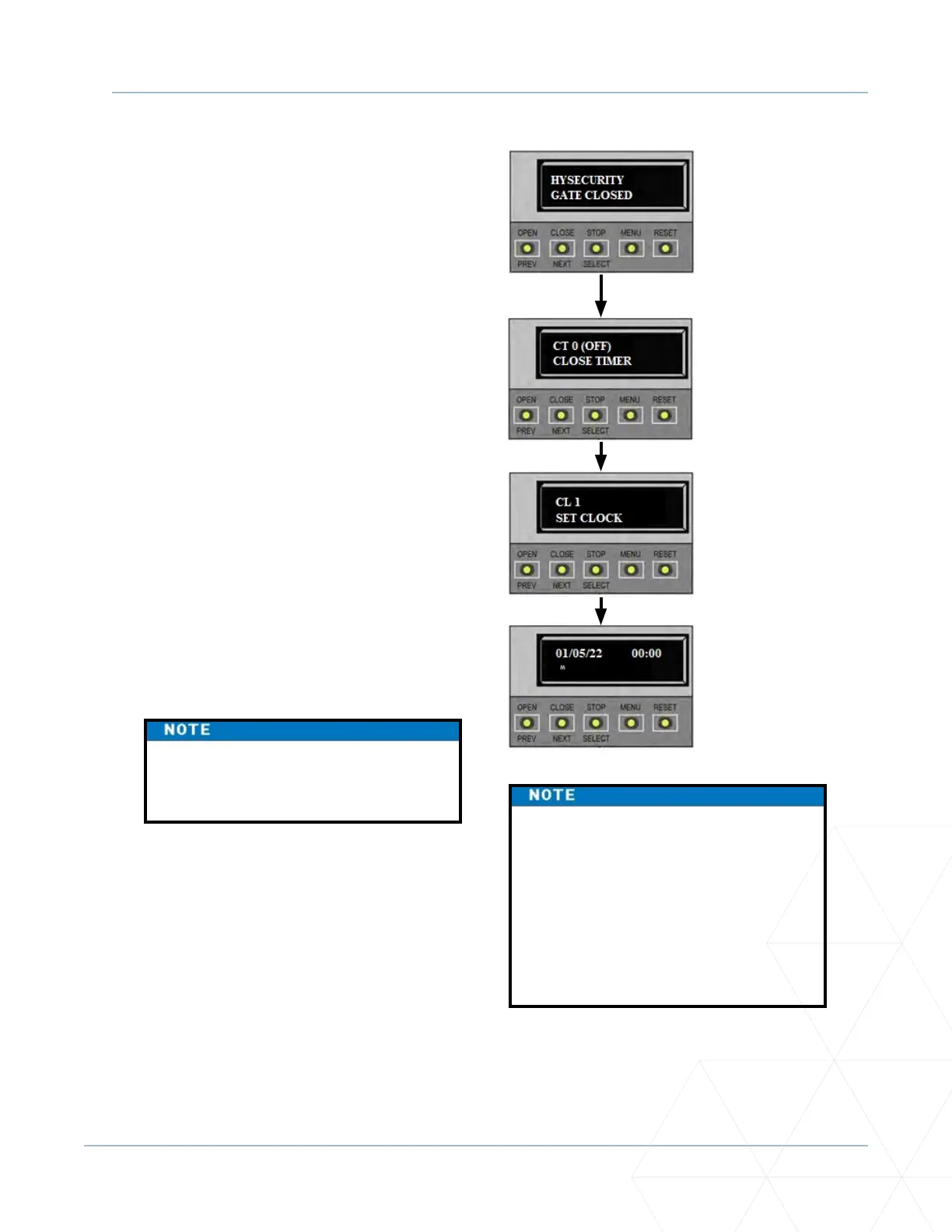
To adjust the me or date, take the following steps:
1. At a gate status display, press the MENU buon
twice. This accesses the User Menu and the
CLOSE TIMER display appears.
2. Press NEXT or PREV unl the SET CLOCK display
appears.
3. Press SELECT. CL blinks.
4. Press NEXT or PREV to change the number to 1.
5. Press SELECT to accept the display.
6. The date and me display appears. Use the
SELECT and NEXT buons in the same manner
as before to adjust the date and me.
7. To accept what appears on the date and me
display, press SELECT.
8. To exit the User Menu, press the MENU buon.
A gate status appears in the display indicang
you have returned to Run Mode.
A date or me eld must be blinking
before it can be changed.
A lithium coin baery on the SmartDC
Controller board, supports the clock
so the date and me is retained even
when the main power is turned o.
Replace the baery every ve years
with a DL 2025, DL 2032 or CR 2025
or CR 2032 baery. Refer to “Clock
Baery Replacement” on page 178.
1. Start at a gate
status display.
2. To access the
User Menu, press
the MENU buon
twice.
3. Press NEXT
unl the SET
CLOCK display
appears. Use
the navigaonal
buons to select 1
.
4. Change the me
and date using the
NEXT and SELECT
buons.



 To Next Page