82
wallaceperimetersecurity.comPhone: 866.300.1110
DISPLAY AND MENU OPTIONS
INITIAL SETUP
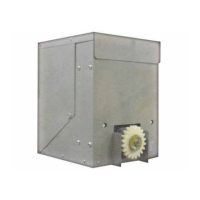
Once you’ve completed the installaon of the Kinec operator and aached the wired accessories, you’re
ready to program the operator. Two dierent approaches exist:
Display and Menu Opons
This secon of the manual provides informaon about the display and menu opons. It includes how to:
• Turn both AC and DC power switches on.
• Review How to use the SmartDC Controller
Buons in Menu Mode.
• Review Run Mode and Gate Status Displays
• Access and Congure User Menu Opons
• Adjust the Close Timer
• Set the Time and Date
• Set the AC Power Loss Gate Funcon
• Adjust the Display Contrast
• Access and Congure Installer Menu Opons
• Reset the OPEN & CLOSE Limits
• Set the Open and Close Gate Speed
• Adjust IES Sensivity
• Reinstate Factory Defaults
• Enable Fire Department Access
This secon describes what you will see on the display and explains the funconality of the buons. User
and Installer Menu charts provide informaon about peripheral connecons and the corresponding menu
items that need to be congured.
Method 1:
Connect a laptop computer to the USB or serial
(RS-232) port and upload the gate sengs and set
the operator menu conguraons via the S.T.A.R.T.
soware.
Use a laptop computer at your place of
business to conveniently download the
free S.T.A.R.T. soware from hps://
hysecurity.com/ before heading out
into the eld. This makes it easy
to adjust sengs using a laptop. A
S.T.A.R.T. User Guide is also available
online.
Method 2:
Manually navigate through the User and Installer
Menus using the ve buons located under the
LCD display on the SmartDC Controller. The
instrucons for performing this second opon
are provided in this secon.



 To Next Page