Data Management
Stratus OCT User Manual PN 2660021134133 A
7-12
Create, Edit and Delete Diagnoses
To create diagnoses for use in St
ratus OCT, follow these steps:
1. In the M
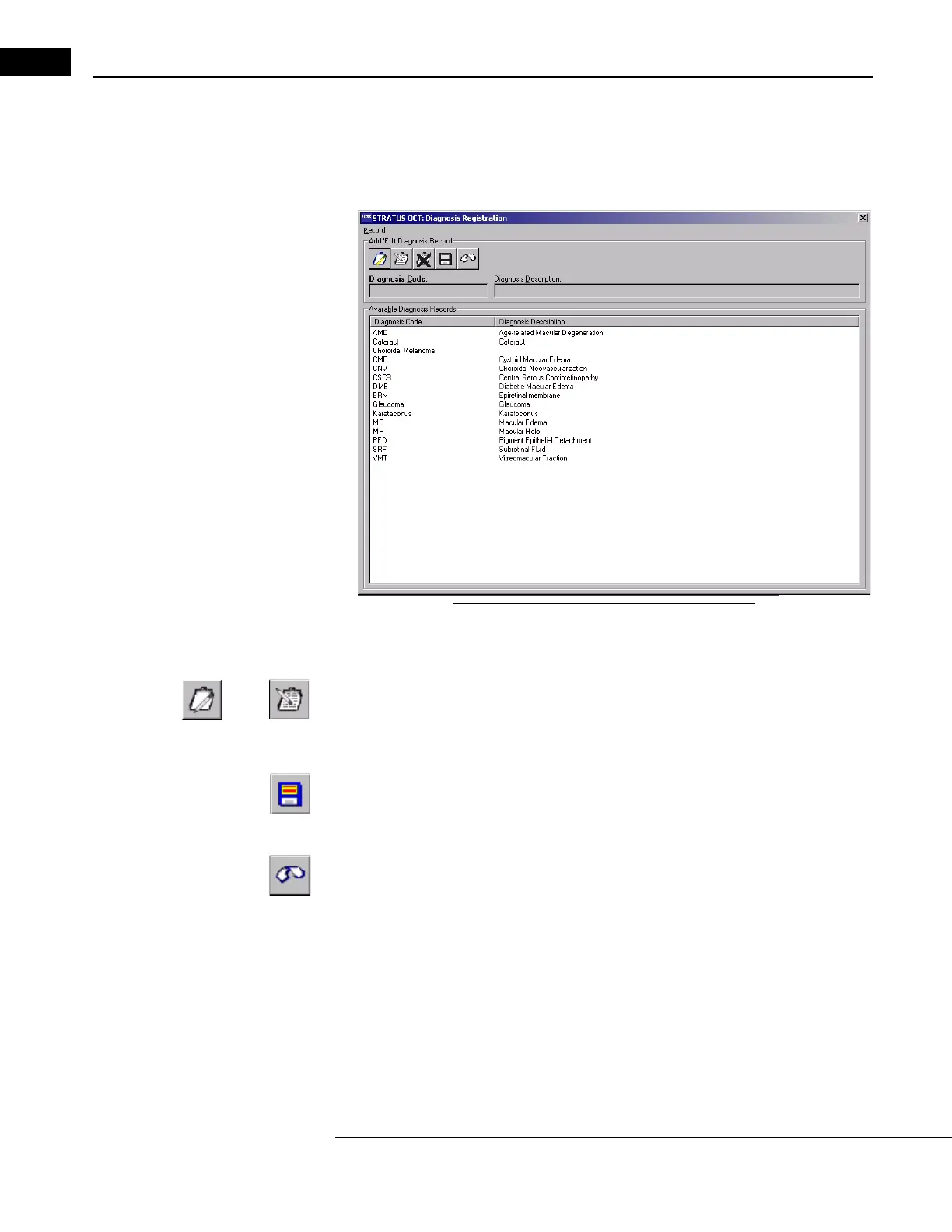
AIN WINDOW, select Options > Register > Diagnosis. The DIAGNOSIS
R
EGISTRATION WINDOW opens.
Figure 7-9 The Diagnosis Registration Window
2. In the DIAGNOSIS REGISTRATION WINDOW, you can create (register), edit and delete
diagnoses.
• To create a new diagnosis, click the Cr
eate New Diagnosis Forms button.
• To edit a diagnosis, click on the diagnosis you wish to edit and click the Edit
Selected Diagnosis Forms button.
3. In either case, this activates the fields for editing. Edit the Diagnosis Code an
d
Diagnosis Description fields as desired. Only the bolded Diagnosis Code is
required; the Diagnosis Description is optional. Then click the
Save Diagnosis
Form bu
tton.
• To discard the changes befor
e saving, click the Undo Changes button. You must
confirm your choice in the C
ONFIRM dialog box.
Note: If you edit a diagnosis that you have already assigned to one or more patients,
the edited diagnosis name is still attached to those patients. Therefore, you can find
those patients by searching for the edited diagnosis name.
Note: Imported diagnosis codes do not retain the descriptions created for them on
the exporting instrument. For example, exporting instrument A has the description
“Retina” for diagnosis code 001, but importing instrument B has the description
“Glaucoma” for diagnosis code 001. When you view on instrument B a patient
record imported from instrument A with diagnosis code 001 assigned, the


 To Next Page