Data Management
Stratus OCT User Manual PN 2660021134133 A
7-16
Register (Create), Edit and Delete Insurance Company Records
To register (create) and/or edit insurance company records, follow these steps:
1. From the M
AIN WINDOW, select Options > Register > Insurance Company. The
I
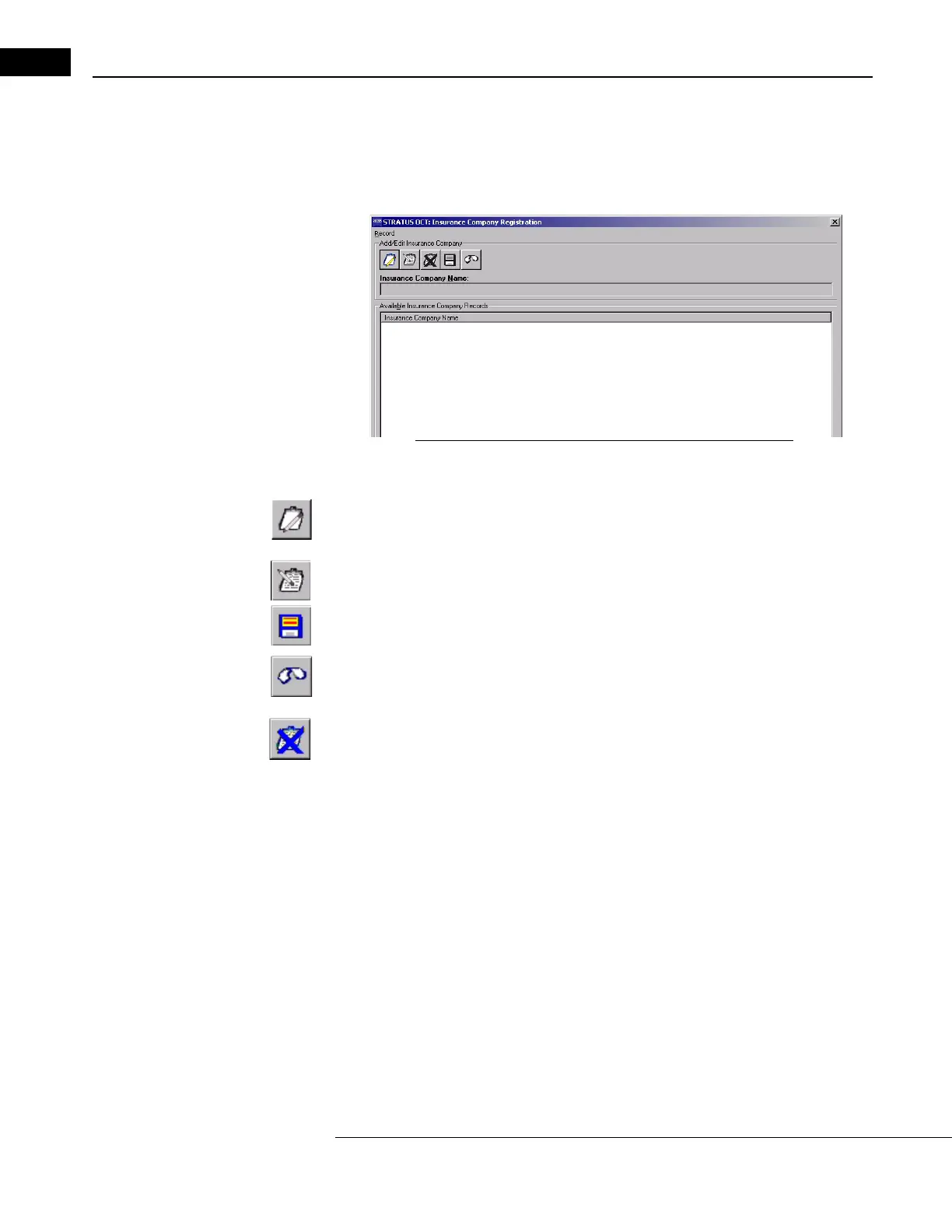
NSURANCE COMPANY REGISTRATION WINDOW appears:
Figure 7-12 The Insurance Company Registration Window
2. In the INSURANCE COMPANY REGISTRATION WINDOW, you can create (register), edit and
delete records.
• To create a new record, click the Cr
eate New Insurance Company Record button.
• To edit a current record, select it from the Available Insurance Company
Records list, and then click the Edit Selected Insurance Company Record button.
3. In either case, this activates the fields for editing. Edit the Insur
ance Company
Name field as desired and then click the
Save Insurance Company Record button.
• To discard the changes befor
e saving, click the Undo Changes button. You must
confirm your choice in the C
ONFIRM dialog box.
To delete an insurance company record and remove references to it in all records, select it
fr
om the Available Insurance Company Records list, and then click the
Delete
Selected Insurance Company Record
button. You must confirm your choice in the CONFIRM
dialog box.
Assign Insurance Companies to Patient Records
To assign a registered ins
urance company to a patient record, follow these steps:
1. From the M
AIN WINDOW, select the desired patient and click the Edit button. The
P
ATIENT RECORD WINDOW appears with the default General Data Tab showing (see
Figure 7-1).
2. In the Insur
ance area near the bottom, use the Company drop-down list to select
one from among those registered. You can also type an identification number in the
Insurance ID field.
3. Click the OK
button to accept the changes and close the window, or click the Apply
button to apply the changes without closing the window. Click the Cancel button to
discard the changes and close the window.


 To Next Page