Stratus OCT User Manual PN 2660021134133 A
Export and Import Scan Data
9-3
Image Export, and it is available both in the MAIN WINDOW and through the EXPORT
W
INDOW.
Note: When you start OCT Image Export through the EXPORT WINDOW, you have the
flexibility to select specific exams for image export. You must export all scan images
for the selected patient when you start OCT Image Export from the M
AIN WINDOW.
Note: You must create a Clinical Site ID to successfully export images and data,
because exported data must be associated with the source clinic. See Site ID and
Logo on page 7-19.
WARNING: Do not export or save data to the C: drive of a Stratus instrument.
The C: drive is r
elatively small and can be filled up quickly, which renders the
system unusable. The F: drive is reserved for data and therefore is relatively
large. If you want to export or save data to the Stratus hard drive, either
locally or to a connected Stratus system on the network, select (a location in)
the F: drive as the target.
From the Export Window
Follow these steps to use OCT Image Export from the E
XPORT WINDOW:
1. In the M
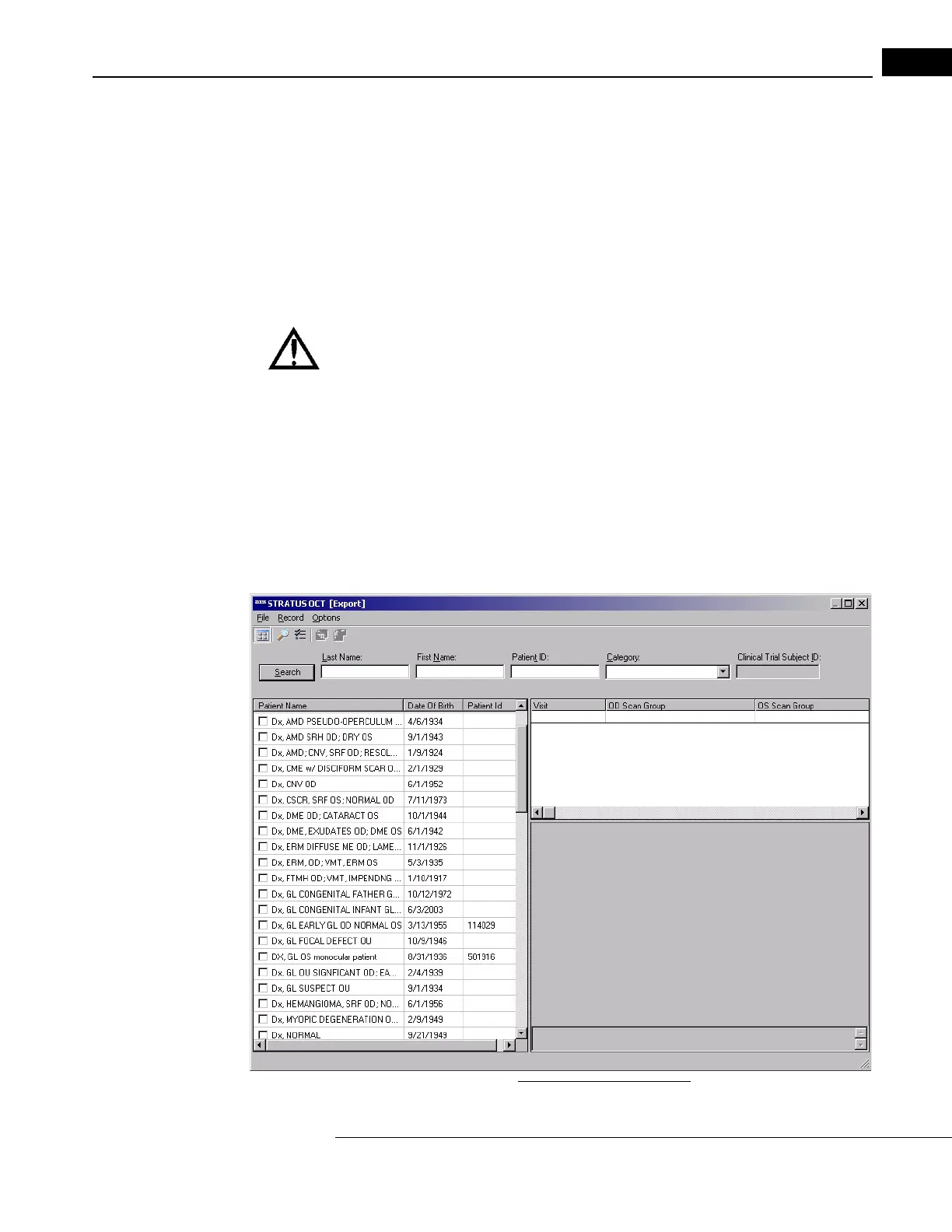
AIN WINDOW, select Export from the Data menu (click Data > Export). The
E
XPORT WINDOW opens.
Figure 9-1 Export Window


 To Next Page