Export and Import Scan Data
Stratus OCT User Manual PN 2660021134133 A
9-4
2. Select the patients and exams whose scan images you wish to export. When you
select a patient, all their visits and exams appear and are selected by default. Deselect
those you do not wish to export. You can select exams from multiple patients.
•Click the Select All button to select the scan images of all patients for export. The
button toggles to Deselect All. Click Deselect All to clear all your selections and
start over. Be aware that exporting a large number of scans can take considerable
time to complete.
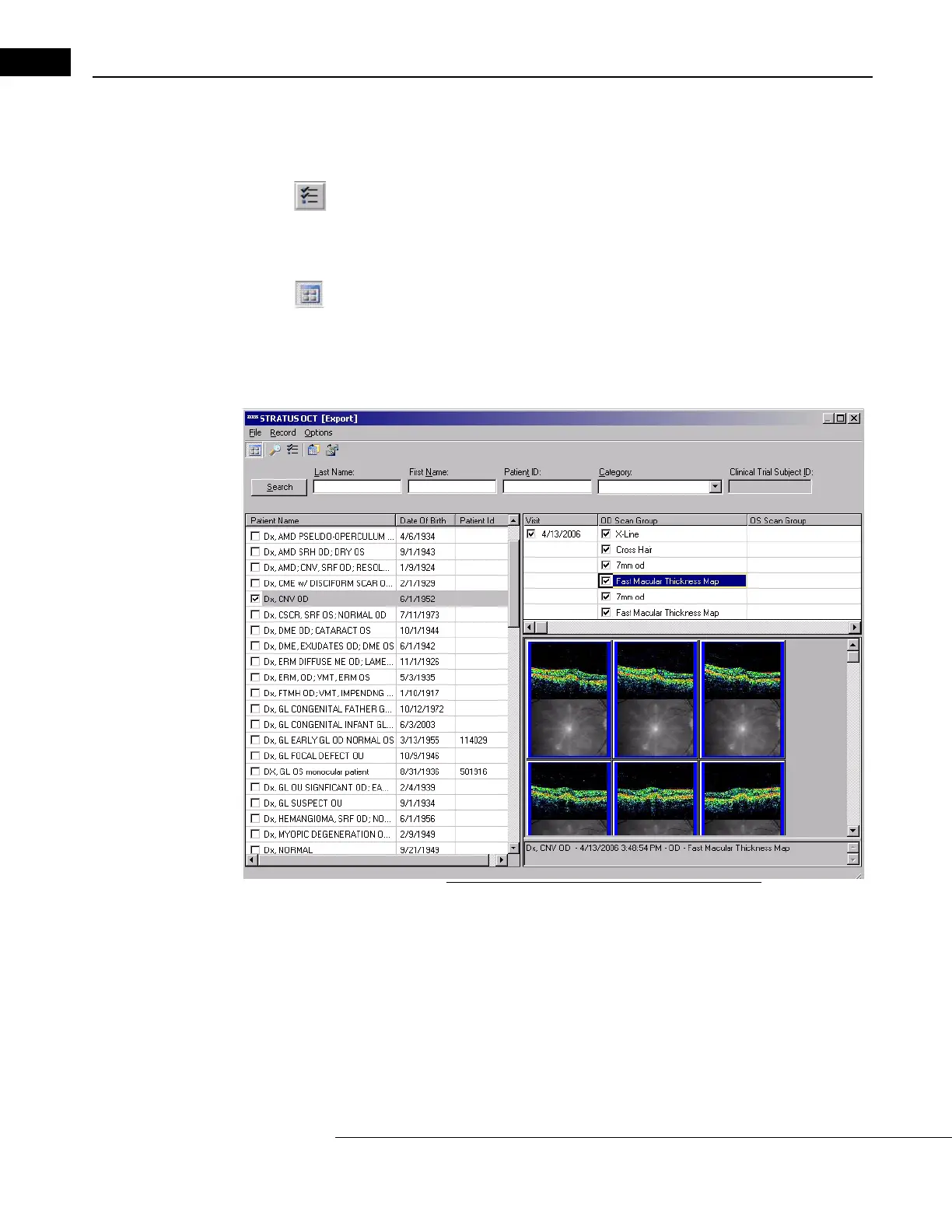
•If the Show Thumbnails button is selected, you can view thumbnails for the scan
group you click on the right, the row for which will be highlighted in blue. See the
example below. Note that a scan group can be highlighted in blue, meaning its
thumbnails will be shown, while its selection checkbox is clear. In this case, its
scans will not be exported.
Figure 9-2 Export Window Showing Thumbnails
Note: A gray patient or visit checkbox with a gray checkmark means that some of
the items it contains are selected and some are not selected.


 To Next Page