Introduction
Stratus OCT User Manual PN 2660021134133 A
1-20
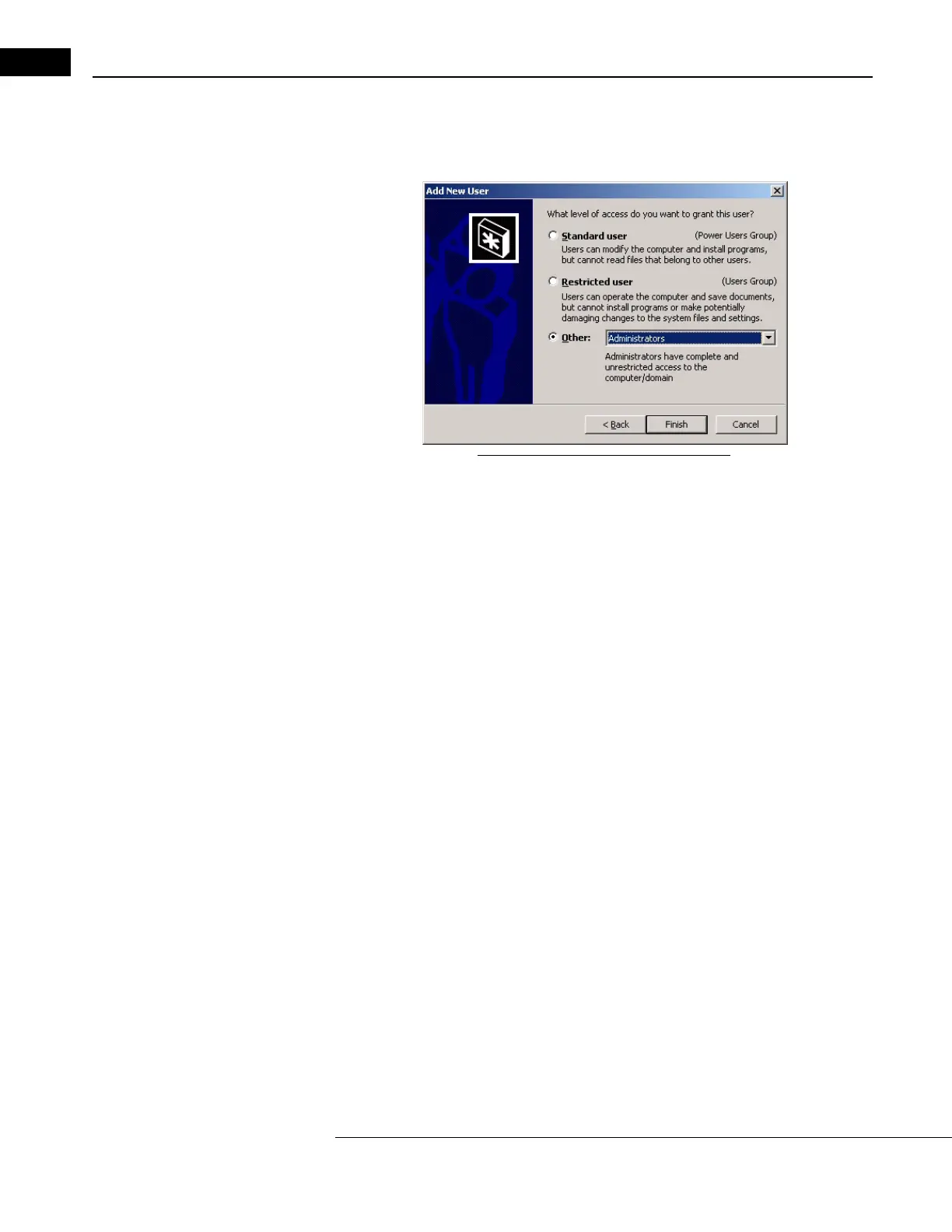
6. The Add New User dialog box now lets you select the level of access of the new user
account. Select the Other radio button and then select Administrators from the drop
down list, as in the example below.
Figure 1-3 Select Other, Administrators
7. Click Finish. You will return to the Users and Passwords dialog box, and the new
account you created will be listed by User Name and Group.
• To add more user accounts, repeat steps 4 through 7.
8. When finished adding accounts, click OK t
o implement your changes and exit. You
can restart the Stratus OCT software by double-clicking on the STRATUS OCT Host
desktop icon.
Log On after Restart
Note: If the Stratus OCT is connected to a network file server, you may be required to
log on to the server as well as the instrument. Check with your network
administrator for the required log on procedures.
The first time you r
estart the system after implementing password protection, you will have
to do the following:
1. The Select Netware Logon dialog box will appear. Click Cancel. A
Netware Network
dialog box will appear. Click Yes.
2. The Windows Logon dialog box will appear with “Adm
inistrator” in the User Name
field. Delete “Administrator” and type in the user name you wish to use. Then enter
the corresponding password in the Password field. The password is case-sensitive.
Click OK.
3. The Getting Started with Windows 2000 dialo
g box will appear. Uncheck the box at
lower left that says, “Show this screen at startup.” Then click Exit.
4. We recommend that you set the Windows taskb
ar properties to auto hide. Right-click
on the taskbar and click Properties. In the Properties dialog box, select the checkbox
next to Auto hide. Then click OK.


 To Next Page