Configuration
LITECOM, Commissioning and maintenance instructions 17.0 | 04.2024 | en 139
Managing profiles
Profiles make it easier to assign lots of different areas, which can be controlled by different users. The created
profiles comprise rooms, groups and zones and can be assigned to any number of users.
Creating a profile
Path: App overview > User management > Profiles
1. Navigate to the path.
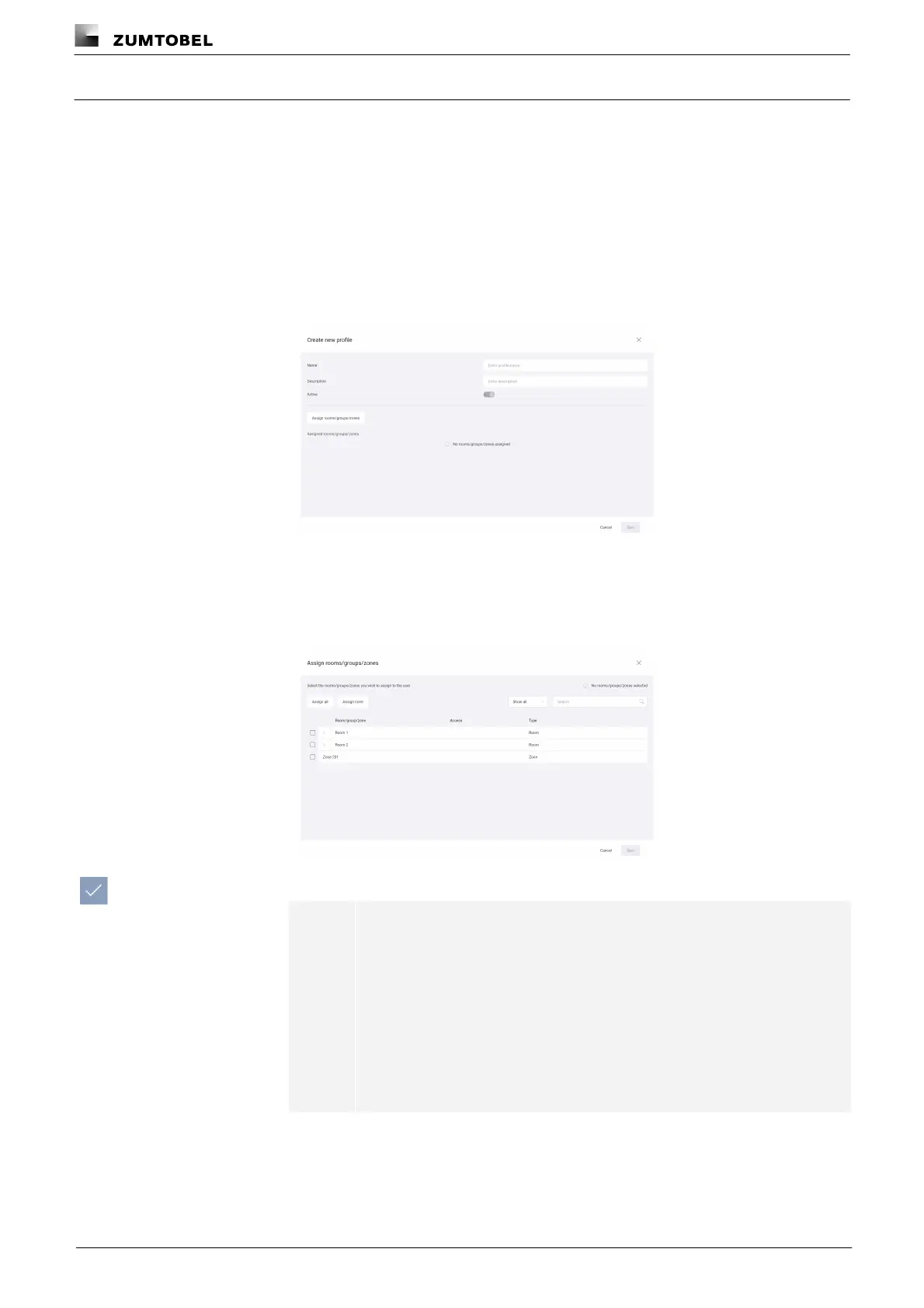
2. Tap the New profile button.
ÜThe Create new profile view is displayed.
3. Enter a profile name.
4. Add a description if necessary.
5. Tap the Assign rooms/groups/zones button.
ÜThe Assign rooms/groups/zones view is displayed.
6. Select the desired rooms, groups and zones to be assigned to the profile.
Note
· Tap the Assign all button to select all available rooms, groups and
zones.
· To remove all previously assigned rooms, groups and zones, tap
the Assign none button.
· You can filter the rooms, groups and zones by tapping Show all or
Show assigned only in the dropdown menu. You can also search
for rooms, groups and zones in the search field.



 To Next Page