Configuration
LITECOM, Commissioning and maintenance instructions 17.0 | 04.2024 | en 95
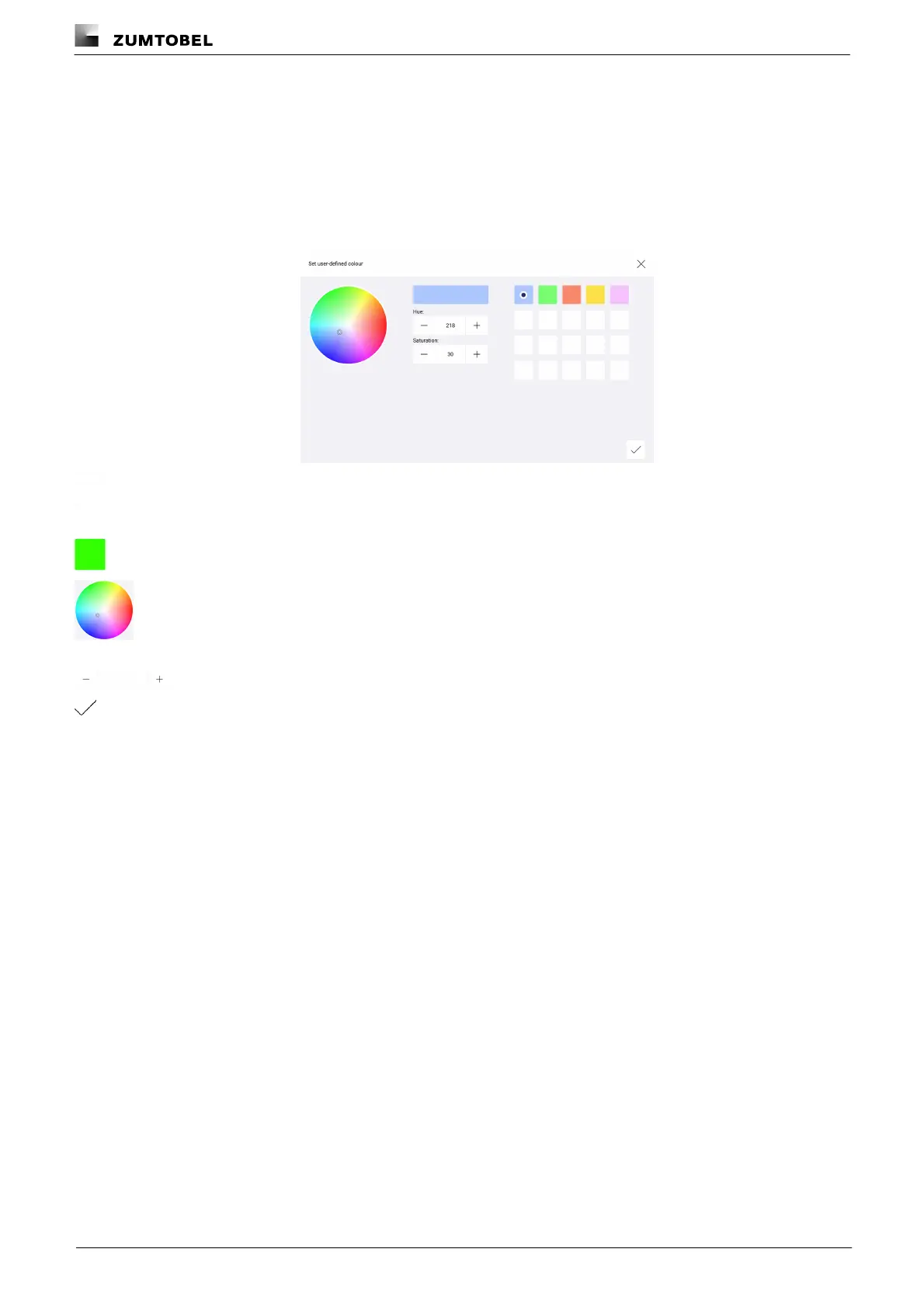
Setting a user-defined colour
For RGB luminaires, either a defined colour can be selected or a custom colour can be set. These custom colours
can either be selected from the colour wheel or be defined by configuring the hue and saturation.
Path: App overview > Scenes > Configure scene > Colour > User-defined
1. Navigate to the path.
ÜThe Set user-defined colour view is displayed.
2. To set a new user-defined colour, tap the empty colour box.
– or –
2. To change an existing user-defined colour, select the desired colour box.
3. Select the desired colour in the colour wheel.
ÜThe selected colour and its hue and saturation are displayed.
– or –
3. Set the desired value for hue and saturation.
4. Tap the tick mark.
ÜThe user-defined colour is applied.
ÜThe Configure scene view is displayed.



 To Next Page