Configuration
LITECOM, Commissioning and maintenance instructions 17.0 | 04.2024 | en 97
Blind position
Configurable for: blinds (type 3), blinds (type 3+4)
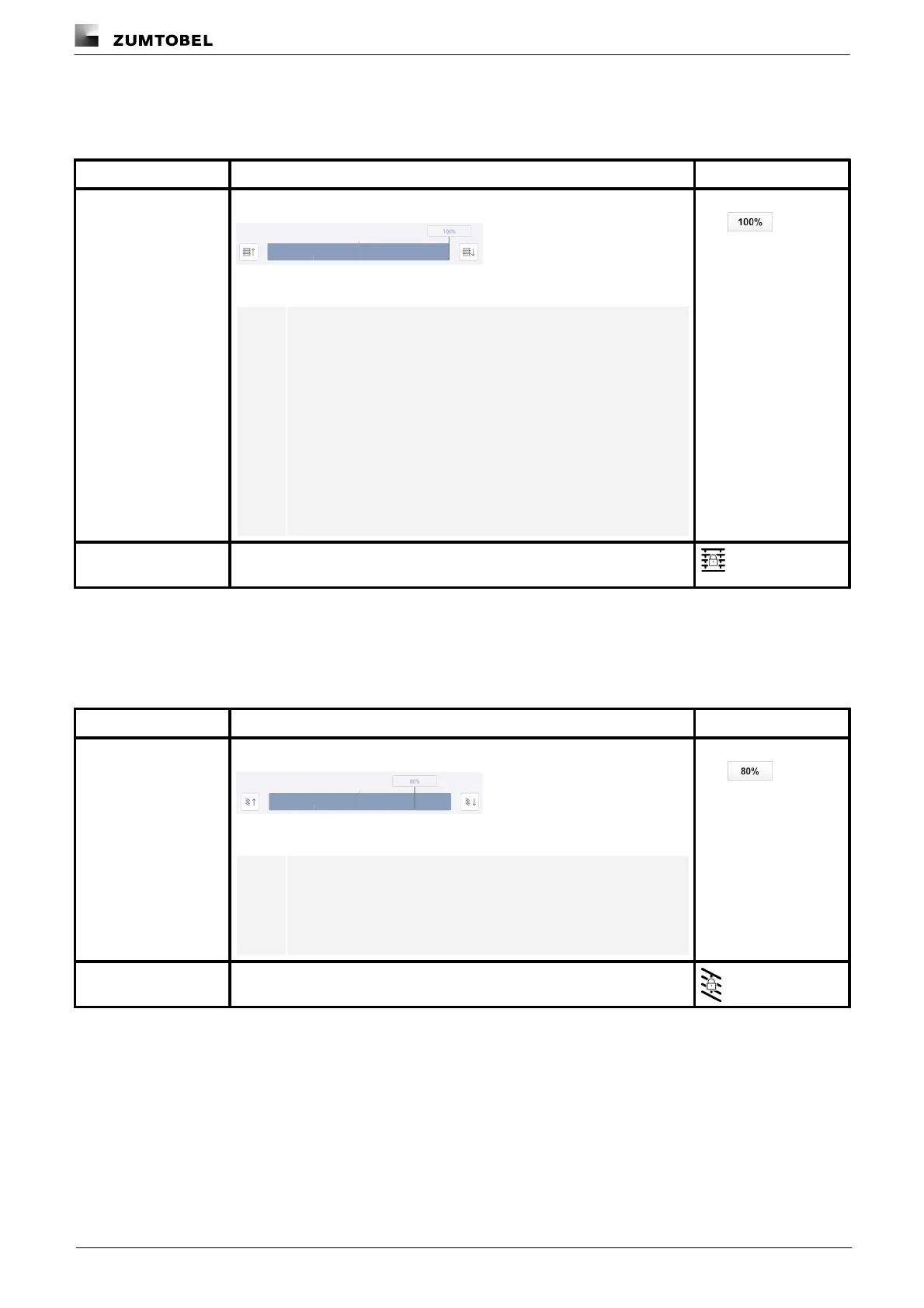
A fixed blind position is applied when the scene is recalled.
Figure 21: Configure scene – extract: fixed blind position
Note
· The values that can be configured using the slider or
buttons depend on the type of blinds. There is a difference
between blinds that can only move to upper and lower end
positions and blinds that can move between upper and
lower end positions and stop in intermediate positions.
· Blind position 0%: The blinds are completely open (upper
end position).
· Blind position 100%: The blinds are completely closed
(lower end position).
The blind does not move with a scene recall. The blind position can still be
changed manually.
Table 53: Configuration options – Blind position
Slat position
Configurable for: blinds (type 4), blinds (type 3+4)
A fixed slat position is applied when the scene is recalled.
Figure 22: Configure scene – extract: fixed slat position
Note
· Slat position 0%: the blind slats are opened.
· Slat position 100%: the blind slats are closed.
The slats do not move with a scene recall. The slat position can still be
changed manually.
Table 54: Configuration options – Slat position



 To Next Page