4
ENGLISH
8
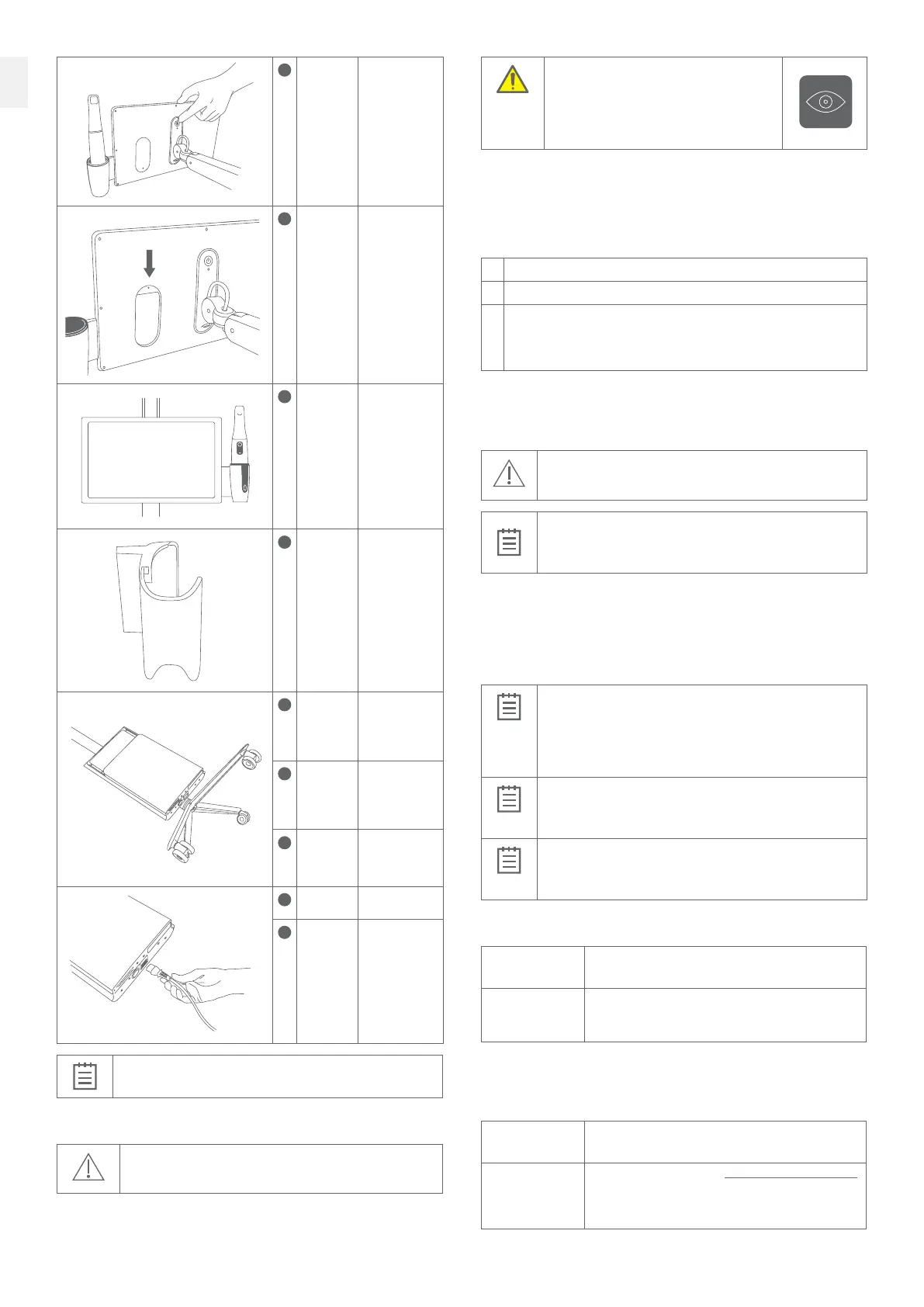
Power
button
Turn the
TRIOSMOVE+
on and off.
9
USB port For servicing
purposes only
(requires torx
key).
10
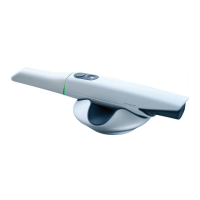
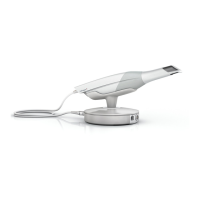
Scanner
holder for
TRIOS5
scanner
Keep the
scanner safe and
easily accessible
when not in use.
11
Scanner
holder for
TRIOS3
and
TRIOS4
scanners
Not part of the
TRIOS5 system.
12
Computer
unit
Holds the
computer
running the
TRIOS Module
software.
13
Power
socket
Connect the
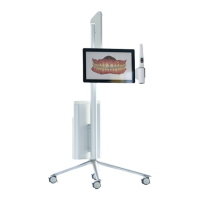
TRIOSMOVE+
power cable to
a wall power
socket.
14
Local Area
Network
(LAN) port
Connect the
computer to
the internet via
Ethernet cable.
15
Fuse
drawer
-
16
Power
cable with
country-
specific
plug
Connect from
a wall power
socket to the
power socket at
the base of the
computer unit.
IMPORTANT NOTICE
Maximum current available for the USB port is 200 mA.
4.8 Setting up TRIOSMOVE+
CAUTION
Let the system adjust to room temperature before use.
WARNING
Examine all parts of the system. Look for physical
damage, loose parts or signs of wear that could
interfere with proper use and functionality.
Contact your service provider if there is visible
damage or malfunctioning.
It is recommended that unpacking and assembling of the TRIOS MOVE+ be performed
by TRIOS authorized technical service personnel.
4.9 Starting and Shutting Down the TRIOSMOVE+
Follow the steps below to start the TRIOSMOVE+ for the first time:
1. Turn on the MOVE+. Start the 3Shape software if it is not starting automatically.
2. Follow the on-screen instructions to configure user settings.
3. Follow the on-screen instructions for configuring TRIOS system settings, such
as connecting the TRIOS 5 scanner.
When using theTRIOS system, theuser is guided bymessages shown inthe
TRIOS software.
Proper shutdown
Inside the TRIOS Module software, click on the 3Shape icon in the bottom right corner and
select Shutdown, or press the standby button on the back of the monitor on the TRIOSMOVE+.
The light under the standby button turns off to confirm that the TRIOSMOVE+ is shut down.
CAUTION
When switching off the system, allow enough time for it to shut down
properly before disconnecting the mains cable.
IMPORTANT NOTICE
The standby button can also be used to force the TRIOSMOVE+ system to
shut down in case the screen stops responding. To force a shutdown, push
and hold the standby button for about 5 seconds. Then, restart the system.
4.10 Starting TRIOS Online Help
The TRIOS online help can be started from the TRIOS Module software by clicking on the
Help button and choosing User Manual.
4.11 Storage, Operating and Transport Conditions
Operating Conditions
Ambient temperature range: +15 – +26 °C (+59 – +78.8 °F)
Relative humidity: 10 – 85 % (non-condensing)
Atmospheric pressure: 800 – 1100 hPa
The TRIOSMOVE+ should be used in an environment maintaining
a consistent room temperature.
Storage Conditions
Ambient temperature range: -10 – +60 °C (+14 – +140 °F)
Relative humidity: 10 – 85 % (non-condensing)
Atmospheric pressure: 800 – 1100 hPa
Transport Conditions
Ambient temperature range: -10 – +60 °C (+14 – +140 °F)
Relative humidity: 10 – 85 % (Non-condensing)
Atmospheric pressure: 620 – 1200 hPa
4.12 Technical Specifications
Power input Power input: 100-240 VAC, 50/60Hz 180 VA max
Insulation class: Class I
Wireless Frequency
Band
2.401-2.483 GHz
5.15-5.725 GHz (the actual frequencies are dependent on local
regulations and the configuration of the product.)
IT Network equipment
The TRIOS device can be connected to a IT Network for the purpose of internet connection,
data transmission between scanner and PC, and communication with other 3Shape products
on an IT Network.
Network
characteristics
IPv4 or IPv6
Static or dynamic address.
Network
configuration
Firewall open for ports found on https://help.3shape.com/en-US/
under Network Connections.
For further information on network configuration, contact
3Shape Support.


 To Next Page
 Loading...