Chapter 3 Software Navigation
Page 100 of 314 Part Number: 0160-6411, Rev A, 02/2019
Software Release: cOS 5.00
be adjusted once the diameter of the pupil has been identified. Pupil Maximized may
be useful in cases of small non-dilating pupils.
─ Limbus—uses the identified limbus to center the capsulotomy
─ Scanned Capsule—uses the INTEGRAL GUIDANCE System data for the anterior and
posterior lens surfaces, and the line connecting the centers of the spheres fitted to
these surfaces, to center the capsulotomy
─ Custom—allows you to drag the touchscreen image to the desired location within the
safety zone when in the treatment screens. Dragging is only available during
treatment.
Once you have chosen valid settings, the selected diameter displays in the center of the eye
model, as shown in the preceding figure. Press the DETAILS button to proceed to the
Capsulotomy Details Screen, the BACK button to return to the Plan a Treatment Screen, or the
NEXT button to proceed to the (Basic) Screen for the next treatment in the sequence.
NOTES
If you selected only the capsulotomy treatment on the Plan a Treatment Screen, pressing the
NEXT button on the Capsulotomy (Basic) Screen will take you directly to the Treatment Plan
Summary Screen.
If you press the HOME button on the Capsulotomy (Basic) Screen, the current treatment
parameters will be saved.
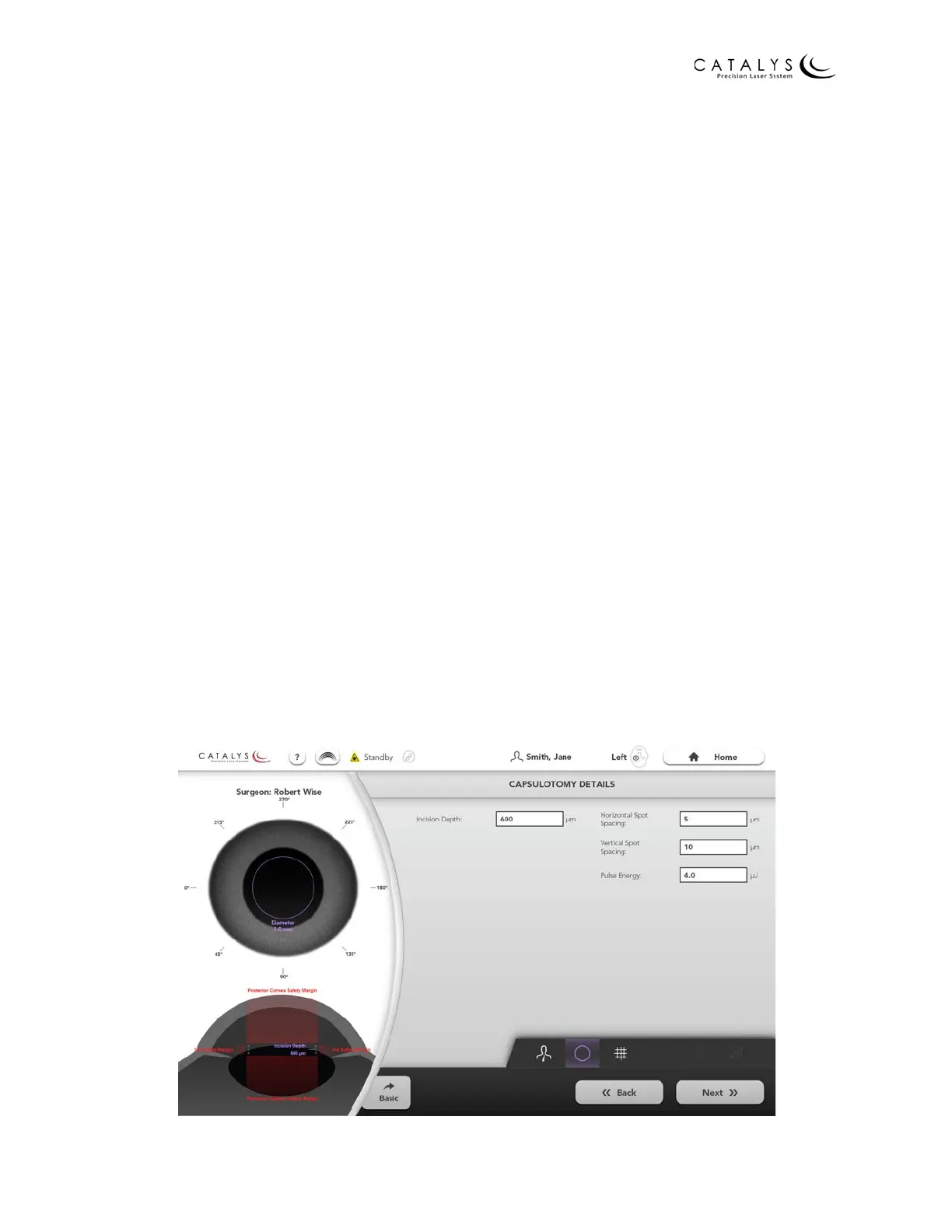
Capsulotomy Details Screen
To access the Capsulotomy Details Screen, press the DETAILS button on the Capsulotomy (Basic)
Screen or the Quick Navigation Bar Capsulotomy Icon on the Lens Fragmentation, Arcuate
Incisions, or Cataract Incisions Primary or Sideport(s) Details Screen.
Figure 3.59 Capsulotomy Details Screen


 To Next Page