Chapter 3 Software Navigation
Part Number: 0160-6411, Rev A, 02/2019 Page 83 of 314
Software Release: cOS 5.00
3.3 Planning Screens
There are three main types of planning screens, all of which appear essentially the same but
perform different functions:
• Default Details Screens—allow you to set custom default parameters
• Treatment Template Screens—allow you to add templates with preset parameters, which
can be recalled from the Treatment Planning Screens
• Treatment Planning Screens—allow you to add an individual treatment plan for a given
patient
The unique features of the three types of planning screens are described in the following
sections. Refer to Treatment Planning Screens on page 97 for a detailed explanation of the
parameters on each screen.
For corneal incisions, detailed default settings are separated into laser default details, such as
pulse energy, and geometric default details, such as side cut angle and other parameters related
to incision architecture.
Planning Screen Conventions
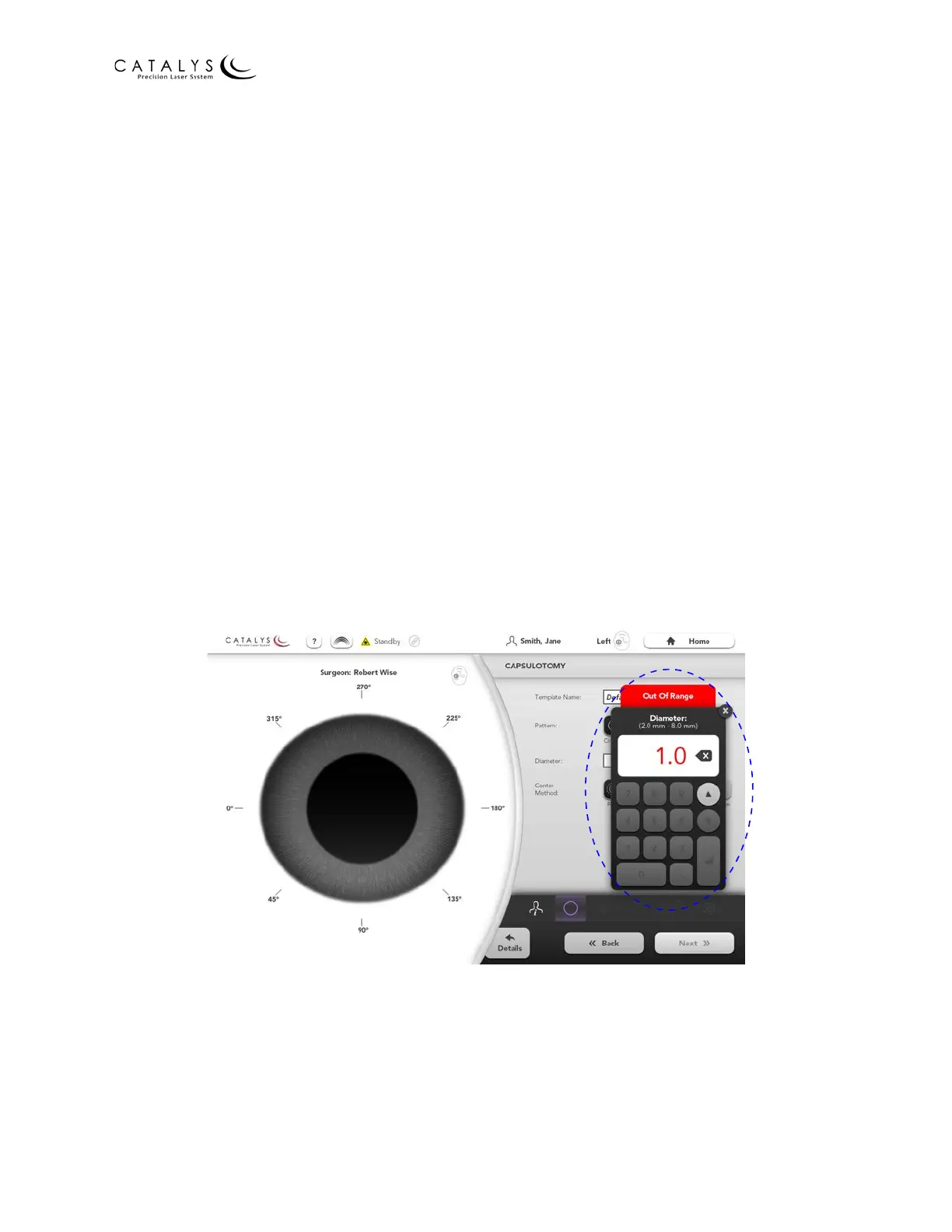
When you touch a parameter field on a planning screen, an input keypad displays on the screen.
The range of allowable settings is shown at the top of the keypad. If you select a value that is
outside of this range, you receive an “out of range” error, as shown in the following figure.
Figure 3.35 Out of Range Error and Input Keypad on the Planning Screen
If you select a value other than the default value for any parameter, an asterisk displays to the
left of the value and a “return-to-default” button displays to the right, as shown in the following
figure. Press the “return-to-default” button to revert to the default value displayed on the
button. The default value may be derived from the system defaults, the Default Details, or the
Treatment Template, as appropriate.


 To Next Page