Chapter 3 Software Navigation
Part Number: 0160-6411, Rev A, 02/2019 Page 63 of 314
Software Release: cOS 5.00
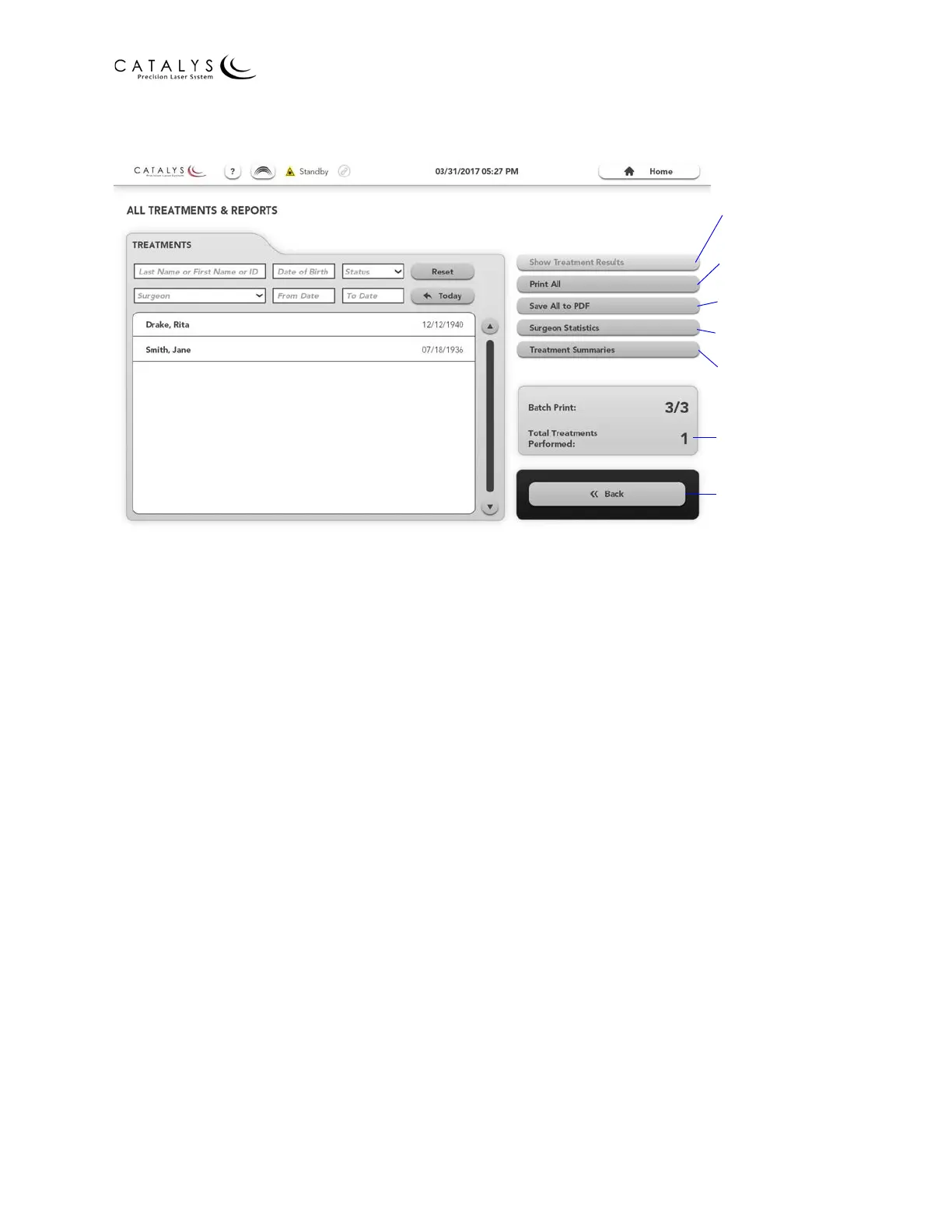
Figure 3.5 All Treatments & Reports Screen
NOTES
If search parameters are entered (for example, Status: Pending), then pressing the PRINT ALL or
SAVE ALL TO PDF button will print or save treatment reports for all treatments that fit the search
parameters. If no search parameters are entered, then pressing the PRINT ALL or SAVE ALL TO
PDF button will print or save treatment reports for all of the pending, treated, aborted, or
disabled treatments created by all users.
To print or save a single treatment report, select the desired treatment, then press the PRINT
SELECTED or SAVE SELECTED TO PDF button.
Refer to Printing the Treatment Report(s) on page 64 and Saving the Treatment Report(s) on
page 66 for additional instructions.
Treatment Results Screen
From the All Treatments & Reports Screen, select the desired patient to view a list of treatments
for that patient. Select the desired treatment from the list, and then press the SHOW
TREATMENT RESULTS button to go to the Treatment Results Screen for that treatment. From the
Treatment Results Screen, you can:
• View treatment results
• Scroll through the treatment report
• Save the treatment report as a PDF file
• Print the treatment report to a network printer
• Return to the All Treatments & Reports Screen
Show Treatment
Results
Print Treatment
Reports
Save Treatment
Reports to PDF
View Surgeon
Statistics
View Treatment
Summaries
Total Treatments
Performed
Return to Previous
Screen


 To Next Page