Cable and Antenna Analyzer 2-18 Limit Menu
Cable & Antenna Analyzer MG PN: 10580-00241 Rev. B 2-37
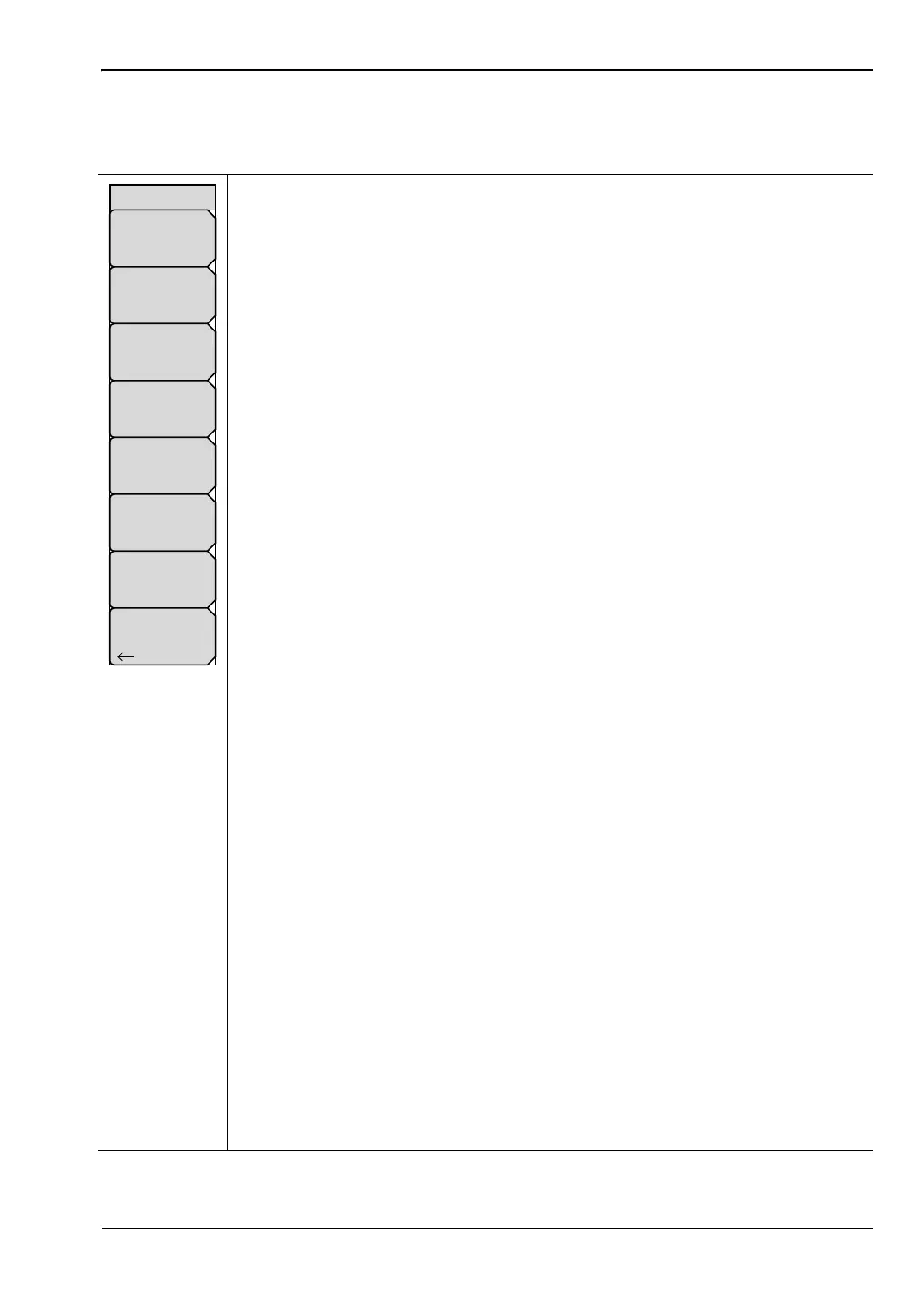
Limit Edit Menu
Key Sequence: Shift > Limit (5) key > Limit Edit
Point Frequency: The frequency of each point in a limit line can be individually
set. When a new point is added, it takes on a value halfway between two
existing points, or the stop frequency of the current sweep if there is no point
higher in frequency than the one being added. See the Add Point submenu key
description for more details. Use the keypad, the Left/Right arrow keys, or the
rotary knob to change the frequency of a point.
Point Value: The amplitude of each limit point can also be individually set. By
default, when a new point is added, it takes on the amplitude that is on the limit
line at the frequency where the point was added. Use the keypad, using the
± key as the minus sign, the Up/Down arrow keys or the rotary knob to move
the point to the desired value. The unit of the amplitude limit is the same as the
current vertical amplitude unit. See the Add Point submenu key description for
more details.
Add Point: The precise behavior of this submenu key depends on which limit
point is active at the time the key is pressed. If the active limit point is
somewhere in the middle of a multi-segment limit line, a new limit point will be
added that is halfway between the currently active point and the point
immediately to its right. The amplitude of the point will be such that it falls on the
limit line. For example, if there is a limit point at 2.0 GHz with an amplitude of
–30 dBm and the next point is 3.0 GHz with an amplitude of –50 dBm, the
added point will be at 2.5 GHz with an amplitude of –40 dBm. The frequency
and amplitude values of the new point can be adjusted as needed with the
Frequency and Amplitude submenu keys. If the last limit point is active
(assuming it is not at the right edge of the display) the new limit point will be
placed at the right edge of the display at the same amplitude as the point
immediately to its left. Points may not be added beyond the current sweep limits
of the instrument.
Delete Point: This submenu key deletes the currently active point. The active
point becomes the one immediately to the left of the point that was deleted.
Next Point Left: This submenu key selects the limit point immediately to the left
of the active point, making it active for editing or deletion. With each key press,
the indicator of which point is active moves one limit point to the left until it
reaches the left edge of the screen.
Next Point Right: This submenu key selects the limit point immediately to the
right of the active point, making it active for editing or deletion. With each key
press, the indicator of which point is active moves one limit point to the right until
it reaches the right edge of the screen.
Move Limit: This submenu key allows an entire single or multi-segment limit
line to be moved up or down by the number of dB entered using the keypad, the
Up/Down arrow keys, or the rotary knob. The units for this amount will be the
current display units as selected under the Amplitude menu.
Back: Returns to “Limit Menu” on page 2-36.
Figure 2-31. Limit Edit Menu
Limit Edit
Point Freq
400 MHz
Point Value
140.00
Add
Point
Delete
Point
Next
Point
Left
Next
Point
Right
Move Limit
0.0 dB
Back







 To Next Page