5-6 Updating the Cell Master Firmware System Operations
5-8 PN: 10580-00250 Rev. K Cell Master UG
5-6 Updating the Cell Master Firmware
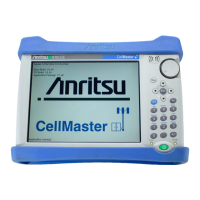
The Cell Master is updated using a USB memory stick. Updated product information can be
found on the Anritsu website:
http://www.anritsu.com/
Search for the product model number. The firmware updates are on the product page under
the Library tab in the “Drivers, Software Downloads” section.
1. Click on the “Firware Update for the Cell Master MT821xE” link.
2. Click the “Download” button and then “Run”. After the download is complete, press
“Run” again and follow the onscreen instructions. Press “Help (?)” for additional
information.
3. After the firmware update is saved on the USB memory stick, eject the memory stick
from the computer.
4. Turn the Cell Master off and insert the USB memory stick into the Cell Master.
5. Connect the AC adapter and turn the Cell Master On.
6. The instrument should update automatically. Follow the instrument prompts.
7. If the automatic update did not start, complete the following steps:
a. On the instrument press the Shift key and then the System (8) key.
b. Press the following key sequence: System Options > Reset > Update Firmware.
The Load Firmware menu opens.
c. Press the Load Firmware main menu key (located at the bottom-left corner of the
instrument screen).
d. Press the Update Application Firmware submenu key.
e. From the choices presented, select the desired “Save” mode.
f. Press the Enter key to begin the firmware update.
g. Press the Enter key one more time to confirm that you want to upgrade the
instrument firmware.
8. After the update is compete, the Cell Master will restart.
Note The “Release History” link provides a summary of the firmware changes.
Note
Do not turn off the instrument during the firmware update to avoid potential
permanent damage to the instrument.







 To Next Page