File Management 4-4 File Menu
Cell Master UG PN: 10580-00250 Rev. K 4-13
Copy Menu
Key Sequence: File > Copy
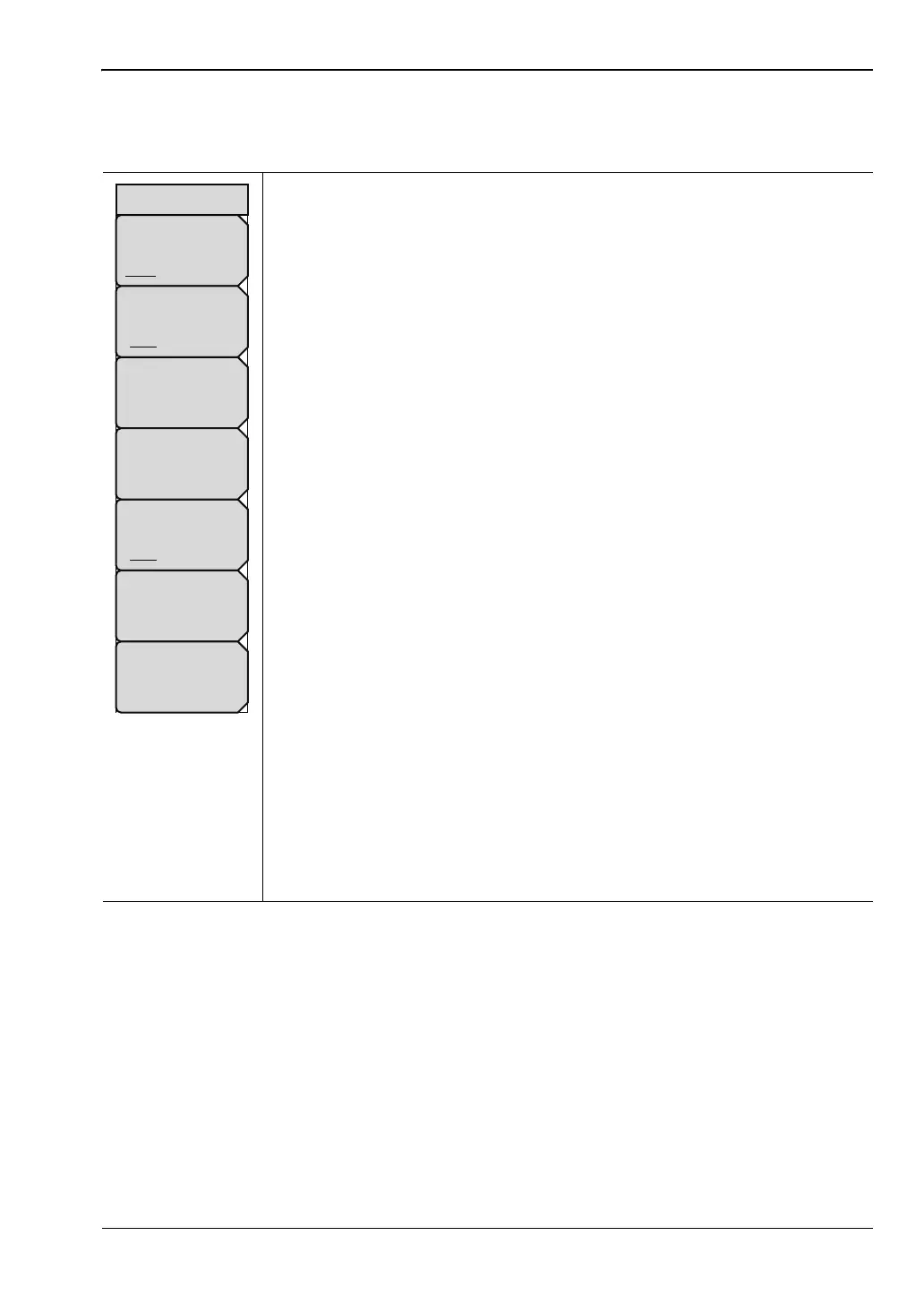
This menu and dialog box is used to copy folders and files. Select folders or
files with the Up/Down keys, the rotary knob or the touch screen. Figure 4-4
on page 4-5 shows the Copy dialog box with two Jpeg images and one
folder (including the folder’s contents) selected and ready to be copied to the
USB flash drive. Highlight a folder and press Enter to view the contents.
Sort By: Press this submenu key to sort file and folder lists by name,
by type of file, or by the date that the file was saved.
Sort Order: Displays the folder or file in ascending or descending order
based on the selection in the Sort By key.
File Type: Press this submenu key to select what type of file to view for
copying. The options are: ALL, Measurement, Setup, or Jpeg. The file type
can be changed with the Up/Down keys, the rotary knob, or the touch
screen. Press Enter to make the selection.
Refresh Directories: Press this key to update the display.
Scroll Files To Copy: This key toggles with the Scroll Destination Folder
key. It has the same function as touching the top (Select Files or Directory to
Copy) window in Figure 4-4. When the circle is red you can use the
Up/Down keys or the rotary knob to scroll through the files.
Scroll Scr Dst: Press this submenu key to use the scroll function in the
Source Folder (Scr - top panel) or Destination Folder (Dst - bottom panel).
See Figure 4-4.
Note: Previously saved files are not visible in this window.
Select or De-Select: Use this key to select or deselect the file(s) or
folder(s) to be copied. When selected, a file or folder will be outlined in blue,
see Figure 4-4.
Copy: Copies the files or folders selected in the top window to the
destination selected in the bottom window. A dialog box will display showing
when the copying is complete. If a file with the same name exists in the
destination folder a warning box will display to allow file overwrite or to
cancel.
Figure 4-14. Copy Menu
Sort By
Name Type Date
Sort Order
Asc Desc
Scroll
Scr Dst
File Type
ALL
Refresh
Directories
Select
or
De-Select
Copy
Copy







 To Next Page