3-42
Controls - Cab
X6 - P/N 6525032M1
Bluetooth
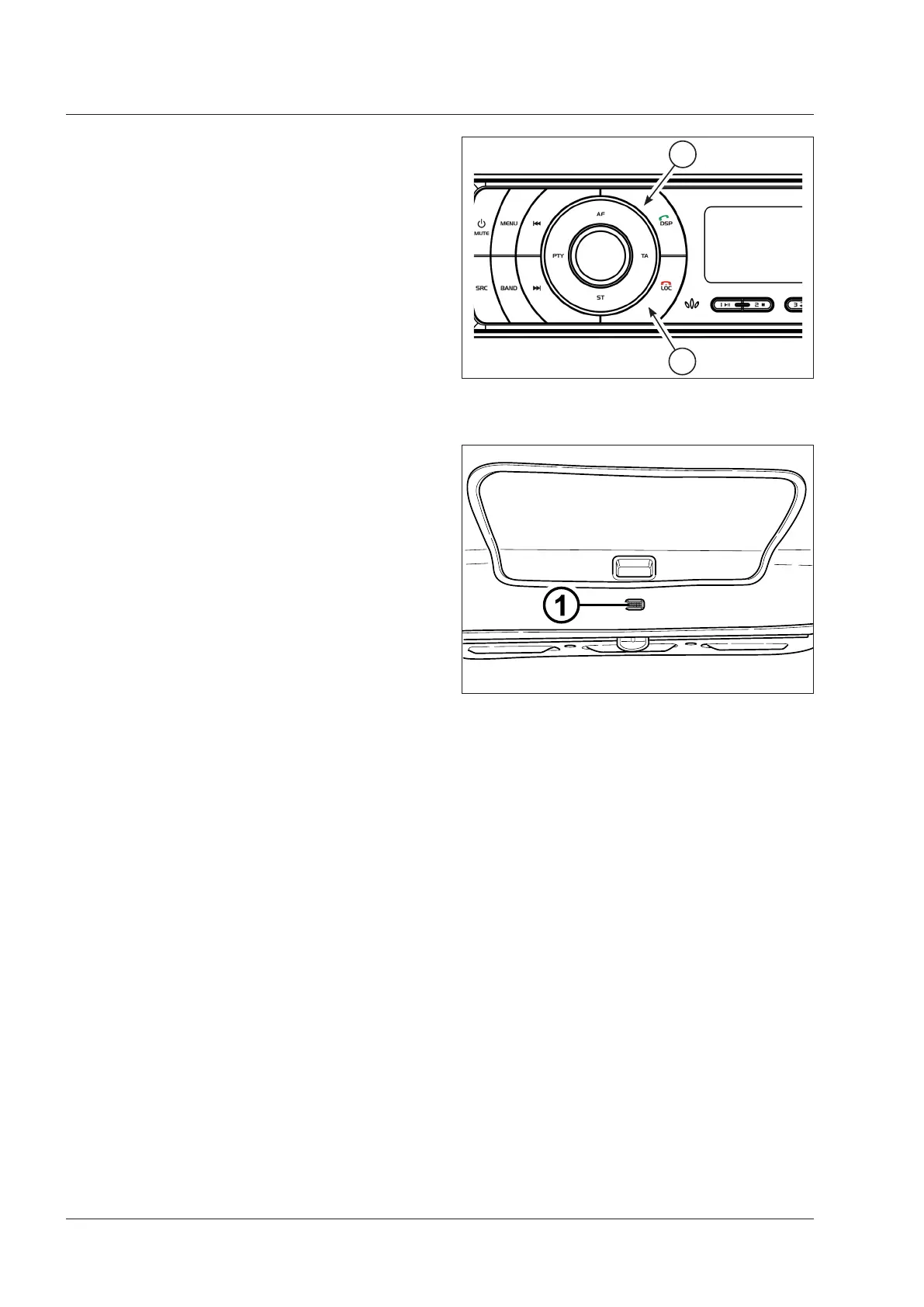
General operation (Fig. 3-80)
The buttons in the front panel of the Bluetooth version
of this radio there are the following additional symbols
“answer” (1) and “hang-up” (2). Press and hold the “An-
swer” button (1) to call the last dialled number.
Pairing
To use the speakerphone function in Bluetooth, a Blue-
tooth mobile phone must be connected by “pairing”. To
pair the mobile phone to the radio, check that the radio is
turned on. On your mobile, search for an available Blue-
tooth connection. Pair to “BT13.1” by the code “1234”.
The mobile should confirm the successful pairing. After
the pairing, many mobiles can automatically restore the
Bluetooth connection when the radio is turned on again
(e.g., when next using the tractor), therefore no pairing
is needed on such phones.
Once the mobile is paired to the radio device, the mobile
can be used in speakerphone mode.
When the mobile is used for outgoing or incoming calls,
the speakers in the cab and the microphone (1 - Fig.
3-81) in front of the operator can be used for voice com-
munication with the cell phone connected to the radio
via Bluetooth device.
If the radio is on, when the phone is paired to the radio,
the audio signal automatically is turned down to allow
the phone communication.
Bluetooth profiles
The Bluetooth version of this radio can be connected in
wireless mode to Bluetooth devices, such as cell phones.
The Bluetooth connection modes are named “profiles”. This radio supports the following profiles:
(1) A2DP: Advanced Audio Distribution Profile – Music playing in streaming of music by means of Bluetooth.
Bluetooth devices with A2DP function can play music from the radio through the sound system of the tractor. Further,
if the device supports the Bluetooth profile AVRCP (Remote Control Profile), the radio can be used to operate func-
tions such as ‘next track’ and ‘previous track’.
(2) HFP: Hands Free Profile – Call or receive calls through Bluetooth (see the previous sections “General operation” and
“Pairing”).
To ensure an optimal sound quality of the connected Bluetooth HFP, the user can select the speakers to use for sound
reproduction. The menu path of the software MENU->SYSTEM->ALT_VOL->HFP_SPKR has three options:
HFP_ALL: sound is output from all four speaker channels (default option).
HFP_FRNT: sound is output only from the front speaker channels; the rear channels are off during phone conver-
sations.
HFP_REAR: sound is output only from the rear speaker channels; the front channels are off during phone conver-
sations.
The default setting is HFP_ALL.
NOTE:
for tractors provided of 2 speakers only, the default setting HFP_ALL is recommended.
Fig. 3-80
1
2
Fig. 3-81



 To Next Page