!
Biodex Medical Systems, Inc. © 2016 67
To Add An Isotope:
1. From the Dose Calibrator Configuration screen, touch <Setup Isotope and
Kit List>. The Setup Inventory Isotopes and Kits screen is displayed.
2. Touch <Add Isotope>. The select current Isotope List is displayed.
3. Use the <▲ > or <▼ > keys to scroll through the Isotope Lists (Routine Isotopes, Custom
Isotopes and the full Alphabetical list of Isotopes) and touch to highlight the selection de-
sired.
4. Touch <Enter> to select the desired isotope and return to the Nuclear Pharmacy screen, or
touch <Cancel> to return to the <Count> screen without adding the new isotope.
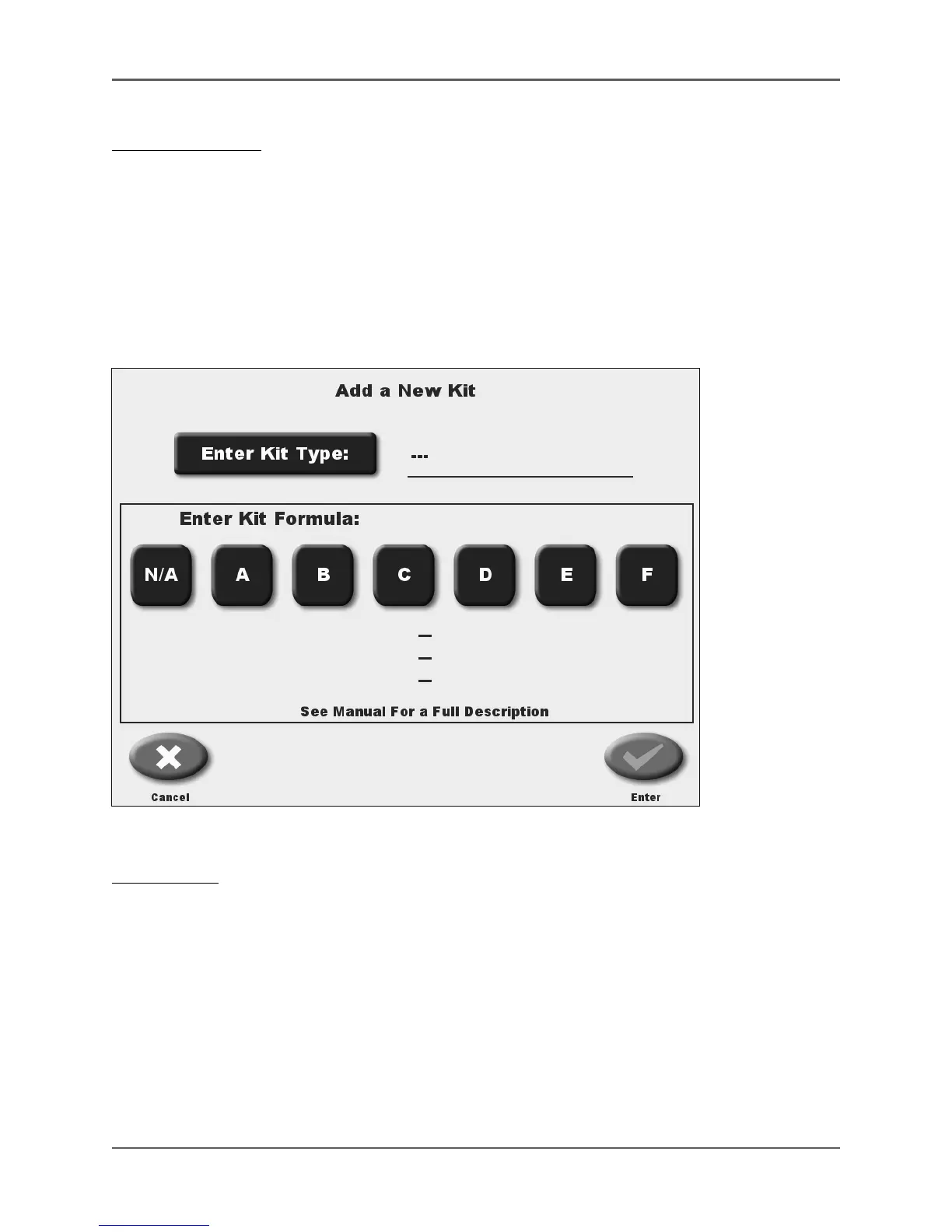
Figure 4.26. The Add a New Kit screen.
To Add A Kit:
1. From the Dose Calibrator Configuration screen, touch <Setup Isotope and
Kit List>. The Setup Inventory Isotopes and Kits screen is displayed.
2. Touch <Add Kit>. The Add a New Kit screen is displayed.
3. Touch <Enter Kit type>. Key in the kit type on the enter Kit type screen and touch <Enter>
to return to the Add a New Kit screen.
4. Enter the kit formula by touching the corresponding letter button. The kit formula is now
displayed. You must select a kit type before you can save the kit. You can select N/A if there is
no formula available.
NOTE: See Appendix K for a listing of kit types and formulas programed into the system.



 To Next Page