5-2
¡
Accessing System Setup
Accessing System Setup
When you change the pre-set system settings your system shipped with,
you change the default values your system uses to determine how your
printer works. The changes you make in the System Setup screens apply
to your entire system.
Note: Be cautious about changing system settings. Remember that
changes you make will apply to your entire printing system.
To cancel changes and return to the default settings, touch or
click the Cancel button, shown at the left, while displaying any
of the system preference option tabs. Or press <Cancel> on your
keyboard.
To access the System Setup settings options
1. Choose the Setup button on the Main Menu screen (shown in
Figure 3-1 on page 3-2).
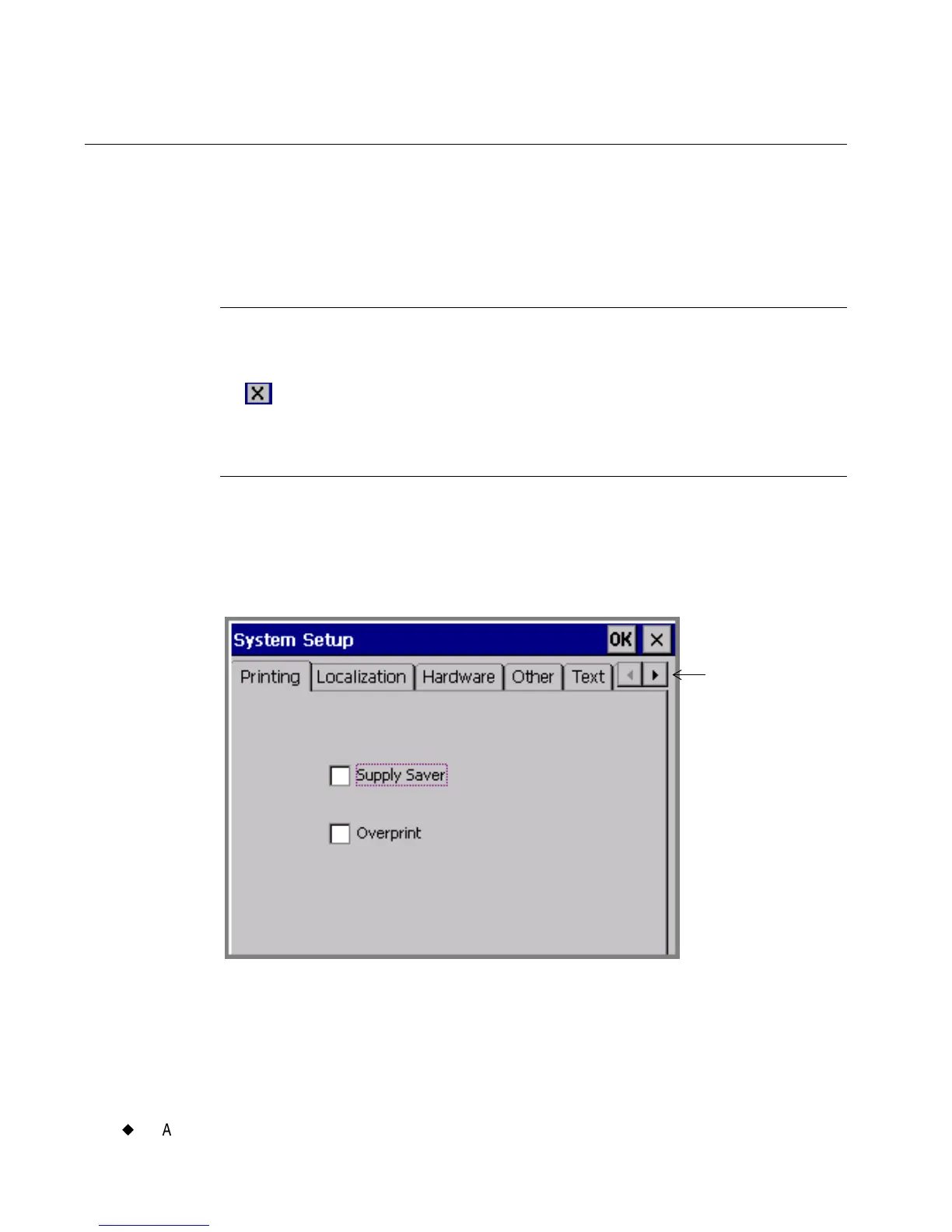
You’ll see the System Setup screen, shown here:
Figure 5-1. The System Setup screen.
The System Setup screen has as many as six tabs with options. Five
tabs are visible at one time on the screen. You may see fewer tabs at
times, depending on where you are in the system.
Use Tab
arrows to see
additional
tabs, unless
grayed out.



 To Next Page