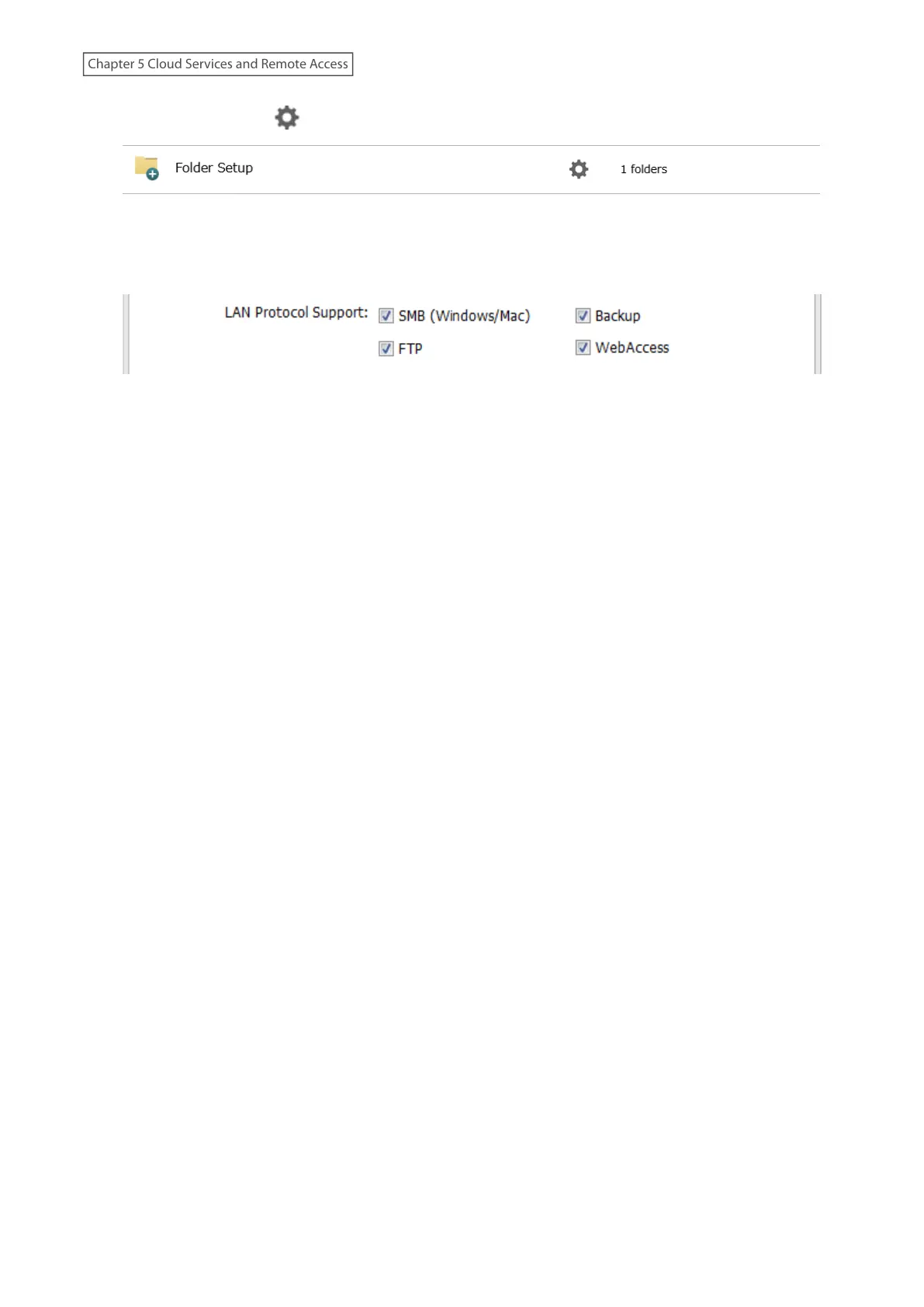
3 Click the settings icon ( ) to the right of “Folder Setup”.
4 Choose a folder to enable remote FTP access on.
5 Under “LAN Protocol Support”, select the “FTP” checkbox on the Basic tab.
6 Select read-only or read and write for the shared folder’s attribute on the Option 2 tab and click OK.
Accessing the LinkStation with an FTP Client
To access the LinkStation via FTP, configure your FTP client software with the following settings:
• Hostname: IP address of the LinkStation
• Username: the LinkStation’s username
• Password: the LinkStation’s password
• Port: 21
Accessing the LinkStation with an Anonymous User
To allow anonymous access to your FTP share, disable access restrictions. Configure your FTP client software with
the following settings for anonymous FTP access:
• Hostname: IP address of the LinkStation
• Username: “Anonymous”
• Password: any character string
• Port: 21
Notes:
• If the LinkStation joins a domain, domain and anonymous users cannot remote access via FTP.
• Shared folders connected by FTP are available from the “/mnt” folder. The examples of default locations are:
/mnt/array1/share
/mnt/disk1/share
/mnt/usbdisk1
• For FTP connections, make sure that the total filename length including the folder path is 250 single-byte
characters or fewer.
134
Chapter 5 Cloud Services and Remote Access











 To Next Page