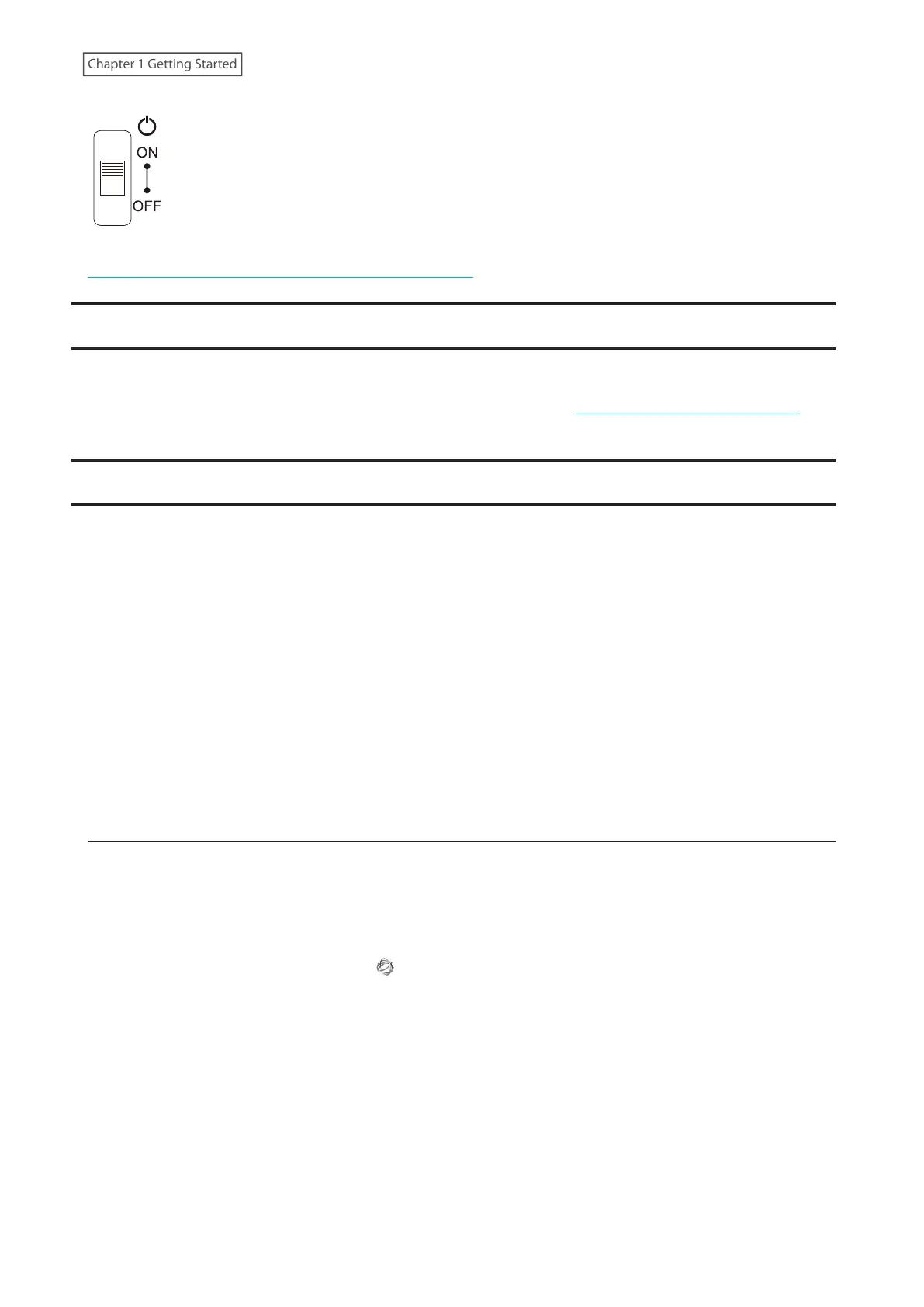
You can also shut down or restart the LinkStation remotely from Settings. For the detailed procedure, refer to the
“Shutting Down or Restarting the LinkStation from Settings” section below.
Creating a USB Initialization Drive
We recommend creating a USB initialization drive as soon as possible. This USB drive can be used to initialize the
LinkStation’s settings to its factory default values or recover the system if your LinkStation encounters an error
that prevents the unit from booting. For the detailed procedure, refer to the “Creating a USB Initialization Drive”
subsection in chapter 7.
Accessing Settings
Configure and manage your LinkStation using the Settings interface, accessible from a browser window. Open
the interface using the appropriate procedure below or type the LinkStation’s IP address into the URL field of your
browser.
Note: Microsoft Edge, Firefox, Google Chrome, Internet Explorer 9 or later, and Safari 9 or later are supported. If you
have difficulty viewing Settings, check the following:
• If you use Internet Explorer to open Settings, the interface may not be displayed properly. In such a case, use
another browser.
• If you have a proxy server enabled in the browser settings, configure the exception settings for Settings or disable
the proxy server.
• With Internet Explorer, set security to Local intranet. On Windows Server operating systems, higher-level security
is configured by default. Set the security to a lower level temporarily.
• If there are a large number of created users, groups, or shared folders, the Settings interface may take a longer
time (up to 20 minutes) to load.
Opening Settings
You can open Settings from a computer or a mobile device. Follow the appropriate procedure below to open
Settings.
Using a Computer
1 Double-click the NAS Navigator2 icon ( ) to start NAS Navigator2.
13
Chapter 1 Getting Started











 To Next Page