Chapter 7 Settings Backup/Restoration
Saving and Applying Settings
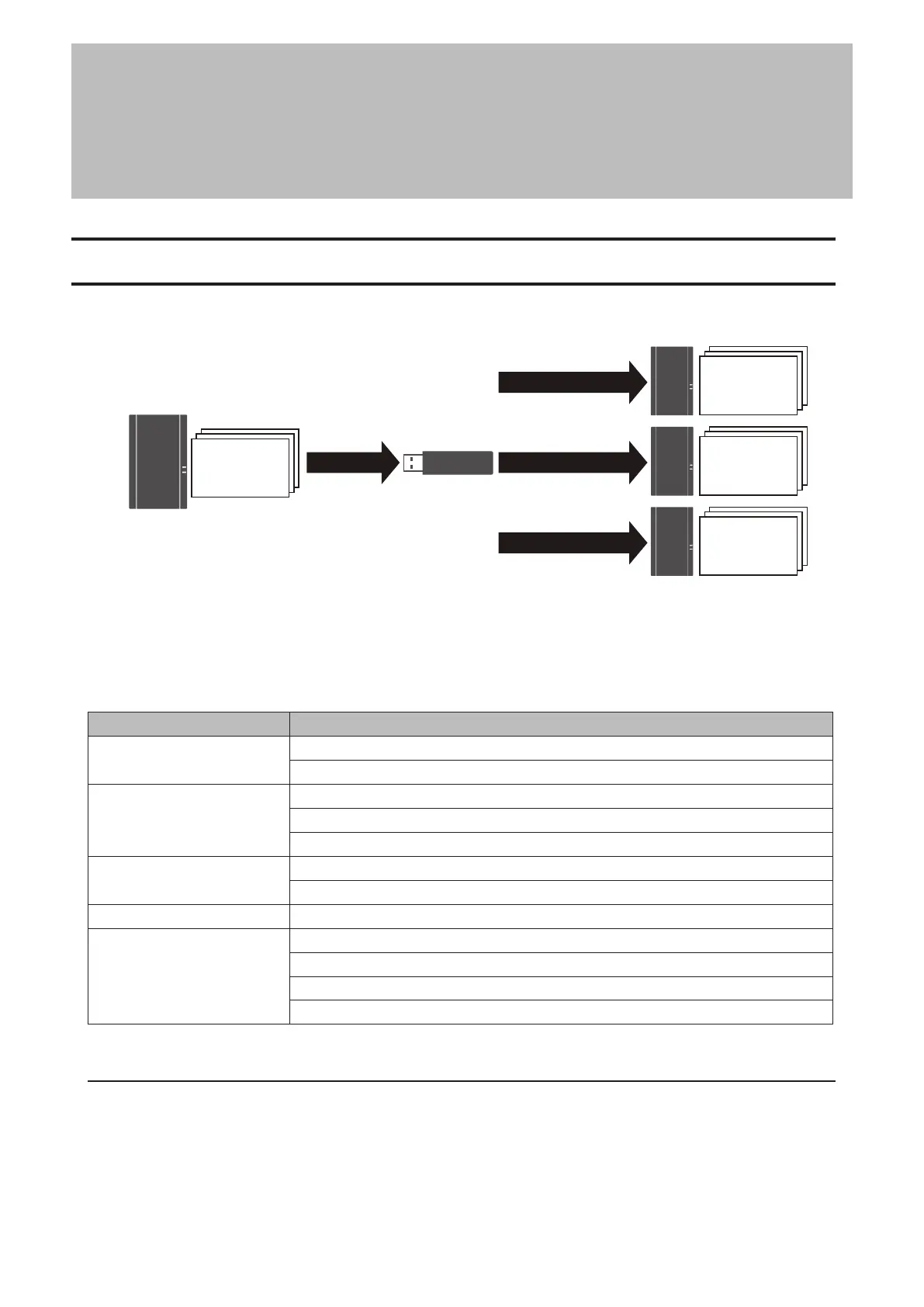
The LinkStation’s settings can be saved to a USB memory device and applied to another Buffalo NAS device of the
same series. Use this feature to back up or copy settings to a new Buffalo NAS device.
Save
Settings &
Firmware
Settings &
Firmware
Settings &
Firmware
Settings &
Firmware
Restore
Restore
Restore
Write down the drive configuration (number of drives, RAID, LVM, etc.) of the Buffalo NAS device whose settings
were saved. Make sure that any Buffalo NAS devices that you apply these settings to have the exact same drive
configuration before you apply the settings. If the drive configuration is different, you may get unexpected results.
Also, make sure the USB memory device to save settings to is compatible with USB 3.2 Gen 1/3.1 Gen 1/3.0
specifications.
The following settings are not saved or applied:
Category Settings
File Sharing
All settings for USB drives
Shared folders created on LVM volumes
Storage
All settings in “Drives”
All settings in “LVM”
USB drive information
Cloud Storage
Job settings of Dropbox Sync
Job settings of Microsoft OneDrive Sync
Network All settings except for Wake-on-LAN and MTU size settings in “IP Address”
Management
The LinkStation’s hostname
All settings in “Power Management”
All settings in “SSL”
Display language in Settings
Saving Settings
1 Insert a 1 GB or larger USB memory device (not included) into a USB 3.2 Gen 1 port on the LinkStation.
Note: All data on the USB memory device will be erased!
152
Chapter 7 Settings Backup/Restoration











 To Next Page