Chapter 8 Network Settings
Wake-on-LAN
The LinkStation supports Wake-on-LAN, which allows it to be turned on remotely. The LinkStation will be turned on
automatically when receiving a Wake-on-LAN packet in the following situations: the LinkStation turns off but the
power switch left in the “On” position, the LinkStation enters sleep mode.
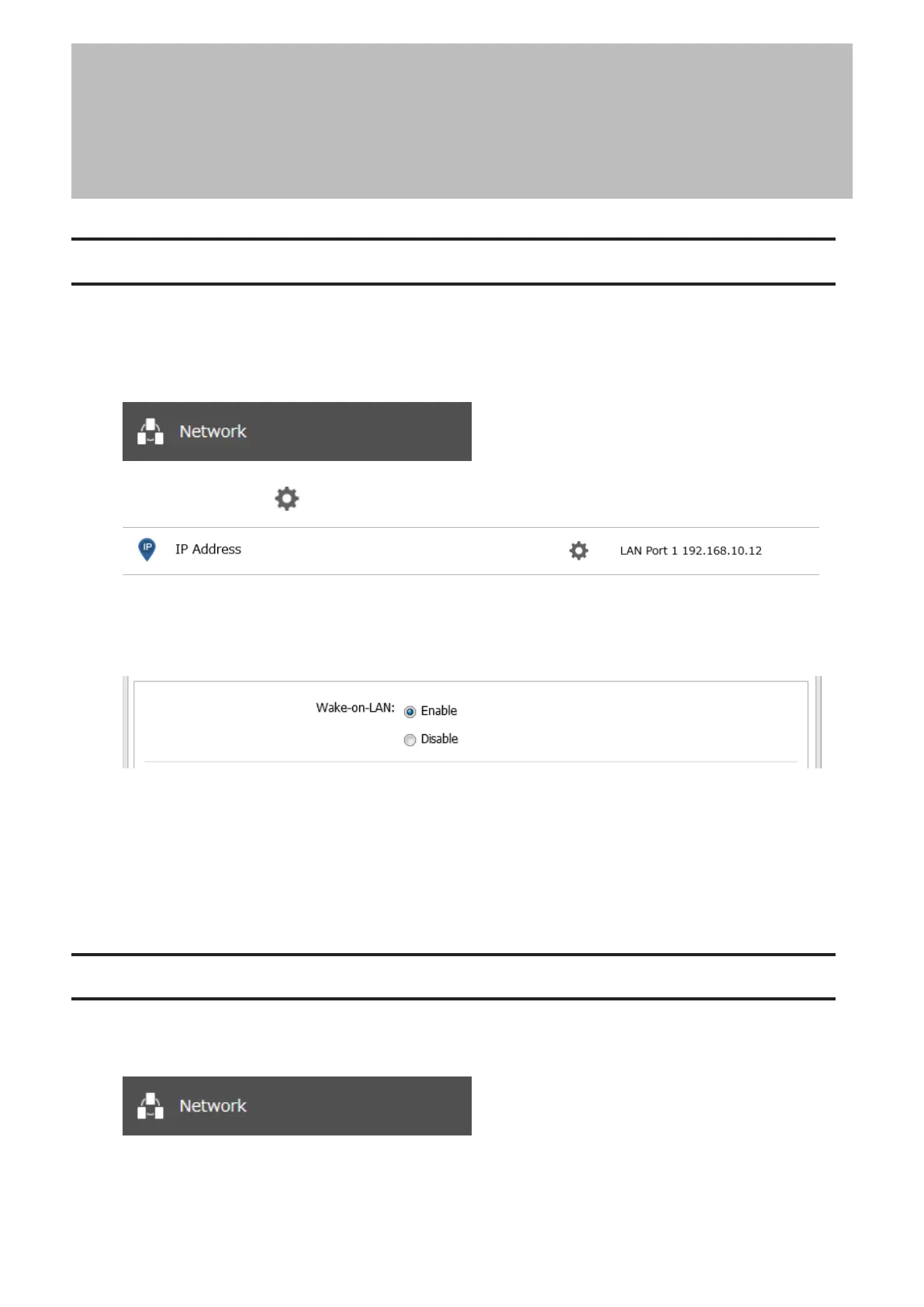
1 From Settings, click Network.
2 Click the settings icon ( ) to the right of “IP Address”.
3 Click Edit.
4 Enable “Wake-on-LAN”, then click OK.
Wake-on-LAN is now enabled. As long as the LinkStation is connected to a power source and the network, you can
turn it on remotely.
Notes:
• After receiving the Wake-on-LAN packet, the LinkStation may take up to five minutes to be ready to use.
• To use Wake-on-LAN, you’ll need Wake-on-LAN software that sends Wake-on-LAN packets. The LinkStation does
not include Wake-on-LAN software.
SNMP
If SNMP is enabled, you can browse your LinkStation from SNMP-compatible network management software.
1 From Settings, click Network.
159
Chapter 8 Network Settings











 To Next Page